

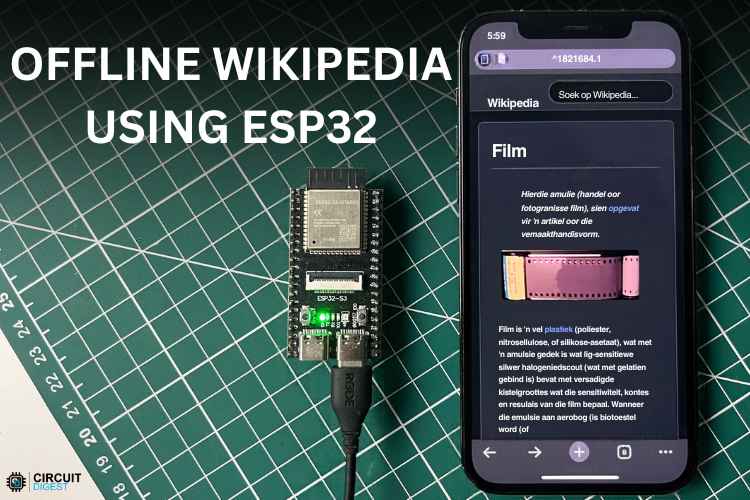
These days, we are heavily dependent on cloud computing, high-speed internet and all. We rarely think about what happens if the internet goes down or what happens in areas where the network is not reachable or information access is very difficult. The main solution is having the data and its processing locally so that they are reachable anytime, even without internet. In this project, we will be building an Offline Wikipedia that runs completely on an ESP32-S3 Board so that we can access the data anytime, anywhere without an internet connection. This is all possible thanks to Kiwix, a non-profit organisation that is making free knowledge accessible everywhere.
We will load the data onto an SD Card and use it in the onboard SD Card reader of the ESP32 module so that it itself becomes the database. Then we will flash the firmware that runs a web server on the ESP32 so that we can access the data in any browser without the internet. Running a web server on an ESP32 becomes very helpful, as we can visualise the data anytime, anywhere using any device. If you’d like to learn the basics of running a web server on an ESP32 Dev Module, we have a getting started tutorial that helps you build a simple ESP32 LED Webserver.
Table of Contents
Hardwares Required:
Below is the hardware required to build this project.
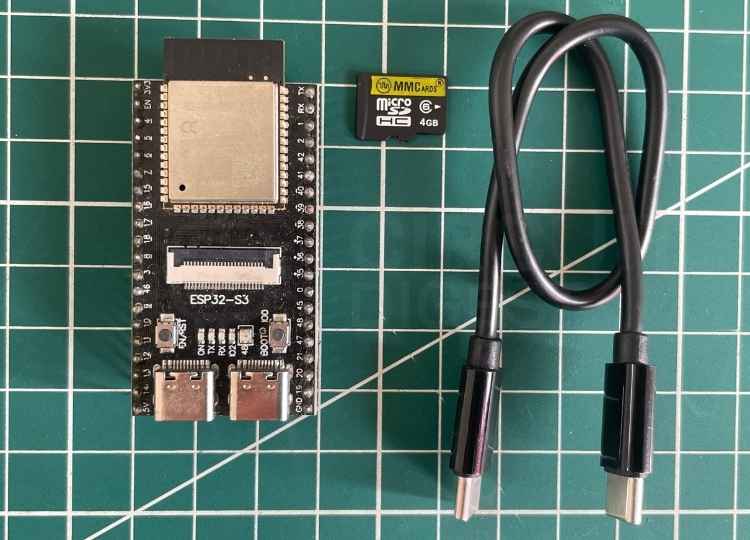
First of all, we need an ESP32-S3 module with a microSD card slot. The memory card used here is a 4GB one for this demonstration. Memory card size depends on the file size that will be downloaded, as per the instructions provided below. A suitable memory card size is 16 GB or 32 GB as larger the file size, larger is the information that it holds. But still, one can even use a 2 GB memory card, provided the file size is within it. Then, we need a data cable to program the ESP32 Board.
Step-by-Step Instructions
Step 1⇒ Download the correct model.
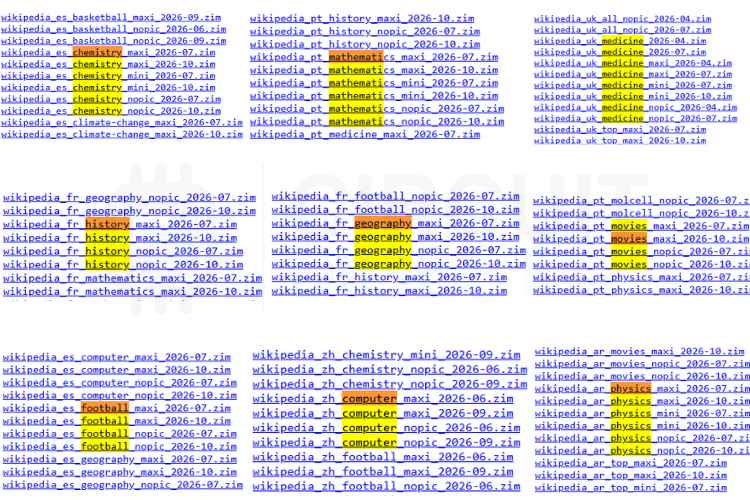
First of all, we need to go to the official Wikipedia dump page. There are several downloadable files listed. If we take a closer look, the letters “en, af, ru, fr…” in the file name suggest that the downloadable file is in a specific language, such as English, Afrikaans, Russian, French and many more. Below is a table that shows how to properly identify the right file for the right purpose. Make sure that the downloadable file size is within the capacity of the memory card that is going to be used.
| S No | Tag | Meaning |
| 1 | Simple | Simple English Wikipedia (easier vocabulary, fewer total articles, significantly smaller file sizes) |
| 2 | All | Contains general Wikipedia articles across all topics rather than a specific subject. |
| 3 | Maxi | Full version including complete text and images |
| 4 | Nopic | Text-only version (no pictures), resulting in much smaller file sizes. mini: Lead/intro paragraphs of articles only |
| 5 | 2026-XX | The year and month the snapshot was taken |
Apart from Wikipedia, there are files specific to topics like physics, mathematics, football, chess, etc., which have rich information about the specific topics. Make sure to check the file size of the download as well. If we don't want images in the offline wiki, we can download the file that has “nopic” in the file name.
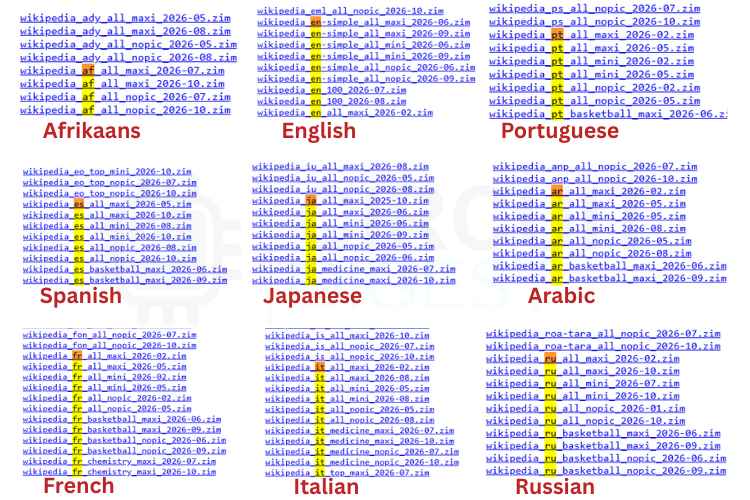
The table below shows how languages are tagged in the file name. Identify the desired language and download the file. Listed below are just some samples. Actually, a wide range of languages are available on the website for download.
Step 2⇒ Clone the Repository
We will be carrying out the whole tutorial in VS Code. To make everything easier, all the code and files have been uploaded to GitHub and can be accessed from the GitHub link provided below. After cloning the repo, we need to be in the following directory in the terminal for the following steps.
C:\Users\Pavilion\Downloads\Offline-Wikipedia-ESP32-master\Offline-Wikipedia-ESP32-master>Step 3⇒ Preprocess the ZIM File with Images
Below is the command to be run to preprocess/re-compress the contents of the .zim file so that the ESP32 board can read the data efficiently. It will extract all articles, render all images/diagrams into .dat chunks, and generate the index files. The default thumbnail size is 320x212, but we can use --thumb-size 480x320 for sharper images. Here, we are using 480x320 as we are aiming for sharper images.
& "C:\Users\Pavilion\.platformio\penv\Scripts\python.exe" preprocessor\build_wiki_db.py --all-jpeg --thumb-size 480x320 "C:\Users\Pavilion\Downloads\wikipedia_en-simple_all_maxi_2026-09.zim" preprocessor\output_en_wikiOnce the above command is run, we can see the following logs in the terminal. It takes a decent amount of time to complete the task, as it depends on the zim model that we are preprocessing. Once this task is successful, it creates a folder named “output_en_wiki” under the preprocessor folder. We need the contents of this folder. You can edit the final directory name (here, it is output_en_wiki) to the correct name that matches the file that you have downloaded. In this case, it's an English version of the Wiki. That's why it's named “output_en_wiki”. It can be like “output_af_wiki” if we are using the Afrikaans version. After the process, open the same folder in your file explorer and copy all the contents of that folder. Make sure the microSD card has enough space to store all the data.
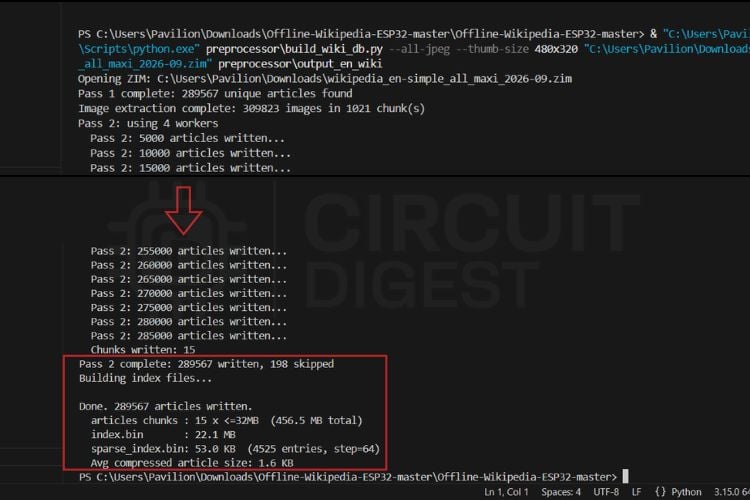
If we get some errors at this point, it is probably because
Step 4⇒ Put the Data on the Built-in MicroSD Card
Plug the microSD card (16 GB or 32 GB recommended) into your PC using a card reader. Format it as FAT32. Formatting a microSD card as FAT32 is easy. In Windows, right-click the drive > Format > FAT32.
Create a folder named wiki on the root of the SD card.
Copy all files from preprocessor\output_en_wiki\ into /wiki/, the folder that we need to create inside the microSD card’s root directory. The following are the files that are to be transferred to the folder named wiki on the SD Card.
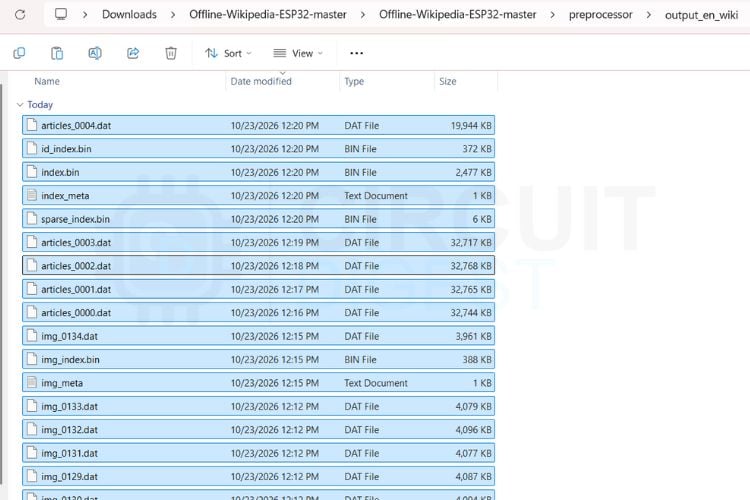
After copying the files, the SD card folder structure should look something like the following. All the copied files are under a root folder named wiki.
SD Card Root/
└── wiki/
   ├── index.bin
   ├── sparse_index.bin
   ├── id_index.bin
   ├── index_meta.txt
   ├── articles_0000.dat
   ├── articles_0001.dat
   ...
   ├── img_index.bin
   ├── img_meta.txt
   ├── img_0000.dat
   ├── img_0001.dat
Insert the card into the built-in Micro SD Card slot on the ESP32-S3 CAM board and proceed to the next steps.
Step 5⇒ Flash the Web Server Firmware
Connect the ESP32-S3 CAM Module via USB and run the following command. Nothing needs to be changed; it will flash the firmware directly to the ESP32 Board.
cd firmware
$env:PYTHONIOENCODING="utf-8"
& "C:\Users\Pavilion\.platformio\penv\Scripts\pio.exe" run -e s3-cam-web -t upload
Flashing the firmware doesn’t take too much time, unlike when re-compressing the data. It shows the upload progress in the terminal window, just like how we can see the upload progress in Arduino IDE when we upload code to an Arduino / ESP32 Board.
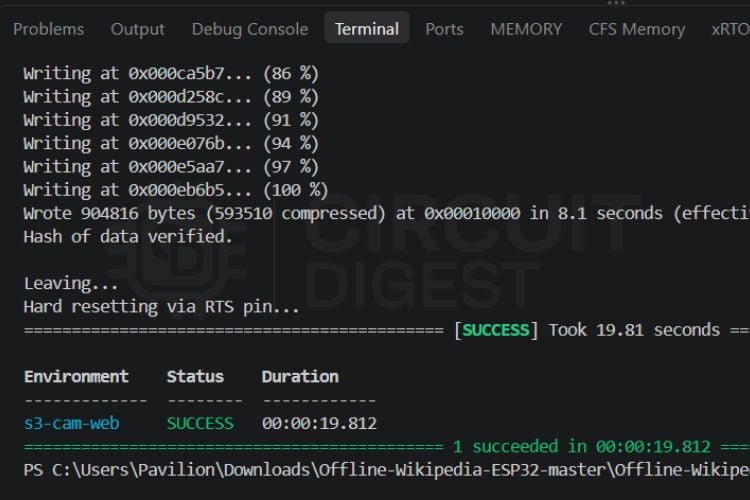
Above is the success message that will come up once the firmware is flashed successfully. If we didn’t get a success message here, the most possible reason is the board being used shouldn’t be an ESP32-S3 board. This repo highly expects an ESP32-S3 board for successful operation.
Step 6⇒ Verify & Refresh
You can watch the boot output in the Serial Monitor to verify the mount:
& "C:\Users\Pavilion\.platformio\penv\Scripts\pio.exe" device monitorYou will see the following, which indicates everything is fine and a total of 129909 articles are available. These numbers vary depending on the file that is being used.
[wiki_db] Initialising storage...
[wiki_db] Setting custom SD_MMC pins: CLK=39, CMD=38, D0=40
[wiki_db] SD_MMC mounted successfully (1-bit mode)!
[wiki_db] Database ready: 129909 articles
[wiki_db] Images: 129909 available
Step 7⇒ Connect and Browse Wikipedia with Images!
Power on the ESP32-S3 CAM. On your phone, tablet, or laptop, open Wi-Fi settings and connect to the Wi-Fi network named Wikipedia-Offline that's hosted by the ESP32. It will be an open network, so there's no need to enter a password.
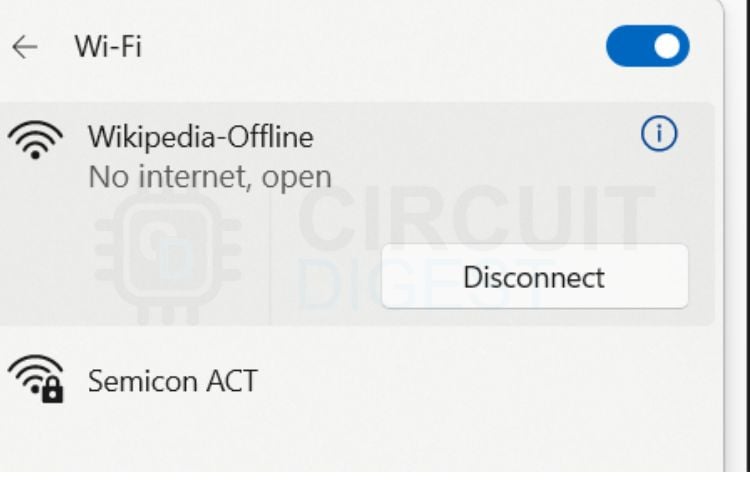
Open any web browser and go to:
http://192.168.4.1/, which is the default fallback IP for AP mode in the ESP32 network stack.
You will be greeted with the full offline Wikipedia search engine, rich articles, and high-resolution images served directly from your ESP32-S3. (The Serial Monitor also remains active simultaneously for diagnostics!) As we start to search for something in the search bar, it will bring up related contents/articles. Clicking any item from the list will display the whole content of that article.
Result:
The following are some snapshots from the final results.
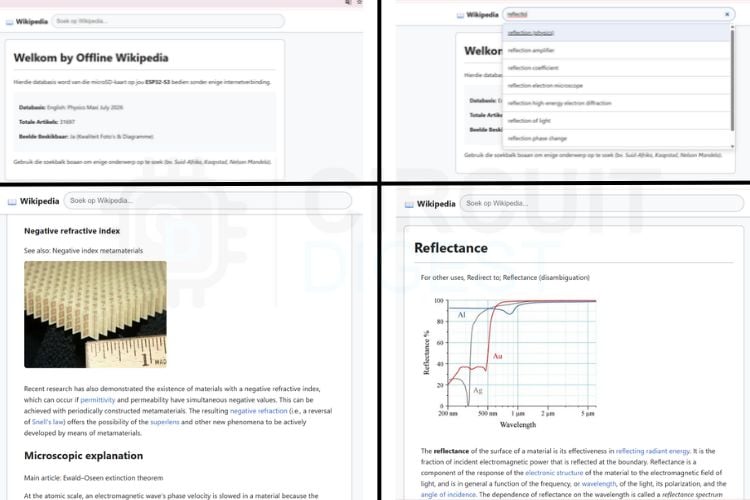
As we can see, the initial window is one that says “Welcome to Offline Wikipedia”. It shows information like the total number of articles in the memory and all. As we start to type in a keyword, the system will show available articles related to the keyword. Once we click a keyword, we can see the screen gets populated with the contents of the article. The content includes text and images. If we opt to use or download a “nopic” version, it will show text only and not any images.
Running Wikipedia Offline on an ESP32
Conclusion
By bringing Kiwix’s open-source ZIM archives onto a low-cost microcontroller, this project proves that you don't need expensive server gear or active Wi-Fi to access global knowledge. Whether you're building an emergency survival kit, an off-grid educational tool, or just exploring the limits of microcontrollers, pairing the ESP32 with compressed offline data puts an entire library right in the palm of your hand. You can easily modify the repo and pair it with a TFT Display so that, instead of viewing the result on a web server, you can see it on the TFT Display. As an extension of this project, you can also integrate it with an offline speech system so the Wikipedia content is read aloud. We already have an article on building an ESP32 Text-to-Speech Offline System. Another option is to use some cloud-based services to run a text-to-speech system like our Text-to-Speech System using ESP32 and Wit.ai.
GitHub Repository


Explore More AI-Powered Embedded Projects
Explore these DIY projects to build intelligent embedded systems using ESP32-CAM, AI-powered speech recognition, and Arduino-based text-to-speech. Learn to describe surroundings with an AI vision assistant, convert spoken words into text, and generate speech from text using simple hardware and practical step-by-step tutorials.

ESP32-CAM AI Vision Assistant Pendant for the Visually Impaired
Here in this tutorial, we are going to explore an AI Vision Assistant for Visually Impaired People using an ESP32-CAM. A vision-based solution gives feedback based on the real surroundings and situations, which is more reliable than a proximity sensor-based solution.
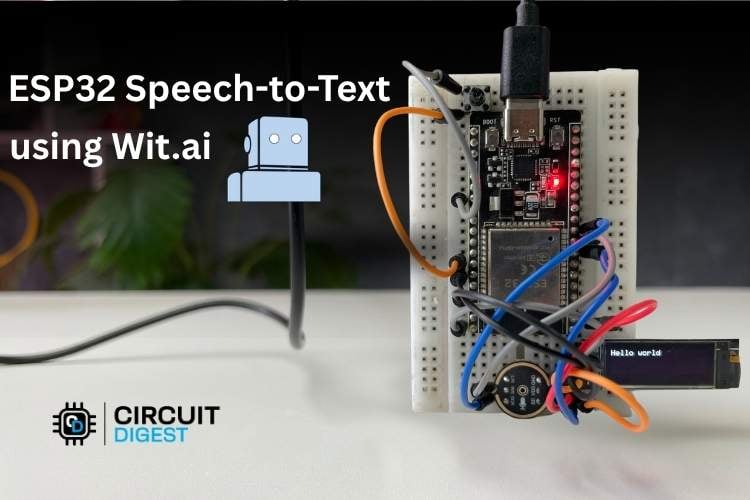
ESP32 Speech-to-Text using Wit.ai
In this project, we’ll be learning how to build an ESP32 Speech-to-Text system using an ESP32 development board. We’ll use an I2S MIC to record speech and an OLED display to display the converted text.
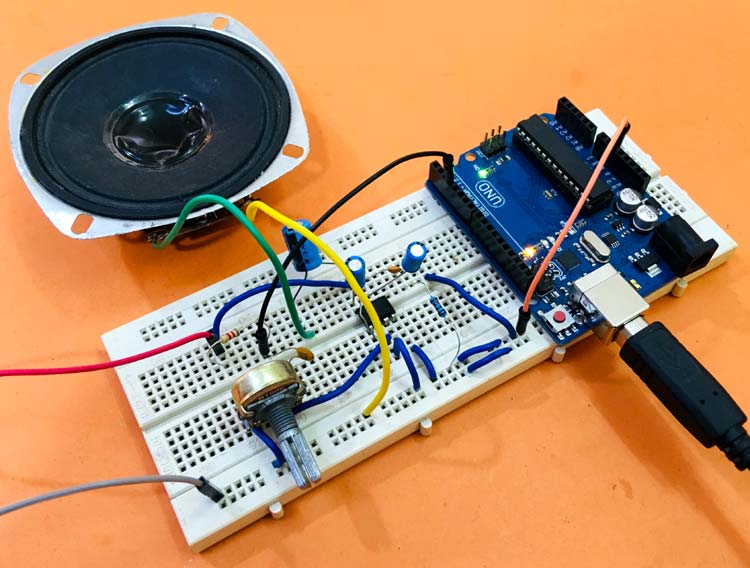
Arduino based Text to Speech (TTS) Converter
Today in this tutorial, we will learn how to make a text-to-speech converter using Arduino. Here in this Text-to-Speech converter, we’ve used an amplifier circuit to reduce the noise and get a clear sound. The amplifier circuit is made using the IC LM386.

Add a comment
No account needed. Your comment appears once a moderator has reviewed it.