

Introduction
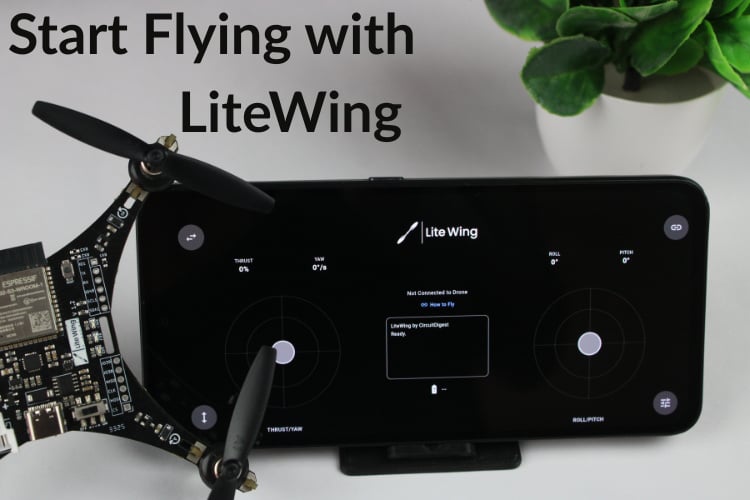
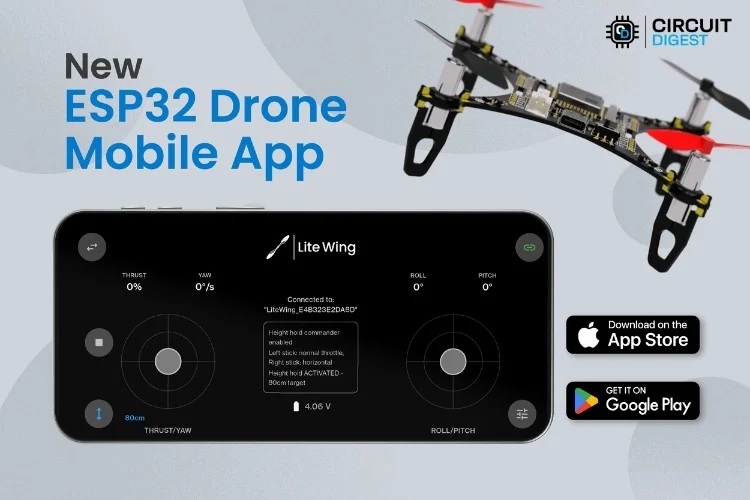
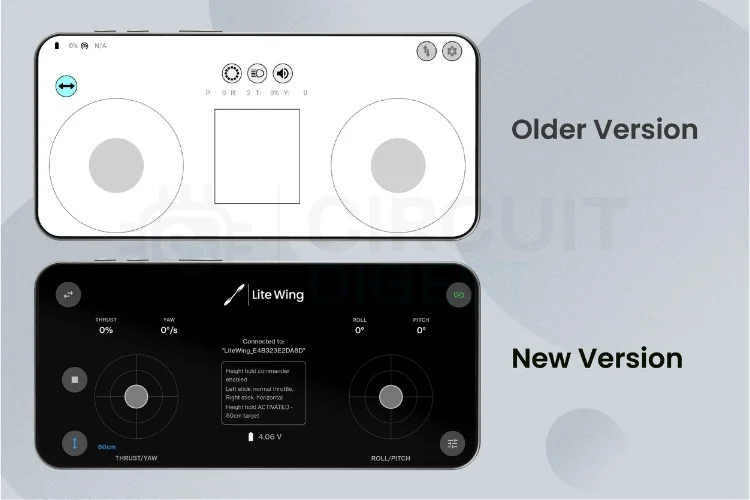
This guide covers flying the LiteWing drone using the latest LiteWing Mobile App. The new app supports both Android and iOS devices and includes enhanced features like Height Hold mode, battery monitoring, emergency stop, and improved flight controls. The app is based on the Crazyflie 2.0 protocol and supports not only LiteWing drones but also other mini drones that use the Crazyflie protocol.
Download LiteWing Mobile App
New App Features
The LiteWing mobile app supports all basic features to quickly pair and fly your drone, plus several enhanced features:
Preflight Checklist
Before flying, make sure your LiteWing Drone is ready. If you built it yourself or bought it as a DIY kit, check the assembly guide, especially the propeller markings and orientation. Also, make sure you are using the correct battery and that it is fully charged.
Drone Setup Steps
WiFi Connection
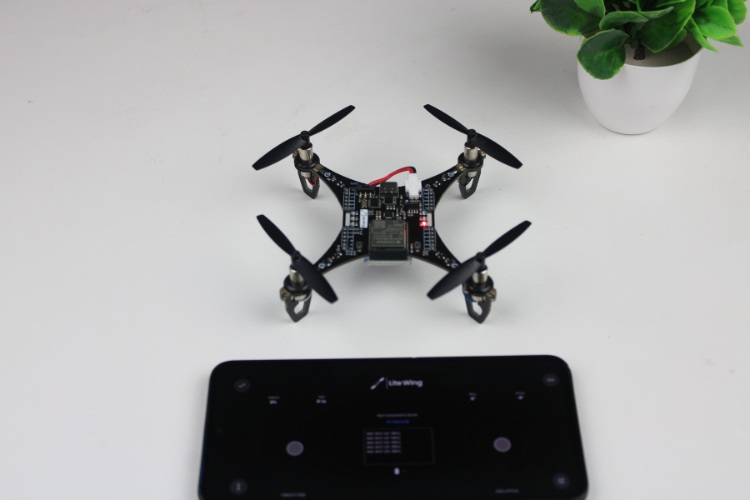
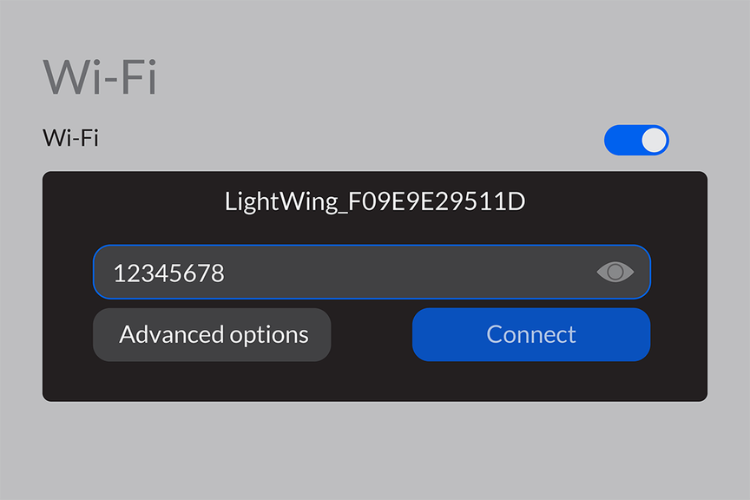
Network Name Format: LiteWing_xxxxxxxxxxxx (x's represent unique MAC ID) Password: 12345678
App Connection
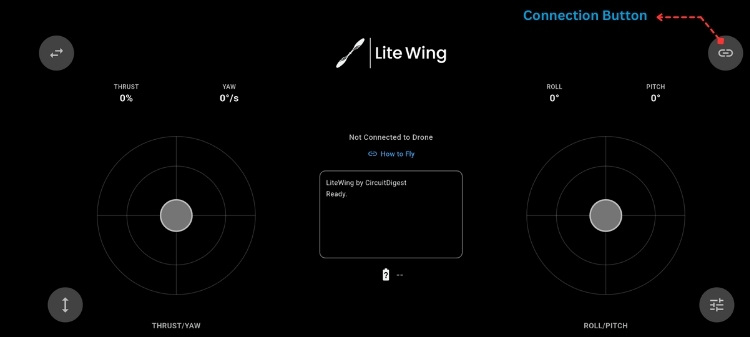
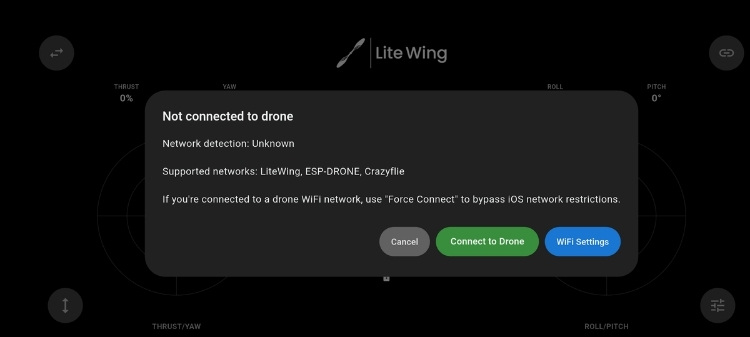
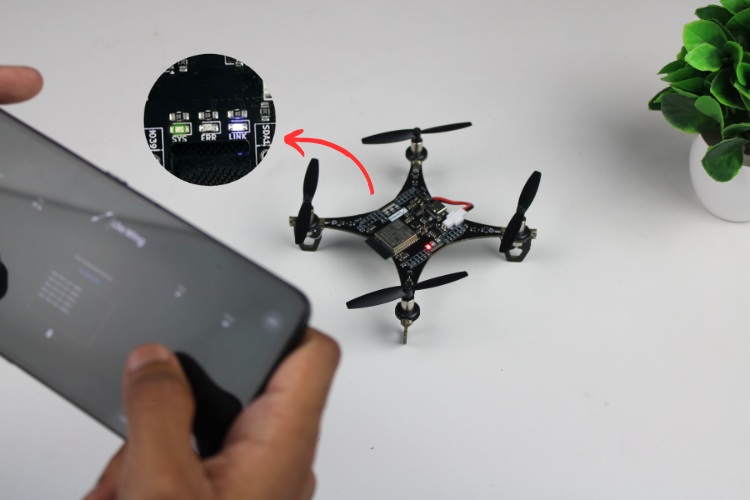
Important: During testing, we noticed that some Android devices were not able to connect to drones when mobile data was enabled. If the connection keeps disconnecting or the drone shows no response, turn on aeroplane mode and then connect to the drone - this will solve the problem.
Controller Response Test
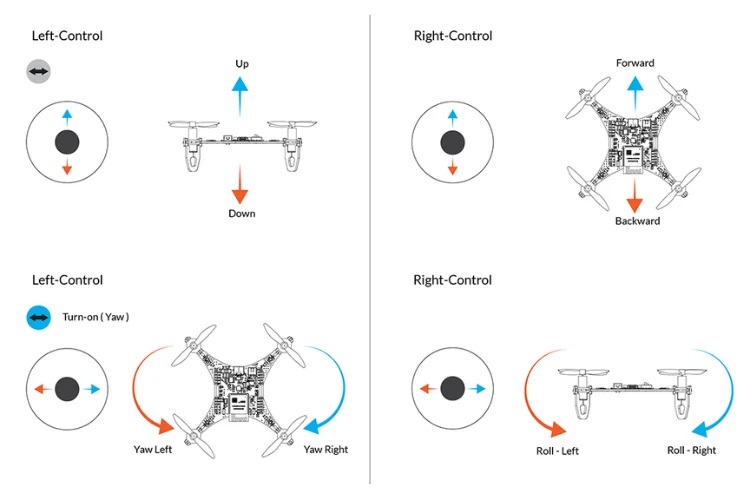
Flight Control Layout

Detailed Stick Functions
Left Stick (Throttle & Yaw)
Right Stick (Directional Control)
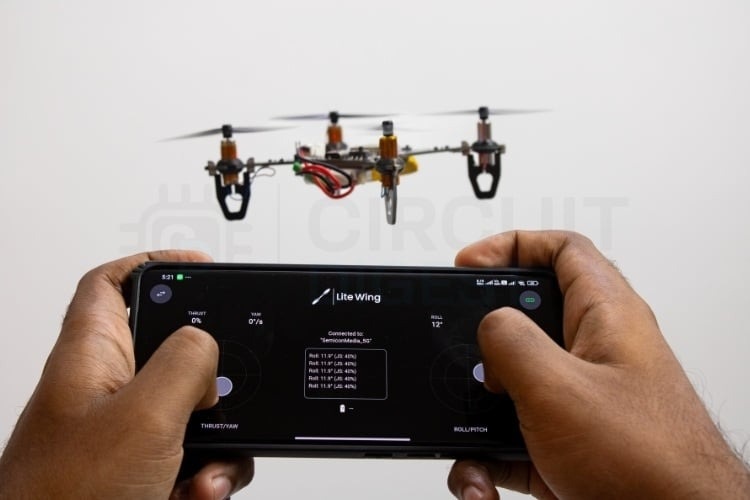
Use the left joystick for throttle and the right joystick to control the pitch and roll of the drone. By default, yaw control is disabled. After learning basic controls, enable yaw control using the top left toggle button.
Trim Settings for Drift Correction
After takeoff, if your drone drifts automatically on the pitch and roll axis, use the trim settings to correct this behaviour. Access the Trim and sensitivity settings button on the bottom right.
Drift Correction Table
For more details about LiteWing Calibration, see this guide: How to Calibrate LiteWing Drone

Note: By default, LiteWing does not support position hold, so minor drift during flight is expected. Position hold can be achieved with an external Flight Stabiliser Module.
Height Hold & Position Hold Mode
Coming Soon: A new LiteWing Stabiliser Module for the Height Hold & Position Hold features will be launching soon. This dedicated module will provide enhanced altitude stability and easier integration with your LiteWing drone.
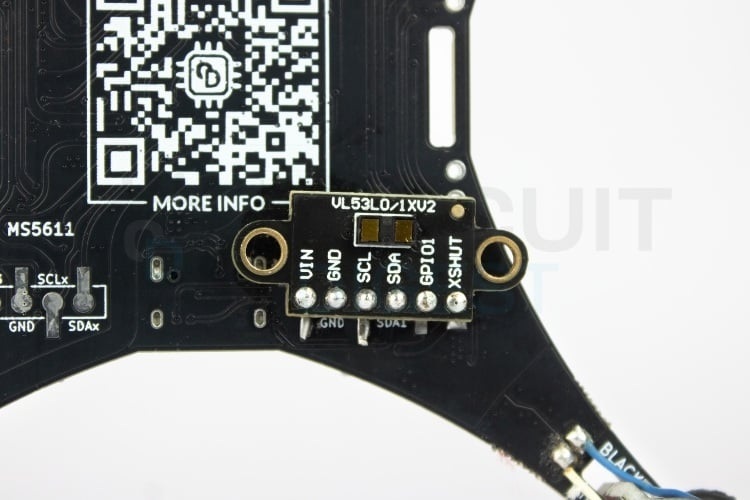
For the current Height Hold functionality, you need to add a VL53L1 sensor module to your drone:
Using Height Hold Mode
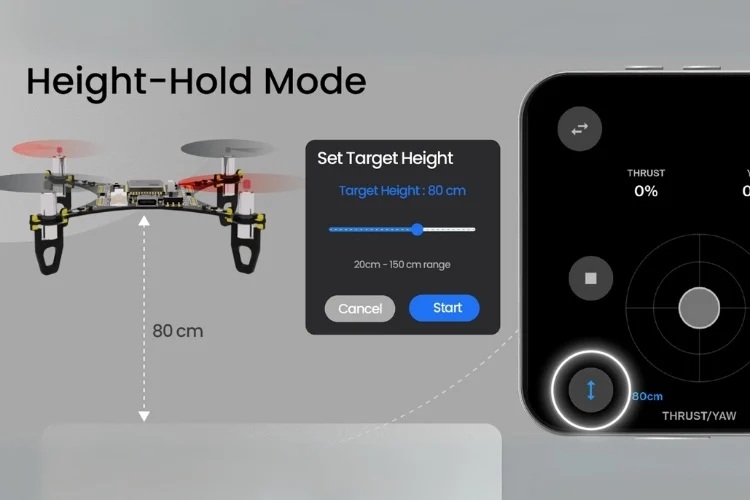
After selecting your preferred height, click "Start". The debug dialog box will begin a countdown, and your drone will take off automatically and maintain the set height. Use the right joystick to control pitch and roll axes while the left joystick remains inactive. To land, tap the Height Hold button again for gradual landing.
Troubleshooting
LED Status Verification

Document Index
Last Updated: December 8, 2025 | Build Status: Tested & Verified

Update: It has come to our attention that the existing ESP Drone app is not being supported in few modern devices. We are working on a new version that has more features and also supports height hold directly from mobile application not having to use cfcleint UI. Stay tuned.
Any questions or features requests are welcome
How to use height hold in mobile without cf client ?
We will be releasing a new version of the LiteWing app with a height hold feature. Will be released within in few days.
I have built the android app and customizing it . At the time of writing I am new to this drone, can you please explain how do I
1. switch to alt. hold mode
2. add sensors like vlx and an optical flow sensor
3. it is not stabilizing for me . I turn on the thrust (calibrated roll pitch several times ) and it moves side ways.
4 i cannot hover it at stable flight . I am uploading the fixed app working with latest android studio.
I successfully flashed the firmware but i cannot see the drone's WIFI?
Did you flashed all three binaries (bootloader.bin to 0x0, partion_table.bin to 0x8000 and LiteWing.bin to 0x10000)?
I (6382) SYSLOAD: Free heap: 132624 bytes
I (319781) SYS: stabilizerTest = 0
I (319781) SYS: estimatorKalmanTaskTest = 0
I (319781) SYS: memTest = 0
I (320282) SYS: pmTest = 1
I (320282) SYS: workerTest = 1 i have this isse no ready to fly message i am using an esp32 wroom 32D chip
If you are using ESP32, then you have to change the target to ESP32 and change the pins according to your connection and recompile it.
Hello, I can't manage to download the app on my 1+ phone. Is there a solution for this problem ?
Download the latest LiteWing App from Google Play Store.
Hi,
The drone initializes as expected and SYS LED blinks. However, when I press the Connect button, the blue LED blinks briefly, and the system re-enters the initialization loop. Sometimes this cycle repeats three times, after which the app loses its Wi-Fi connection.
After that, there’s no further response, and the system LED keeps blinking continuously.
Could you explain what’s happening in this scenario? Also, are all three optional sensors required for proper operation?
You don't need any additional sensors for normal operation. Check your battery and its connection. Did the drone crash? causing any physical damage?
Litewing-App: Roll&Pitch_Trim
The current minimum adjustment step for litewing's trim is 0.6 degrees, which corresponds to an acceleration zero bias of 10 mg. This resolution is too coarse for aircraft stability adjustments. Could the minimum adjustment step be updated to 0.06 degrees (corresponding to an acceleration zero bias of approximately 1 mg)?
Based on your previous project Low Cost Drone using ESP32 I built own drone with mpu6500,ms5611,vl53l1x and pmw3901. Everything works super with crazyflie - hover, poshold, heighthold, alt hold. I wanted to implement magnetometer but I found out that there is a big interference from motor wires.
I would like to ask you about Litewing mobile app. If I want to use position hold I have to have connected baarometer I dont understand why if I have vl53l1x for heigt? I tried to look at the graph from optical flow but data are corrupted. Is there any precondition for providing data from drone to Litewing app?
You can use the position hold with out the barometer, but the maximum height will be limited. Flash the latest LiteWing firmware using the firmware flasher in the LiteWing wiki.
Thank you very much - I investigated my "problem" with corrupted data for optical flow. I sniffed communcation - In Lightwing you are using ID of parameters 0,2,75,76,77,78,79,36,37,43 for optical flow diagrams - I have my own "build" of firmware and I had to change order in stateEstimate group and for the rest I had to do remapping. For example - your deltaX has ID36 my ID is 296. It looks everything works - thanks.
Another improvement - in mpu you use calibration only for gyro, I added calibration for accX, accY and accZ separately too - it looks drone flights more stable.
I appreciate your effort on Litewing ;-)
Will you have app for iOS too?
Yes we do have LiteWing app for IOS. Ypu can find it in teh app store.
Sorry correction ;-)
Instead of ID 36,37,46 you have ID 292,293,299 ;-) and your ID 292 is my 296 ;-)
I don't see a device named lightwing instead I see esp32 device and also when I connect it's connects for hardly 1 sec and then disconnects due to no internet what to do
If it says ESP32, instead of LiteWing, then its a counterfeit product that uses old firmware. Disable your mobile internet and any connection assistance feature in your phone.
Has the Litewing app for iOS been removed? I can't find the app on the App Store.
Add a comment
No account needed. Your comment appears once a moderator has reviewed it.