

Introduction
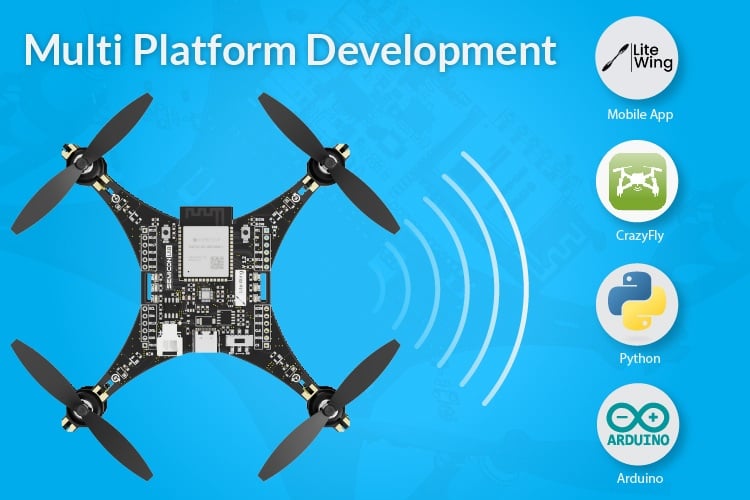
Focused on versatility and modularity, the LiteWing drone can be programmed and controlled using different platforms. When you purchase a LiteWing drone, it ships with default firmware that supports Crazyflie protocols. This means out of the box, your drone is ready to fly using the mobile application, and also supports cfclient and cflib packages from Crazyflie.
Important: Based on requests from our users, we have also created a high-level Python library for LiteWing drones, allowing you to fly, monitor, and program flight paths for your LiteWing drones more easily with simple lines of code. Do check out the LiteWing Python Library quickstart guide for more information.
This guide focuses on cflib, which is a Python SDK from Crazyflie that allows you to write your own Python code to control your LiteWing drone. If you prefer Arduino programming, you can also program your LiteWing using Arduino and directly reflash your ESP32, but that is for a different tutorial. For now, let’s focus on how to control your LiteWing drone using Python. Browse drone project ideas featuring quadcopters, wireless control, and sensor integration.
Pre-requisites
Before we get started it is highly recommended that you check out our LiteWing WiKi Documentation and have learnt the basics. Make sure you are using the right battery with your LiteWing Drone, and you are able to fly it using the LiteWing mobile application without any problem.
Crazyflie cflib Python SDK Overview
The Crazyflie cflib is an open source API written in Python and developed by Crazyflie. This library allows communication with the LiteWing Drone using the UDP protocol, meaning you can connect to the drone from your laptop using WiFi and send commands from your code to control the drone.
Communication Protocol
Installing Cflib Python Package
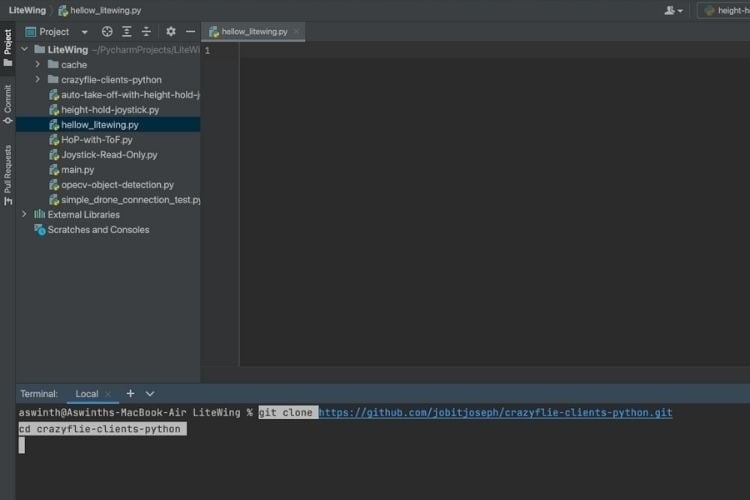
Let’s start by installing cflib on your computer. We are using PyCharm as our development IDE and would recommend the same. But you can use any IDE of your choice. Open a new project on PyCharm and get into the terminal to follow the steps below and install cflib.
Step-by-Step Installation
⇒ Step 1: Use the code below to clone into the repository.
⇒Step 2: Writing ‘Hello LiteWing’ Python Code
This simple example will help you connect to the drone and spin all four motors for 1 second at minimum speed. This code demonstrates the basics and serves as a foundation for more advanced projects.
Required Libraries
We start by including the required libraries for our code, as you can see below. The time library is used to provide delay, and the crtp and crazyflie libraries are used to communicate with our drones, as we will see more.
import time
import cflib.crtp
from cflib.crazyflie import Crazyflie
Drone Configuration
In the next line, we have provided the URI code for our drone. URI stands for Uniform Resource Identifier. This code lets us identify the drone and the communication protocol used to communicate with the drone.
# URI for your LiteWing drone
DRONE_URI = "udp://192.168.43.42"
Note: cfclient also supports protocols other than UDP; you can also try UART, USB and BLE; however, we have not tested those yet.
Moving on, we will initialise the drivers for CRTP using “cflib.crtp.init_drivers()” and create an instance for the Crazyflie object. It was developed by Crazyflie; we will be using this protocol to communicate with our drone using UDP.
# Initialize CRTP drivers
cflib.crtp.init_drivers()
# Create Crazyflie instance
cf = Crazyflie()
Next, we connect to the drone using our Drone URI. When we are establishing a connection to the drone, you will also be able to see the LINK LED (blue) on the drone blinking.
# Connect to the drone
print("Connecting to drone...")
cf.open_link(DRONE_URI)
To control the drone, we are going to use the send_setpoint option. You can read about it here in cflib documentation. Basically, “send_setpoint(roll, pitch, yawrate, thrust)” can be used to set the position of the drone by giving it the value of roll, pitch, yawrate and thrust. If you are not sure what roll, pitch and yaw rate are, please check out the documentation on the basics of drones.
Before we start anything, we have to arm the drone to start controlling it. This is a safety feature programmed in the firmware so the motors do not spin by accident during development. To arm the drone, we can use the send_setpoint command and send all the values as zero, as shown below
# First send zero setpoint to unlock safety and arm drone
print("Sending zero setpoint to unlock safety...")
cf.commander.send_setpoint(0, 0, 0, 0)
time.sleep(0.1)
After the drone is armed, we are going to spin all four propellers for one second, again using the same send_setpoint command but giving a thrust value. The minimum thrust value for your drone is 10000, and the maximum is 60000. We are going to use 10000 so that the drone does not lift off.
# Flight parameters
roll = 0.0
pitch = 0.0
yaw = 0
thrust = 10000  # Thrust value is 10000 minimum and 60000 maximum
# Start motors
print("Starting motors at minimum speed...")
cf.commander.send_setpoint(roll, pitch, yaw, thrust)
time.sleep(1)
The send_setpoint(roll, pitch, yawrate, thrust) function is the primary control interface:
# Stop the motors
print("Stopping motors...")
cf.commander.send_setpoint(0, 0, 0, 0)
time.sleep(0.1)
# Close the connection
cf.close_link()
After the motors have spin, we will stop the motors by sending zero again using the same send_setpoint command and also finally close the cf clink with our drone.
Testing ‘Hello LiteWing’ Python Code
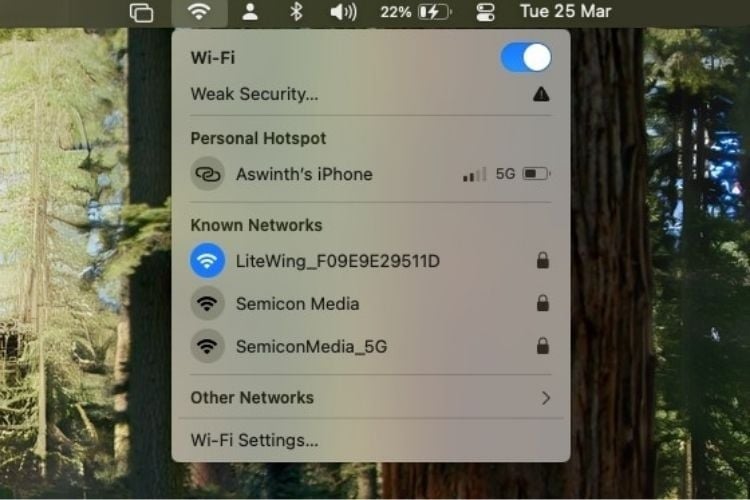
Now, hit the run button, and you should be able to see the blades on your drone spin for 1 second before they turn off again. You can also notice the blue LED on the drone blinking as it receives UDP packets from your Python code. The print statement should look like something below.
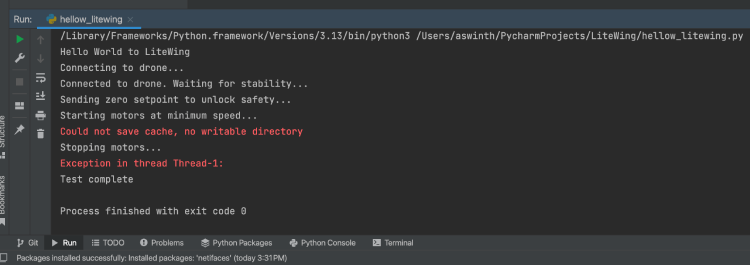
Note: You can ignore warnings about cache and Thread - these are normal and don't affect functionality.
Additional Resources
Document Index
Last Updated: December 8, 2025 | Build Status: Tested & Verified
Complete Project Code
import time
import cflib.crtp
from cflib.crazyflie import Crazyflie
# URI for your LiteWing drone
DRONE_URI = "udp://192.168.43.42"
# Initialize CRTP drivers
cflib.crtp.init_drivers()
# Basic flight test
print("Hello World to LiteWing")
# Create Crazyflie instance
cf = Crazyflie()
# Connect to the drone
print("Connecting to drone...")
cf.open_link(DRONE_URI)
print("Connected to drone. Waiting for stability...")
time.sleep(1.0)  # Wait after connection
# First send zero setpoint to unlock safety
print("Sending zero setpoint to unlock safety...")
cf.commander.send_setpoint(0, 0, 0, 0)
time.sleep(0.1)
# Flight parameters
roll = 0.0
pitch = 0.0
yaw = 0
thrust = 10000  # Thrust value is 10000 minimum and 60000 maximum
# Start motors
print("Starting motors at minimum speed...")
cf.commander.send_setpoint(roll, pitch, yaw, thrust)
time.sleep(1)
# Stop the motors
print("Stopping motors...")
cf.commander.send_setpoint(0, 0, 0, 0)
time.sleep(0.1)
# Close the connection
cf.close_link()
print("Test complete")

Comments 1
Great insights on electrical grounding. Choosing the right Copper Bonded Rods Manufacturers is critical for achieving a safe and efficient earthing system. SG Power provides premium-quality copper bonded rods suitable for industrial, residential, and commercial projects.
Add a comment
No account needed. Your comment appears once a moderator has reviewed it.