

USB-C power supplies and power banks don’t always deliver the expected voltage and current under load. For electronics testing and development, monitoring these changes can help identify voltage drops, current spikes, and power delivery issues. In this project, we built a DIY inline USB-C power meter that measures voltage from 5 to 28 V and current up to 5 A. It also tracks charge and energy consumption, records minimum, maximum, and average readings, and displays a rolling 30-second graph of voltage, current, and power on a colour IPS display.
The board is built around the ATSAMD21G18A-MFT, a 48-pin Arm Cortex-M0+ microcontroller running at 48 MHz with 32 KB of SRAM. Measurement is handled by the Microchip PAC1811, a single-channel 16-bit digital power monitor rated to 42 V that integrates a high-side current-sense amplifier, a bus-voltage monitor and a hardware accumulation register. That accumulator is the reason this SAMD21 power meter can report milliamp-hours accurately: charge is integrated inside the chip at its own sample rate rather than by the firmware between screen redraws, so nothing is lost while the display is busy.
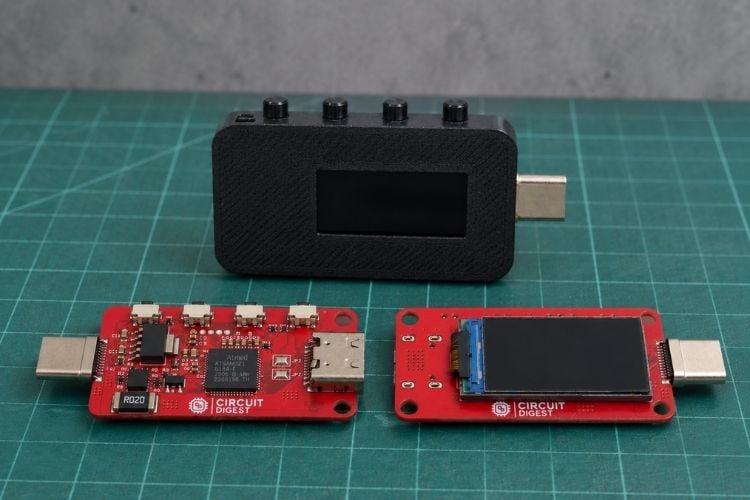
A Microchip MCP1781 low-dropout regulator derives a clean 3.3 V rail directly from VBUS, which means the meter is powered by the link it is measuring and needs no battery, no second cable and no host connection. Three tactile buttons page through eleven screens, flip the display 180 degrees for whichever way the cable happens to run, and reset the session counters. Everything is packed onto a 4-layer, 0.8 mm PCB that drops into a two-part snap-fit printed enclosure.
Code File


PCB Gerber File

| Value | Manufacturer | DigiKey Part Number | Datasheet Link | Quantity |
|---|---|---|---|---|
| 4.7uF 0603 | TDK | C1608X5R1V475M080AC |  | 2 |
| 1uF 0402 | Murata Electronics | 490-10017-1-ND | | 2 |
| 7pF 0402 | Murata Electronics | GRM1555C1H270JA01D | | 2 |
| 100nF 0402 | Murata Electronics | 490-10700-1-ND | | 5 |
| 10R 0603 | YAGEO | RC0603FR-0710RL | | 1 |
| 5.1K 0402 | YAGEO | 311-5.10KLRCT-ND | | 2 |
| 4.7K 0402 | YAGEO | RC0402JR-074K7L | | 3 |
| 10K 0402 | YAGEO | 311-10.0KLRCT-ND | | 9 |
| 10m 2512 | YAGEO | PK2512FKE570R01L | | 1 |
| SS8050-G | Comchip Technology | SS8050-G | | 1 |
| PAC1811T-2E/9Q | Microchip Technology | PAC1811T-2E/9Q | | 1 |
| MCP1781-3302H/DB | Microchip Technology | MCP1781-3302H/DB | | 1 |
| ATSAMD21G18A-MFT | Microchip Technology | ATSAMD21G18A-MFT | | 1 |
| MDT0096A2IS-SPI | Midas Displays | MDT0096A2IS-SPI | | 1 |
| 32.768KHz Crystal | Abracon LLC | ABS05-32.768KHZ-9-T | | 1 |
The component selection for this USB-C power meter was guided by two key requirements: a compact form factor that fits between two USB-C connectors and measurement accuracy that ensures reliable readings. The ATSAMD21G18A-MFT provides sufficient processing capability and 32 KB of SRAM to accommodate a full-frame display buffer. The PAC1811 handles power monitoring in hardware, reducing the measurement workload on the microcontroller. The MCP1781 supports the high input voltages encountered in USB-C Power Delivery applications, unlike conventional LDOs with lower maximum input voltage ratings. The remaining components, including a 10 mΩ current-sense resistor, a 0.96-inch IPS display, a 32.768 kHz crystal, and supporting passive components, complete the design while maintaining its compact footprint and functional requirements.
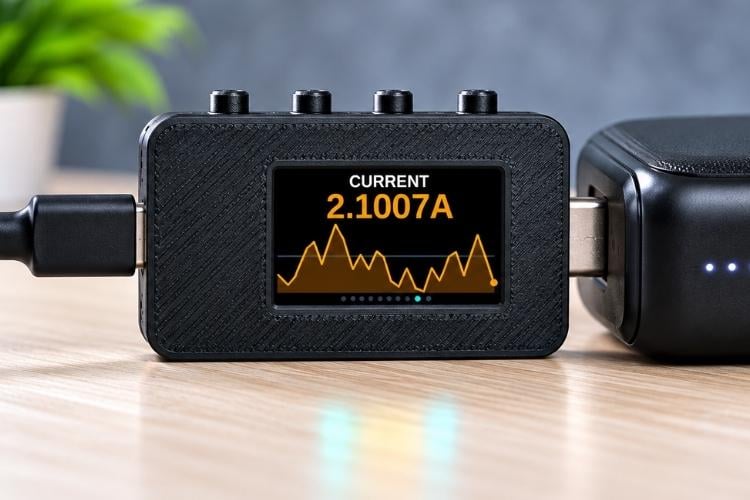
Key Features of the DIY USB-C Power Meter Project
Custom 4-layer PCB, 0.8 mm thick, integrating the SAMD21, PAC1811 power monitor and IPS display
Full USB-C pass-through: VBUS, CC, D+/D- continue to the load
5-28 V and 0-5 A measurement range, covering everything from legacy 5 V to 28 V PD profiles
16-bit resolution with a hardware charge accumulator for drift-free milliamp-hour totals
Eleven pageable screens including min, max, average and rolling graphs
Die-temperature readout and a session timer with a hold-to-reset button
Display flips 180 degrees on a button tap, so the meter reads correctly from either cable direction
Powered entirely from the bus under test - no battery, no host, no extra cable
UF2 bootloader, so firmware updates are a drag-and-drop onto a USB drive
Two-part snap-fit 3D-printed enclosure
Why the ATSAMD21G18A is Ideal for a USB-C Power Meter
The choice of the ATSAMD21G18A over an 8-bit microcontroller or an ESP32 variant comes down to memory capacity, native USB support, and power efficiency within a compact design. The meter renders each frame off-screen using a 160 × 80-pixel canvas at 16 bits per pixel, requiring 25,600 bytes of SRAM for the frame buffer alone. With just 2 KB of SRAM, an ATmega328P cannot accommodate this buffer, making smooth, flicker-free rendering impractical. The SAMD21G18A provides 32 KB of SRAM, leaving approximately 7 KB for global variables, sensor data, and the call stack. Although this is a tight memory budget, it is sufficient for the application, and the Adafruit GFX canvas implementation handles allocation failures gracefully.
Native full-speed USB is another key advantage. It enables support for a UF2 bootloader, allowing the meter to enumerate as a USB mass-storage device for firmware updates. Updating the firmware is as simple as copying a UF2 file, eliminating the need for a dedicated programmer, additional drivers, or a serial bootloader workflow. This simplifies maintenance while keeping the hardware compact and the overall design straightforward.
Power consumption is equally important for a device operating directly from a USB-C power path. The SAMD21G18A offers a suitable balance of processing performance and low-power operation, without the additional resources and power overhead that may accompany more complex platforms. Its built-in ADC temperature sensor also provides a convenient way to monitor the microcontroller's die temperature without adding external sensing hardware. While this is not a direct measurement of connector or PCB temperature, it offers a useful indication of thermal trends during high-power operation, with no additional bill-of-materials cost.
USB-C Power Meter Specifications
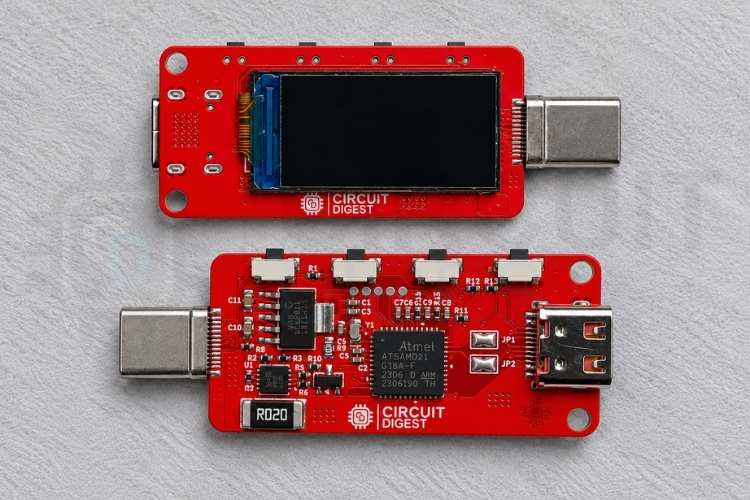
The board carries a 24-pin USB-C plug on the source side and a 16-pin USB-C receptacle on the load side. The plug goes into the charger, power bank or PD supply; the receptacle takes the cable running to whatever is being measured. Between those two connectors, VBUS passes through a 10 milliohm current-sense shunt, and everything else - the CC lines and the USB 2.0 differential pair on the 24-pin side - passes straight through untouched.
That pass-through design is the important part. Because the CC lines are not intercepted, the source and the load negotiate Power Delivery directly with each other exactly as they would with a plain cable in between. This inline USB power meter does not trigger, spoof or renegotiate anything; it observes. Whatever profile your charger and your device agree on is what you see on the screen.
The 0.96-inch, 160 x 80 IPS panel is driven over software SPI and backlit through an SS8050 transistor under PWM control from the microcontroller. Four tactile switches sit on the board: one arms an onboard 5.1 kilohm CC pull-down for bench testing and programming, and three drive the user interface. Test pads breaks out SWDIO, SWCLK and RESET for the initial bootloader flash.
Specification | Value |
| Microcontroller | ATSAMD21G18A-MFT, Arm Cortex-M0+ at 48 MHz, 256 KB flash, 32 KB SRAM |
| Power monitor | Microchip PAC1811T-2E, 16-bit, 42 V, high-side, I2C at address 0x40 |
| Shunt resistor | 10 milliohms, giving 50 mV of sense drop at the 5 A full-scale current |
| Voltage range | 5-28 V |
| Current range | 0-5 A |
| Display | 0.96-inch 160 x 80 IPS, ST7735 controller, software SPI |
| Regulator | MCP1781-3302H, 3.3 V LDO fed directly from VBUS |
| Connectors | 24-pin USB-C plug (source), 16-pin USB-C receptacle (load) |
| PCB | 4 layers, 0.8 mm thickness |
| Programming | UF2 bootloader over USB; SWD pads for initial flash |
| JP1 / JP2 | USB data jumpers - short to program over USB-C, remove for normal inline use |
Schematic Design: Building the Foundation for the USB-C Power Meter
The entire design was drawn in KiCad, which handles a board of this density comfortably and costs nothing. The schematic breaks into six blocks: the USB-C input, the current-sense front end, the microcontroller, the 3.3 V supply, the display, and the USB-C output. Each is worth walking through, because in a measurement instrument the schematic decisions are the accuracy decisions.
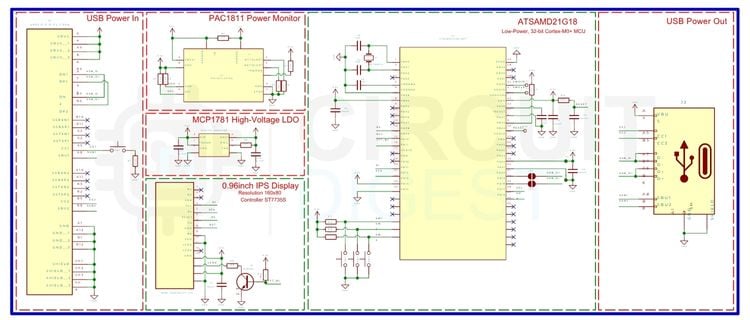
The USB-C power meter uses an inline connector arrangement, allowing it to measure power without requiring a separate cable or external connections. J1 is a 24-pin USB-C plug that connects directly to the charger, power bank, or USB-C Power Delivery source, while J2 is a 16-pin USB-C receptacle for connecting the load. VBUS and ground run between the two connectors through the measurement circuitry, allowing the meter to monitor power delivered to the connected device. The 24-pin input connector supports the complete set of USB-C signal connections, including the SuperSpeed differential pairs, USB 2.0 D+ and D− lines, SBU1 and SBU2 sideband signals, and both CC lines. These signals are routed through the board to their corresponding connections at the output. The primary measurement element in the power path is R4, a 10 mΩ current-sense resistor. At 5 A, it produces a voltage drop of 50 mV and dissipates 250 mW, keeping the additional voltage drop relatively small while enabling current measurement.
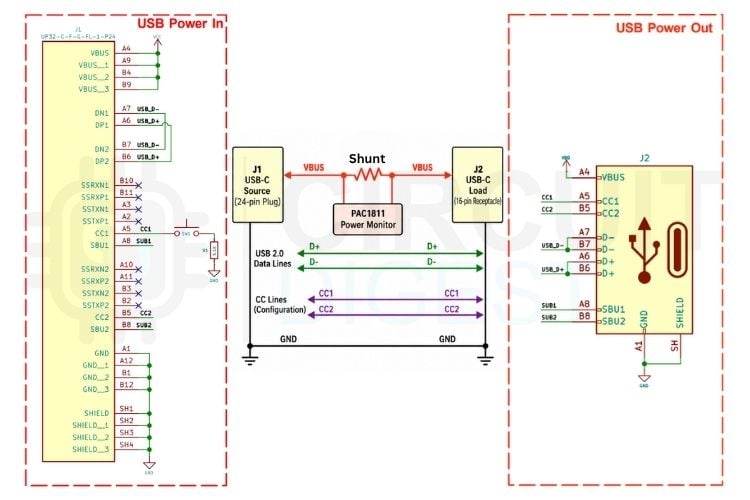
The CC lines require particular attention because they are responsible for USB-C attachment detection and Power Delivery negotiation. In normal operation, these lines must remain connected between the source and the load without additional pull-down resistors interfering with the negotiation process. R1, a 5.1 kΩ resistor, is therefore controlled by SW1 rather than permanently connected. Pressing the switch enables the meter to present a sink-like CC configuration when operating without a connected load, such as during standalone testing. During normal inline operation, the resistor remains disconnected, allowing the source and load to negotiate directly.
The meter's power supply must accommodate the wide voltage range present on a USB-C Power Delivery bus. Depending on the negotiated power profile, VBUS can rise well above the 5 V default, reaching 20 V or 28 V in supported configurations. The regulator must tolerate these voltages and the transitions that occur during Power Delivery negotiation. A conventional low-voltage LDO may not be suitable for this application because its maximum input rating could be exceeded.
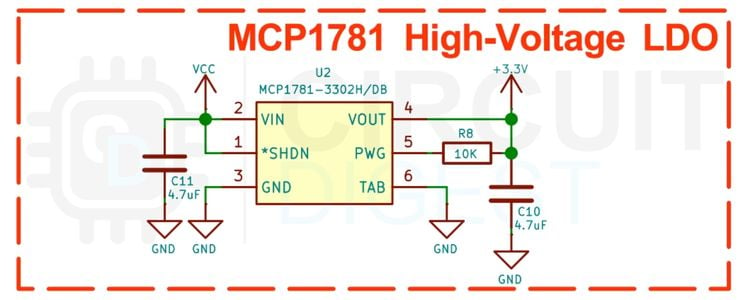
U2, the MCP1781-3302H, provides the regulated 3.3 V supply for the microcontroller, display, and measurement circuitry. Capacitors C10 and C11, each 4.7 µF, provide input and output decoupling. Although the regulator uses a linear architecture, the overall circuit has a relatively modest power demand, helping keep dissipation manageable. Nevertheless, the voltage difference between VBUS and the 3.3 V output means regulator losses increase at higher input voltages, making the total circuit current an important consideration for thermal performance.
Current and voltage measurements are handled by the PAC1811 digital power monitor, which integrates a high-side current-sense amplifier and bus-voltage monitoring with a shared 16-bit ADC. The device supports bus voltages up to 42 V and has a typical operating current of approximately 140 µA, helping minimise the meter's own power consumption. This is particularly useful when measuring low-current loads, where the instrument's consumption can become a significant part of the total measured current.
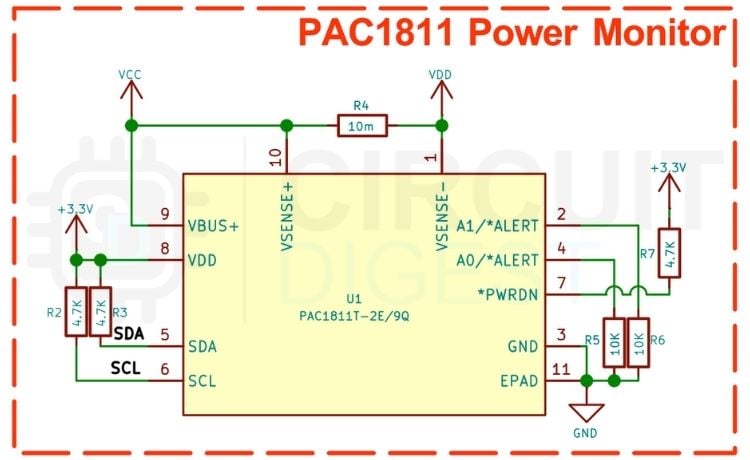
R4, the 10 mΩ shunt, is connected in series with the VBUS path between the input and output connectors. The PAC1811's VSENSE+ and VSENSE− inputs measure the voltage across this resistor, while its VBUS+ input monitors the bus voltage. These measurements allow the device to determine current and voltage and calculate power. The PAC1811 communicates with the SAMD21 over I²C at address 0x40. Resistors R2 and R3, both 4.7 kΩ, provide pull-ups for SDA and SCL, while C1, a 100 nF capacitor, provides local supply decoupling. An important feature of the PAC1811 is its hardware charge-accumulation register. Rather than requiring the microcontroller to sample current continuously and calculate accumulated consumption in firmware, the monitor integrates the sensed current over time and retains the accumulated result for the host to read. The SAMD21 can retrieve and clear this register periodically, allowing charge measurements to continue across display updates and other firmware operations. This approach provides a more reliable basis for calculating accumulated consumption than relying solely on periodic current readings multiplied by elapsed time.
The ATSAMD21G18A-MFT forms the main processing unit of the meter. Operating from the 3.3 V rail, it provides the processing performance, SRAM capacity, and native USB support required for measurement, display rendering, and firmware updates. Local decoupling capacitors support the supply pins, while a 1 µF capacitor provides bulk decoupling on VDDCORE. A 10 kΩ pull-up maintains the RESET line in its inactive state, and SW4 provides manual reset functionality. The 32.768 kHz crystal, Y1, is connected with 7 pF load capacitors C3 and C4. It provides a low-frequency clock reference for the microcontroller's clock system. The programming interface is kept compact through three test pads: TP1 for SWDIO, TP2 for SWCLK, and TP3 for RESET. These pads provide access for initial programming of the UF2 bootloader without requiring a dedicated connector. Once the bootloader is installed, subsequent firmware updates can be performed over USB, reducing the need for additional programming hardware and preserving valuable PCB space.
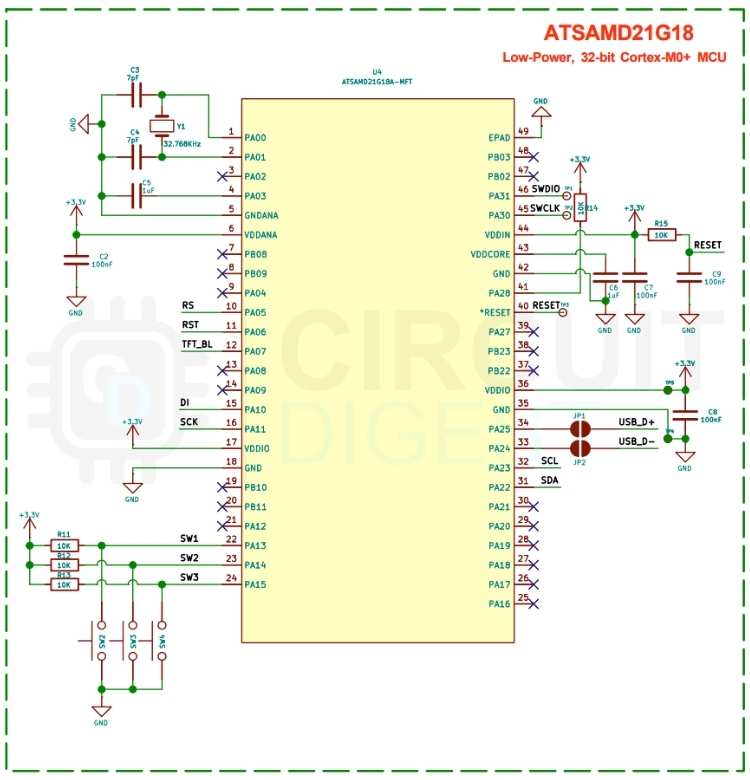
The SAMD21G18A microcontroller includes a native USB interface, which supports firmware programming and updates through a UF2 bootloader. However, connecting the microcontroller directly to the USB data lines during normal operation could interfere with communication between the source and the connected load. JP1 and JP2 address this by providing separate jumpers for the D+ and D− lines between the USB pass-through connections and the microcontroller. Both jumpers must be shorted when programming the microcontroller through the source-side USB-C connector. This connects the SAMD21's USB peripheral to the data lines, allowing the device to enumerate on a computer and receive firmware updates. For normal measurement operation, both jumpers should be removed to isolate the microcontroller from the USB data path. Leaving them installed may interfere with the connected device's USB communication, even when power measurements continue to operate normally.
Four tactile switches provide the meter's user controls. The buttons use active-low inputs with external 10 kΩ pull-up resistors. SW1 controls the optional CC pull-down configuration, while SW2 and SW3 navigate between display screens. SW4 provides additional interface functions, including display orientation control and session reset, as well as access to the bootloader when held during power-up. This arrangement combines the measurement interface, display controls, and firmware recovery functions without requiring additional hardware controls.
The display is a 0.96-inch IPS panel with a resolution of 160 × 80 pixels, based on the ST7735S controller. Its compact size suits the inline form factor while providing enough screen area for voltage, current, power, and accumulated consumption readings. The display communicates with the SAMD21 over SPI using data, clock, data/command, and reset signals. Its chip-select input is tied to ground, as the display is the only device on this SPI bus, and the logic circuitry operates from the 3.3 V rail with local decoupling.
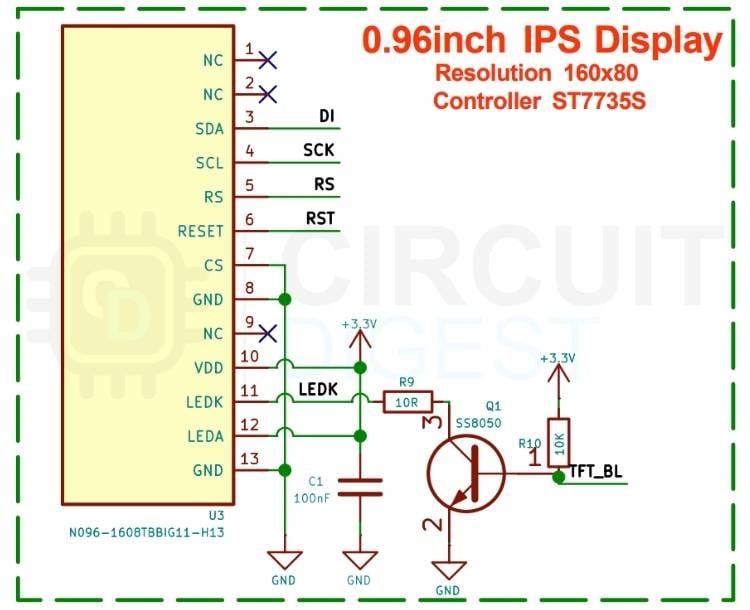
The display backlight is controlled separately to avoid drawing LED current directly from a microcontroller GPIO. Q1, an SS8050 NPN transistor, switches the backlight return path, while R9 provides current limiting. The transistor's base is driven through R10, allowing the SAMD21 to control the backlight. Because the control signal supports PWM, firmware can adjust brightness rather than restricting the backlight to simple on/off operation.
PCB Layout: Routing a 4-Layer USB-C Power Meter
The board is a 4-layer stackup at 0.8 mm total thickness. Four layers on a board this small might look like overkill, but it is the only way to satisfy three simultaneous demands: a wide, low-impedance VBUS path, a clean analog reference for the shunt, and enough routing channels to fan out a 48-pin QFN under a display. The 0.8 mm thickness was chosen for the enclosure and for the USB-C plug footprint, which sits better on a thin board.
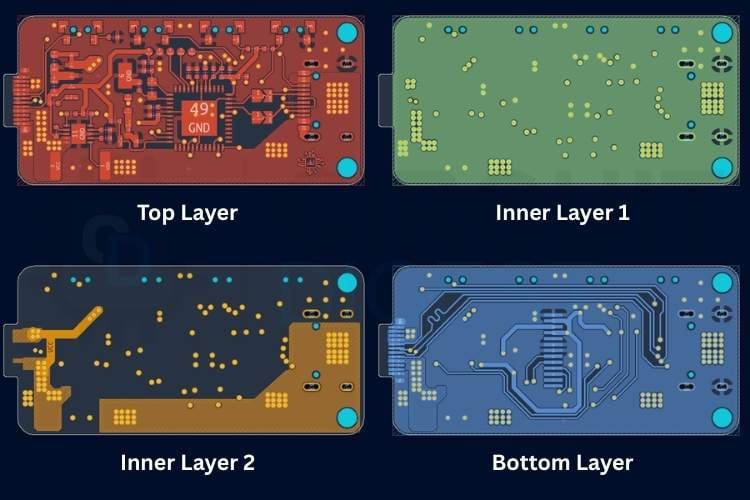
Layer one carries the high-current pass-through and the signal routing. Layer two is a solid ground pour, unbroken beneath the sense resistor and the PAC1811. Layer three carries the 3.3 V rail and the remaining signals. Layer four is a second ground pour, stitched to layer two with vias around the connectors and along the power path.
Fabricated PCB for the USB-C Power Meter
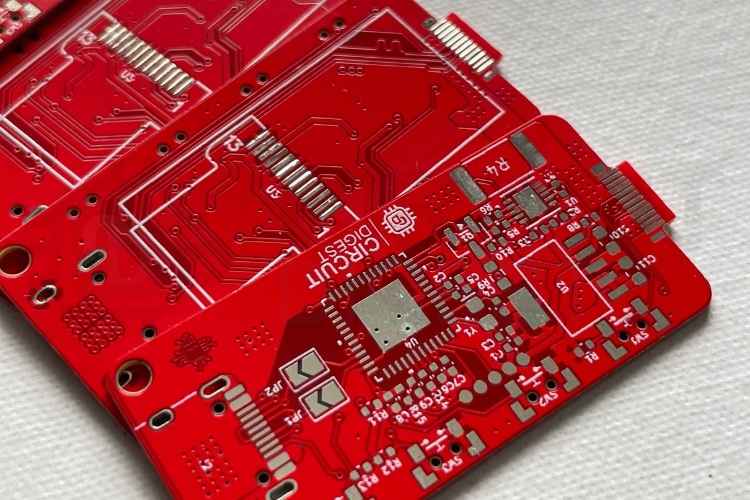
With the layout finished, the Gerbers, drill files and pick-and-place data were exported from KiCad. Uploading them to any fabrication service is straightforward - the site reads the board outline automatically and asks for the stackup parameters. Two parameters are not optional for this board. It must be ordered as a 4-layer board, and the thickness must be 0.8 mm rather than the default 1.6 mm; the enclosure and the USB-C plug footprint both depend on it. Standard FR4, HASL or ENIG finish and any solder mask colour are all fine. ENIG is worth the small premium if you are hand-soldering, because the flat pads make placing the QFN and the connectors noticeably easier. For assembly, we have also ordered a stencil for the top side at the same time. Here are the fabricated boards
For assembly, we have used an interactive BoM generated from KiCad. You can find it along with the Gerber file. Here is the assembled PCB.
3D Printed Enclosure: A Two-Part Snap-Fit Case
A bare board with two USB-C connectors and a fragile display is not something you want loose in a toolbox, so the meter has a printed case. It is a two-part design: a lower tray that the PCB drops into, and an upper cover that snaps over it. There are no screws. The two halves are held by moulded clips along the long edges, so the case opens and closes as many times as you need without wearing out threaded inserts or stripping plastic.
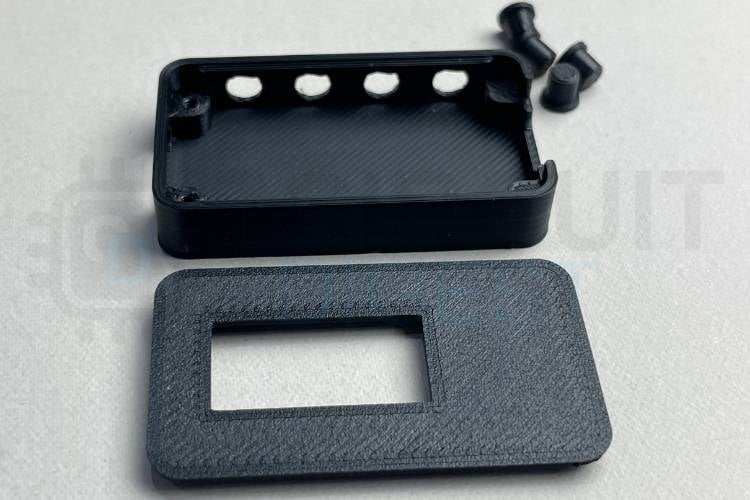
The design started from the assembled board dimensions, with openings cut for the USB-C plug on one end, the USB-C receptacle on the other, a window over the display and cutouts for the tactile switches. The keycaps are also printed separately.
Flashing the UF2 Bootloader
A freshly assembled board has empty flash and no bootloader, so the very first programming step needs an SWD programmer. This is a one-time operation per board; everything afterwards happens over USB.
Connect a J-Link to the three test pads: TP1 to SWDIO, TP2 to SWCLK, TP3 to RESET, plus ground and 3.3 V. The board can be powered from USB during this step. Then run the flashing script from the repository:
./flash_bootloader.shThis invokes OpenOCD with the following command:
 openocd -f interface/jlink.cfg \
   -c "transport select swd" \
   -f target/at91samdXX.cfg \
   -c "init; reset halt; at91samd bootloader 0; \
       program bootloader-usbcm-v4.0.0+.bin verify reset exit 0x00000000"
Two parts of that command are worth understanding. The at91samd bootloader 0 directive clears the BOOTPROT fuse, which on a factory-fresh SAMD21 write-protects the bottom region of flash - exactly where the bootloader has to live. Skip it, and the programming step appears to succeed while silently writing nothing. The 0x00000000 argument places the binary at the start of flash, which is where the Cortex-M0+ looks for its vector table on reset.
When the script finishes successfully, unplug the programmer and short JP1 and JP2 - without them, the microcontroller is not connected to the USB data pair, and nothing will enumerate no matter how correctly the bootloader was written. Then plug the board into a computer, press and hold SW1 while plugging in to arm the CC pull-down so the host turns on VBUS, holding it till its programmed. The board should appear as a USB mass-storage volume. From this point on, it never needs the SWD programmer again, and firmware can be updated by copying a UF2 file onto that drive.
Programming the USB-C Power Meter with the Arduino IDE
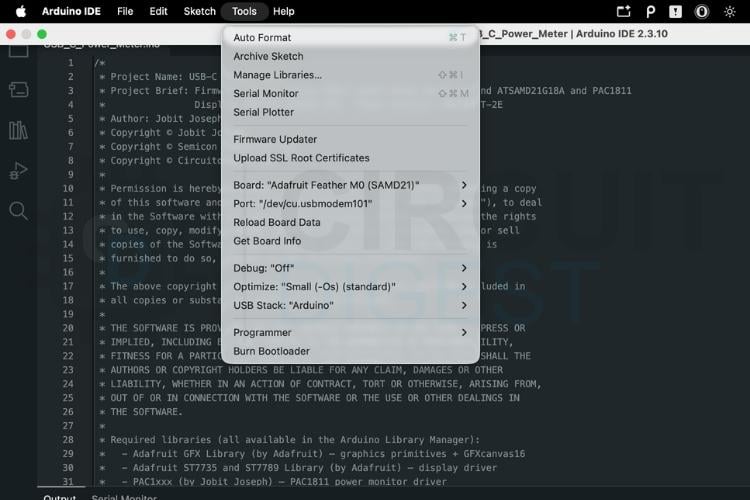
Before connecting the board to your computer, short JP1 and JP2. These two jumpers connect the SAMD21's USB peripheral to the D+ and D- pass-through pair, and without them the board will not enumerate. If using a Type-C port on the computer, you must press and hold SW1 as you plug in, so the meter presents its 5.1 kilohm CC pull-down and the host port switches on VBUS. Both are temporary: remove the jumpers once you are finished uploading.
With the UF2 bootloader in place, the meter behaves like any Adafruit SAMD21 board in the Arduino IDE. Add the Adafruit board package by opening File, then Preferences, and adding this URL to the Additional Board Manager URLs field:
https://adafruit.github.io/arduino-board-index/package_adafruit_index.json
Then open the Boards Manager, install Arduino SAMD Boards followed by Adafruit SAMD Boards, and select Adafruit SAMD Boards, then Adafruit Feather M0 as the target. The Feather M0 profile matches this board's microcontroller and bootloader arrangement, so no custom variant is needed.
Four libraries are required. Install these from the Arduino Library Manager:
Adafruit GFX Library - the graphics primitives and the off-screen canvas class
Adafruit ST7735 and ST7789 Library - the display driver
PAC1xxx by Jobit Joseph - the PAC1811 power monitor driver
TemperatureZero by Electronic Cats - the SAMD21 internal die-temperature sensor
Open the sketch, select the port that appears when the board is connected, and click Upload. The IDE resets the board into the bootloader automatically and copies the firmware across. If the automatic reset does not work, double-tap the reset button manually to force the bootloader drive to appear, then upload again.
When the upload finishes, remove JP1 and JP2 before using the meter inline. Leaving them fitted does not affect any measurement, but it leaves the microcontroller's USB peripheral sitting on the data pair that belongs to the load - which is exactly the kind of fault that is hard to diagnose later, because the meter itself will appear to be working perfectly.
USB-C Power Meter Arduino Code
The firmware is a single sketch of roughly 1,500 lines, and it is organised so that the interesting parts are separable. There are four namespaces - Display, PowerSensor, Screens, plus a small block of button handling - and the main loop does almost nothing except call into them. Understanding five mechanisms is enough to understand the whole thing.
Every screen in this USB-C power meter is a plain function with the same signature: it receives the current readings, its own page index and the total page count, and draws itself. Those functions are collected into a single array near the bottom of the sketch:
static ScreenDef SCREENS[] = {
     {"V / I / P",            draw_VIP,           true},
     {"V / I / mAh",          draw_VImAh,         true},
     {"V / I / Wh",           draw_VIWh,          true},
     {"Temp / Session",       draw_TempSession,   true},
     {"Min (V/I/P)",          draw_Min,           true},
     {"Max (V/I/P)",          draw_Max,           true},
     {"Avg (V/I/P)",          draw_Avg,           true},
     {"Voltage graph",        draw_GraphV,        true},
     {"Current graph",        draw_GraphI,        true},
     {"Power graph",          draw_GraphP,        true},
     {"Combined V+I graph",   draw_GraphCombined, true},
 };
Navigation order follows array order. Setting a screen's enabled flag to false hides it from the Next and Previous cycle without deleting its code, and the page-indicator dots at the bottom of the screen count only the enabled entries, so the interface stays consistent. Reordering the display is a matter of moving lines. Nothing else in the sketch needs to change - which is the point, because the first thing anyone does with a meter like this is decide that their three favourite screens should be first.
The sensor is polled every 100 milliseconds. Each poll reads bus voltage, current and power, updates the running minimum, maximum and average, and appends to the graph history at a slower one-second cadence.
pac.refresh();
r.mAh += pac.charge_mAh();
r.Wh   = (r.mAh / 1000.0f) * r.vAvg;
Those three lines carry the design decision behind the whole instrument. Calling refresh() latches the PAC1811's accumulator and resets it, returning the charge accumulated since the previous call. Summing those returns gives a running milliamp-hour total with no gaps - the chip was integrating the entire time, including while the microcontroller was busy pushing pixels.
Energy is derived rather than accumulated directly, because the PAC1811 can accumulate either power or sense charge but not both at once. The firmware chooses charge, since milliamp-hours is what people actually want from a USB power meter, and computes watt-hours from the accumulated charge and the running average bus voltage. On a USB-C link where voltage is held at a negotiated level, that approximation is very close; it would be less accurate on a supply whose voltage swung widely and correlated with current, which is worth knowing but is not how USB-C behaves.
Die temperature is read separately, and deliberately only once per second. The SAMD21's temperature conversion is a 64-sample average that blocks for roughly 25 milliseconds. At a 100-millisecond sample cadence, that would consume a quarter of all available loop time - a real cost for a number that changes slowly.
The naive way to update a display is to clear it and redraw. On a 160 x 80 panel over bit-banged SPI, that produces a visible flash twice a second, which looks broken. Instead, the firmware composes every frame into an off-screen canvas in RAM and pushes the finished frame to the panel in one operation:
static GFXcanvas16 canvas(TFT_W, TFT_H); // 160 * 80 * 2 = 25,600 bytesThat buffer consumes most of the SAMD21's 32 KB of SRAM, leaving around 7 KB for everything else. It is tight, but GFXcanvas16 degrades into a harmless no-op if the allocation ever fails, so the failure mode is a blank screen rather than corrupted memory.
Pushing the frame took one more iteration to get right. The obvious call, drawRGBBitmap(), writes pixel by pixel and re-sends the address window for each one; over software SPI that takes on the order of a full second per frame, during which the main loop never returns, and the buttons appear dead. The fix is to set the address window once and stream the contiguous buffer:
const int STRIP_ROWS = 10;
 for (int y = 0; y < TFT_H; y += STRIP_ROWS) {
   int h = (TFT_H - y) < STRIP_ROWS ? (TFT_H - y) : STRIP_ROWS;
   tft.startWrite();
   tft.setAddrWindow(0, y, TFT_W, h);
   tft.writePixels(buf + (uint32_t)y * TFT_W, (uint32_t)TFT_W * h);
   tft.endWrite();
   handleButtons();   // safe: only sets state flags, never draws
 }
The frame is streamed in ten-row strips with a button poll between each. Even batched, a full frame over software SPI takes long enough that a quick tap could start and finish inside one push and never be seen. Polling every ten rows keeps the gap between button samples to a few milliseconds, and the button handler is careful to only set flags - it never draws, so it cannot re-enter the renderer.
Large numbers on a small panel are the entire user experience of a power meter, and integer-scaling a 5 x 7 bitmap font produces blocky digits that are hard to read at a glance. The firmware instead carries four pre-rendered FreeSansBold faces at 9, 12, 18 and 24 point, and picks the largest one that fits the available box at native size:
static const GFXfont *BIG_FONTS[] = {
&FreeSansBold24pt7b, &FreeSansBold18pt7b,
&FreeSansBold12pt7b, &FreeSansBold9pt7b};
The fitting function measures the combined value-plus-unit string against the box and returns the first face that fits, falling back to the scaled built-in font only if even 9-point is too large. This is why the two-row temperature and session screen shows noticeably larger digits than the three-row screens: the same code, given more vertical room, selects a bigger face.
Values are formatted to fixed width rather than variable width, so digits do not shuffle sideways as a reading changes - voltage always shows two integer digits and three decimals, current one and four. Power switches format by magnitude, keeping five significant figures whether the reading is 4.9987 W or 102.34 W. One small detail: the FreeSans faces are ASCII-only, so the degree symbol on the temperature screen cannot come from the font and is drawn as a pair of small circles instead.
The three user buttons sit on PA13, PA14 and PA15, and none of them can be used through the normal Arduino pin API on the Feather M0 profile. The variant caps its pin count at 26, so pinMode, digitalRead and attachInterrupt simply do not recognise these pins even though the silicon exposes them. The firmware therefore reads them through the SAMD21's port registers directly:
static inline void gpioInput(uint8_t bit) {
PORT->Group[0].DIRCLR.reg = (1u << bit);
PORT->Group[0].PINCFG[bit].bit.INEN   = 1;
PORT->Group[0].PINCFG[bit].bit.PULLEN = 0;  // external pull-ups on board
PORT->Group[0].PINCFG[bit].bit.PMUXEN = 0;
 }
 static inline bool gpioActiveLow(uint8_t bit) {
   return !(PORT->Group[0].IN.reg & (1u << bit));
 }
Internal pull-ups are left disabled because the board already has 10 kilohm external ones. On top of this sits a 25 millisecond debounce and a 1.5 second hold detector, which is what distinguishes a tap on the middle button - flip the display - from a hold, which resets the session counters, the accumulated charge and the graph history.
What follows is every screen the USB-C power meter can show, rendered from the firmware's own layout code, so the proportions and the font selections are the ones the SAMD21 actually picks. The three coloured quantities keep their colours everywhere: voltage is cyan, current is amber, power is green. Charge is pink, energy and the session timer are gold, and temperature is violet.
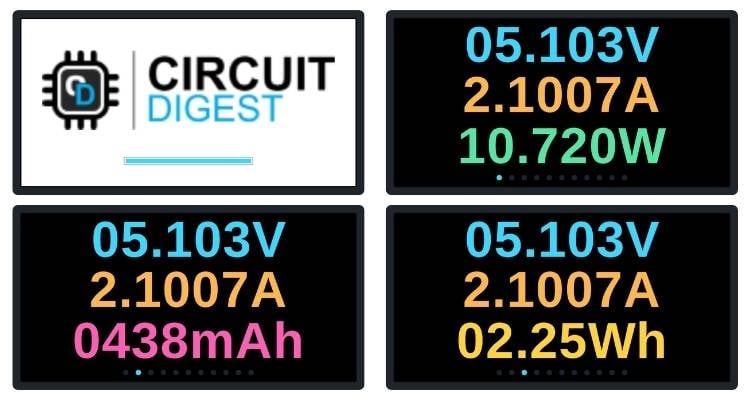
At power-up, the meter plays a short splash - a 140 x 38 pixel logo bitmap on white, followed by a progress bar that fills over 1.1 seconds while the display initialises and the PAC1811 is configured. It carries no page dots because it is not part of the Next and Previous cycle; it plays once and hands over to the dashboard. If the power monitor does not answer on I2C during that window, the meter stops here and displays a plain PAC1811 NOT FOUND message rather than showing a blank or garbled screen. The default view, and the one the meter boots into. Three rows of large digits: bus voltage in cyan, load current in amber, and computed power in green. This is the screen you leave the meter on. The page indicator dots along the bottom show position within the eleven enabled screens. Replaces the power row with accumulated charge in milliamp-hours, read from the PAC1811's hardware accumulator. This is the screen for charging measurements: leave the meter inline while a phone or a power bank charges, and this number tells you how much actually went in. Holding the middle button resets it to zero to start a fresh session.
The same layout with accumulated energy in watt-hours in gold, derived from the accumulated charge and the running average bus voltage. Where the milliamp-hour figure answers how much charge moved, this one answers how much energy was delivered - the more meaningful number when comparing across different voltages, since 500 mAh at 20 V and 500 mAh at 5 V are very different amounts of energy.
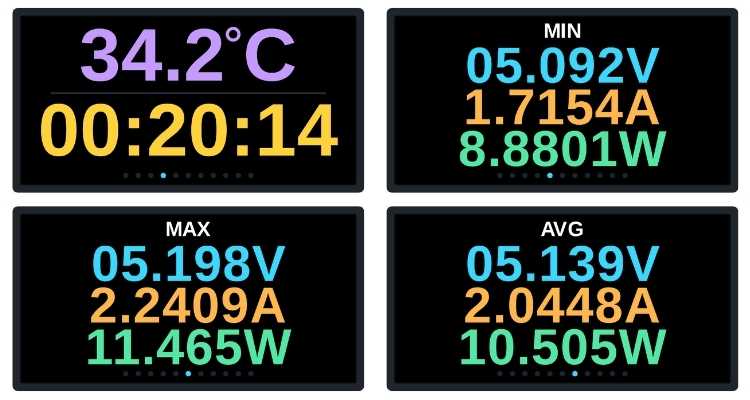
A two-row screen, and the one where the auto-fitting font logic is most visible: with only two rows to place, the layout has enough vertical room for the 24-point face, so these digits are noticeably larger than anything on the three-row screens. The top row is the SAMD21 die temperature in violet, with the degree symbol drawn as a ring since the font has no glyph for it. The bottom row is elapsed session time in hours, minutes and seconds, which resets together with the accumulators. Three statistics screens, each carrying a small caption at the top so there is no ambiguity about which one you are looking at. They share the same three-row layout as the live screens, with the caption reducing the available height slightly, which is why the digits sit one size down. The maximum screen is the most useful of the three in practice. Plug a load in, let it run through its startup sequence, and the peak current is captured even if it lasted only a few sample periods - the moment you would never catch watching the live screen. The minimum voltage figure is its counterpart: it shows how far the supply sagged at that peak, which is the number that tells you whether a cable or a charger is genuinely up to the job.
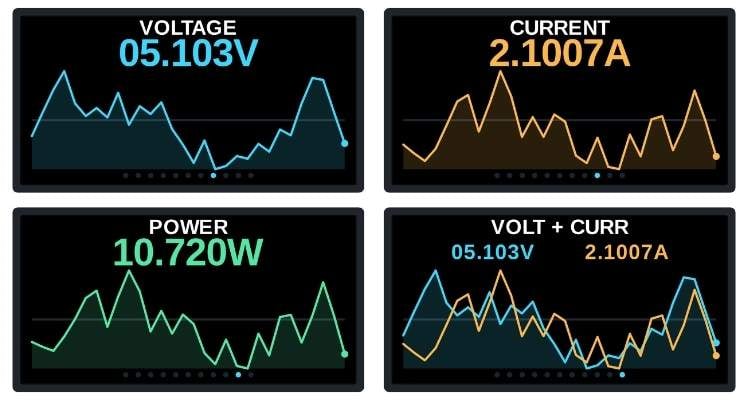
Each graph screen keeps a 30-point history sampled once per second, giving a rolling 30-second window. The label sits at the top, the live value beneath it, and the plot fills the remaining height. Each plot autoscales to its own minimum and maximum over the window, so a small variation still fills the vertical space rather than appearing as a flat line - the trade-off being that the vertical scale is relative, not absolute. A filled area under the trace and a dot on the newest sample make the direction of time obvious at a glance. The current graph is the one worth watching. A microcontroller board transmitting over Wi-Fi, a motor starting, a device stepping through charging phases - all of these have a shape, and that shape is far more informative than any single instantaneous reading.
The last screen overlays both traces on the same plot, with voltage and current shown side by side above it. Each series autoscales independently, so this screen is about correlation rather than absolute values: when the amber current trace rises and the cyan voltage trace dips in the same instant, you are watching supply sag under load, and the severity of that inverse relationship tells you a great deal about the quality of the charger and cable you are testing.
A tap on the middle button rotates the entire interface 180 degrees. This sounds like a novelty until you use the meter on a bench, where the cable runs whichever way the ports happen to face and the display ends up upside down as often as not. The rotation is applied at the display controller level, so there is no cost in rendering time, and the next frame simply comes out the other way up.
Conclusion
This DIY USB-C power meter demonstrates how much instrument you can fit between two connectors when the measurement work is delegated to the right silicon. The PAC1811 handles the sensing and the integration in hardware, the SAMD21 spends its cycles on a display that is genuinely pleasant to read, and the full pass-through design means the meter observes without interfering.
More than that, it is a design you can modify. The screen registry makes the interface yours in one edit, the shunt constant makes the range yours in another, and the UF2 bootloader means neither change requires anything more than a file copy. Whether you are debugging a development board, auditing a drawer full of questionable cables, or just curious about what your charger is really doing, this inline USB power meter puts the answer on a screen in your hand.