Power Integrations’ Switcher ICs Let Engineers Pick between GaN, SiC, or Silicon - electronica India 2025

Submitted by Abhishek on

Power Integrations displayed a wide array of new tech for applications including EVs, railways, industrial power supplies, and renewable energy systems at electronica 2025. In their booth, we met with Andrew Smith, their Director of Technical Outreach and Director of Training, who walked us through some of the key highlights. The company showcased its range of switch technologies featuring integrated switcher ICs with voltage ratings of 750 V, 900 V, 1250 V, and 1700 V. Smith underscored, "This makes our integrated switcher ICs very good for the Indian environment."

The company uses three semiconductor materials in their switches: silicon, gallium nitride (referred to as "PowiGaN"), and silicon carbide. The GaN tech is their in-house replacement for traditional MOSFETs in their flyback switcher ICs. Engineers can use the same converter IC with different switch tech on the inside, making it far less of a challenge to select the best tech for their needs. "Our aim is to make it very easy for the engineer to use whichever of those technologies they would like to explore by using the same converter IC with a different switch inside," said Smith.

He pointed out to us a 70-watt design of a bridge switch inverter driver board that was accompanied by support software. The software served as a virtual oscilloscope and offered performance monitoring by capturing characteristics of a motor. The demo used a single-output motor. He emphasized the minimal power consumption quality of the company’s bridge switch technology in standby mode. A 150-watt motor on display used as little as 8 milliwatts.

The company also showcased LLC half-bridge designs for EV and tool chargers, featuring a 720-watt design with programmable current charging for applications including two-wheeler chargers, using their HiperLCS-2 family and Power Factor Controller ICs. Additionally, they demonstrated their gate driver technology portfolio, including fully integrated three-level gate driver architectures and dedicated gate driver boards for power modules across alternative energy, thermal, and automotive applications.

From the company’s press release, the RDK-85SLR is their reference design kit for solar-powered race cars targeted at student teams to compete in the Bridgestone World Solar Challenge. The kit features the InnoSwitch3-AQ flyback power supply IC, which uses the company’s PowiGaN switch tech. With no need for a heatsink, the kit includes all you will need to build a 46-watt power supply that can briefly deliver up to 80 watts. The kit takes inspiration from a design created by Power Integrations' PowerPros engineers in collaboration with ETH Zurich's aCentauri team. The team’s #85 ‘Silvretta’ challenger-class car uses the design to improve auxiliary power supply efficiency. 

Have any question related to this Article?

Getting Started with ESP32-S3-BOX-3: AIoT Development Board

Finding the right ESP32-S3 development kit often means compromising between functionality and deployment readiness. With so many ESP32-S3 dev kits out there, we have been searching for a ready-to-deploy module that doesn’t require extra work like designing enclosures or 3D printing cases. These things can significantly increase the deployment time. One such kit we found is Espressif’s ESP32-S3-BOX-3.

CircuitDigest presents the Smart Home & Wearables Project Contest 2025! Win exciting prizes worth up to ₹7,00,000 and receive free development boards through our partnership with DigiKey. For registration, dive into contest details. 

This isn't just another development board thrown into a generic case. The ESP32-S3-BOX-3 development board is a modern kit designed for AIoT, Edge AI, and industrial IoT projects. The ESP32-S3-BOX-3 runs on the ESP32-S3 chip technology, and it is housed in an attractive, pre-assembled case to ensure you can get started without any extra work. You also have plenty of options to expand to easily customise for different project scenarios. It is compatible with Espressif’s software platform choices, such as ESP-BOX, ESP-SR, ESP-Rainmaker, and ESP-Matter, enabling everything from quick prototypes up to full-featured IoT applications. With such a clean design and flexible features, this modern kit is certainly a worthy addition to the development board category.

With all these features, it makes a perfect choice for our upcoming Smart Home and Wearable Project Challenge, where you can win prizes of up to Rs. 7,00,000. You can also win a development board and some cool goodies just by sharing your project ideas. So don’t forget to check out the Smart Home and Wearable Project Challenge for more details.

Let’s take a closer look at the ESP32-S3-BOX-3.

What's Included in the ESP32-S3-BOX-3 Development Board Package?

The unboxing is a little interesting as we get a lot of usable accessories with the ESP32-S3-BOX-3 kit. Below you can see the unboxing image.

ESP32-S3-BOX-3 AIoT kit package contents including development board and accessories

This dev kit comes with the following accessories,

ESP32-S3-BOX-3:The main unit that can work on its own
ESP32-S3-BOX-3-DOCK:A functional accessory serving as a stand for the main box
ESP32-S3-BOX-3-SENSOR:A functional accessory showcasing sensor applications
ESP32-S3-BOX-3-BRACKET:An adapter accessory for mounting the main box to other devices
ESP32-S3-BOX-3-BREAD:An adapter accessory for easy connection of the main box to a standard breadboard
A USB-C:Power cable
RGB LED Module and Dupont Wires:For testing

We received all this in a little big box. Inside were foam moulds holding all the accessories in place. It’s nicely packed. It might be tricky to perfectly place all the components back in the same spot again. Sometimes it gets confusing to repeat, as all the accessories are tightly packed. So, remember the positions of components while taking them out.

Next, let’s look at the feature that makes us more excited about this dev kit.

Key Features of the Espressif ESP32-S3-BOX-3

To make this development kit outstanding and usable for AI and IoT applications, it comes packed with a rich set of features.

ESP32-S3-BOX-3 Quick Reference

ESP32-S3 Dual-Core Microcontroller –Powerful dual-core Xtensa 32bit LX7 processor running up to 240 MHz with built-in Wi-Fi and Bluetooth connectivity.
Generous Memory Configuration –512 KB SRAM and 384 KB ROM for robust application development, plus 16 MB Octal SPI PSRAM and 16 MB Quad SPI External Flash for extensive storage.
Advanced AI Capabilities –Built-in neural network processing, acoustic algorithms, and computing acceleration for vector operations, complex numbers, and FFT calculations.
2.4-inch Colour LCD Display –Crisp 240 x 320 pixel resolution display with SPI interface running at 40 MHz, driven by ILI9342C controller for vibrant visuals.
10-Point Capacitive Touch Screen –Multi-touch support for intuitive user interaction and gesture recognition.
Wireless Connectivity –2.4 GHz IEEE 802.11b/g/n Wi-Fi with Bluetooth 5 LE and Bluetooth mesh support for versatile IoT applications.
High-Quality Audio System – Dual microphone setup with EST2210 ADC model, mute support, 8 Ohm 1W speaker with NS4150 PA model, and ES8311 codec for crystal-clear audio processing.
Advanced Motion Sensing –3-axis gyroscope and 3-axis accelerometer (ICM-42607-P sensor model) for motion detection and orientation tracking.
Versatile Interface Options –USB Type-C port for power, USB download/JTAG debug, and general USB device functions, plus Goldfinger connector for I/O expansion.
User-Friendly Controls –Onboard Reset, Boot, and Mute buttons with Power LED and Mute LED indicators for easy operation and status monitoring.
Experimental High-Speed PSRAM – 120 MHz PSRAM speed capability for demanding real-time applications.
Compact and Lightweight Design –Measuring just 61 x 66 x 16.6 mm and weighing only 292g, perfect for portable projects.
Flexible Power Options –USB-C power input (5V - 2.0A) with no battery dependency for continuous operation.
Professional Development Support –Ships with FreeRTOS and supports ESP-IDF SDK for professional embedded development.

On the software side, it can be programmed with ESP-IDF or Arduino IDE, and it supports various AI frameworks for machine learning applications. The combination of powerful processing capabilities and rich sensor integration makes it ideal for voice recognition, image processing, and intelligent IoT projects.

ESP32-S3-BOX-3 Applications and Use Cases

Let me add some of the possible applications of this ESP32-S3-Box-3 development board, which will give you a better idea.

  1. Smart Home Control: Voice commands, touch interface for lights, appliances, and security systems
  2. Voice Assistants: Custom wake word detection, speech recognition, and audio response systems
  3. Industrial HMI: Machine control panels, process monitoring, and operator interfaces
  4. AI Edge Computing: Real-time object detection, facial recognition, and predictive analytics
  5. Interactive Displays: Digital signage, information kiosks, and customer engagement systems
  6. Healthcare Monitoring: Patient vitals tracking, medication reminders, and wellness applications
  7. Educational Projects: IoT learning platforms, STEM demonstrations, and programming tutorials
  8. Motion Control: Gesture recognition, orientation sensing, and movement-based interfaces
  9. Audio Processing: Sound analysis, noise monitoring, and acoustic pattern recognition
  10. Wireless IoT: Remote monitoring, data collection, and cloud-connected applications
  11. Prototyping Platform: Rapid development of AI-powered devices and smart solutions
  12. Environmental Sensing: Climate monitoring, air quality tracking, and automated responses

ESP32-S3-BOX-3 Development Board: Physical Overview

Now that we know all the features, let’s move to the physical overview. Since the Espressif Systems esp32 s3 box 3 aiot kit comes with multiple accessories, we'll look at each part, starting with the main unit.

ESP32-S3-BOX-3 Main Unit

The main highlight of the ESP32-S3-BOX-3 is its compact form factor with a boxy design.

ESP32-S3-BOX-3 development board orthographic view showing display buttons and USB-C port

Above, you can see all the peripherals marked in the orthographic view.

It has some unique built-in peripherals like a small 2.4” LCD with capacitive touch support, a pair of microphones at the top of the front screen, a customizable touch button (marked as O) below the display, a speaker on the right, a boot mode selection button, a reset button, and a USB Type-C port on the left side. On the top, you’ll find a mute button, power and mute LED indicators, and finally, a beautiful PCIe X1 connector where all the accessories can be attached.

And now, let’s look in detail at each component and some of the internals.

Microcontroller

  • Chipset: ESP32-S3
  • CPU: Dual-Core Xtensa® 32-bit LX7, up to 240 MHz
  • SRAM: 512 KB
  • ROM: 384 KB
  • PSRAM: 16 MB (Octal SPI, 120 MHz experimental)
  • External Flash: 16 MB (Quad SPI)

Memory & AI Features

  • AI Support: Neural Network, Acoustic algorithm support
  • Acceleration: Vector, Complex number, FFT, etc.

Wireless

  • Wi-Fi: 2.4 GHz, IEEE 802.11 b/g/n
  • Bluetooth: Bluetooth® 5 LE, Bluetooth® mesh

Display

  • Type: 2.4-inch TFT LCD
  • Resolution: 320 × 240 pixels
  • Driver IC: ILI9342C
  • Interface: SPI, up to 40 MHz
  • Touch: Capacitive, 10-point

GPIO Connections:

  • DC → GPIO4
  • CS → GPIO5
  • SDA → GPIO6
  • SCK → GPIO7
  • RST → GPIO48
  • CTRL → GPIO47

Audio Input

  • Microphone: Dual mic
  • ADC: ES7210 (High-performance 4-channel audio ADC)
  • Interface:
    • Config via I²C (0x40)
    • Audio via I²S

GPIO Connections:

  • I²S_MCLK → GPIO2
  • I²S_SCLK → GPIO17
  • I²S_LRCK → GPIO45
  • I²C_SCL → GPIO18
  • I²C_SDA → GPIO8

Audio Output

  • Codec: ES8311 (Low-power mono audio codec)
  • Amplifier: NS4150B (3W mono Class-D audio amp)
  • Speaker: 8 Ω, 1 W (driven via NS4150B)
  • Interfaces:
    • Config via I²C
    • Audio via I²S

GPIO Connections:

  • I²C_SDA → GPIO8
  • I²C_SCL → GPIO18
  • I²S_MCLK → GPIO2
  • I²S_SCLK → GPIO17
  • I²S_LRCK → GPIO45
  • I²S_CODEC_DSDIN → GPIO15
  • PA_CTRL → GPIO46

Controls & Indicators

  • Mute Button: Hardware switch (buffer + D flip-flop to cut ADC line & power)
  • Status Pin: GPIO1 (MUTE_STATUS_L)
  • Onboard Buttons: Reset, Boot, Mute
  • Onboard LEDs: Power LED, Mute LED

Security

  • Chip: ATECC608A (Crypto chip)
  • Features: Hardware encryption, TLS acceleration, secure cloud authentication
  • GPIO Connections:
    • I²C_SCL → GPIO18
    • I²C_SDA → GPIO8

Sensors

  • Type: 6-axis motion sensor (3-axis gyro + 3-axis accelerometer)
  • Model: ICM-42607-P
  • Interface: I²C (0x68)
  • GPIO Connections:
    • I²C_SCL → GPIO18
    • I²C_SDA → GPIO8

Interfaces

  • USB Type-C: Power, USB download, JTAG debug, general USB device functions
  • Goldfinger (PCIe x1 style): Provides GPIO & power I/O expansion
  • OS / SDK
  • OS: FreeRTOS
  • SDK: ESP-IDF

Power

  • USB-C Input: 5 V, 2.0 A
  • Battery: Not available

Outline

  • Dimensions: 61 × 66 × 16.6 mm
  • Weight: 292 g

That’s all packed inside the ESP32-S3-BOX-3 itself. Now, let’s move on to the kit accessories.

ESP32-S3-BOX-3 Accessories Comparison

AccessoryPrimary FunctionBest Use Case
DOCKStand with Pmod headers, USB-A portDesktop projects, USB peripherals
SENSORTemp/Humidity, Radar, IR, BatteryEnvironmental monitoring, portable apps
BRACKETMounting adapterRetrofitting existing devices
BREADBreadboard adapterPrototyping and testing

ESP32-S3-BOX-3-DOCK Expansion Module

ESP32-S3-BOX-3-DOCK is designed to serve as a stand for the ESP32-S3-BOX-3 via its gold fingers and offers versatile expandability. It features two Pmod™ compatible headers, allowing users to connect additional peripheral modules. These headers provide 16 programmable GPIOs and can supply 3.3 V power to peripherals. There is one USB Type-A port for connecting devices such as USB cameras (up to 720p resolution), USB drives, and other HID devices. Another USB Type-C port is dedicated to 5 V input power only.

ESP32-S3-BOX-3-DOCK expansion module with Pmod headers USB-A and USB-C ports

Here’s the orthographic view of the dock. It looks simple, but it actually has four different connectors. Let’s dive into their technical details.

Connectivity Interfaces

  • 12-pin Female Headers (2x)
    • I/O Count: 8 I/O per header
    • Compatibility: Pmod™ Compatible
    • Power Output: 3.3V
    • Supported Protocols: GPIO, I2C, SPI, UART, RMT, LEDC, etc.
  • USB Type-A Port (1x)
    • Power Output: 5V
    • Functionality: USB Host capability
    • Compatible Devices: USB cameras, USB storage devices, HID devices
    • Usage: Connect diverse USB peripherals
  • USB Type-C Port (1x)
    • Power Input: 5V
    • Functionality: Power input only
    • Usage: Dedicated power supply for the dock

Expansion Slots

  • PCIe Connector (1x)
    • Type: 36-pin, 1.00mm (0.0394") pitch
    • Card Compatibility: Accepts 0.062" (1.60mm) thick cards
    • Mounting: Vertical mounting goldfinger connector
    • Usage: Hardware expansion and custom modules

Next is the pinout diagram of the dock. There’s also a label on the dock itself for quick reference.

ESP32-S3-BOX-3 Accessories Comparison  Accessory  Primary Function  Best Use Case  DOCK  Stand with Pmod headers, USB-A port  Desktop projects, USB peripherals  SENSOR  Temp/Humidity, Radar, IR, Battery  Environmental monitoring, portable apps  BRACKET  Mounting adapter  Retrofitting existing devices  BREAD  Breadboard adapter  Prototyping and testing

Next, let’s look at the ESP32-S3-BOX-3-SENSOR.

ESP32-S3-BOX-3-SENSOR

ESP32-S3-BOX-3-SENSOR is a versatile accessory integrating a Temp & Humidity sensor, IR emitter and receiver, radar sensor, 18650 rechargeable battery slot, and MicroSD card slot. It enables users to create a wide range of innovative projects easily. You can integrate multiple sensors for detection and control, use the rechargeable battery for portability, and expand storage with a MicroSD card (up to 32 GB).

Below you can see the Orthographic View of the ESP32-S3-BOX-3-SENSOR.

ESP32-S3-BOX-3-SENSOR accessory with temperature humidity radar IR sensors and battery slot

Sensing Capabilities

Radar Sensor - MS58-3909S68U4 (1x)

  • Operating Frequency: 5.8 GHz
  • Power Consumption: 40 μA (ultra-low power)
  • Detection Range: Approximately 2 meters
  • Application: Human presence detection
  • Technology: Microwave radar sensing
  • RI_SDA - IO41, RI_SCL -IO40, RI_OUT - IO21

Infrared Sensor Array (2x)

  • Emitter: IRM-H638T IR emitter tube [GPIO39]
  • Receiver: IR67-21C/TR8 receiver tube [GPIO38]
  • Range: Up to 4 meters effective distance
  • Application: Infrared control and remote sensing
  • Configuration: Paired emitter-receiver setup

Temperature & Humidity Sensor - AHT30 (1x)

  • Temperature Range: -40°C to +120°C
  • Temperature Accuracy: ±0.5°C
  • Humidity Range: 0% to 100% RH
  • Humidity Accuracy: ±3% RH (at 25°C)
  • Application: Environmental monitoring and climate control
  • AHT21_SCL - IO40, AHT21_SDA - IO41

Storage & Power Management

  • External Storage (1x)
  • Type: MicroSD card slot
  • Maximum Capacity: 32GB
  • Usage: Data logging, firmware storage, media files
  • SD_DAT0-IO9, SD_DAT1 - IO13, SD_DAT2-IO42,SD_DAT3-IO12,SD_CMD-IO14,SD_CLK-IO11 

Battery System (1x)

  • Type: 18650 rechargeable lithium battery slot
  • Voltage: 3.7V nominal
  • Usage: Portable operation and backup power
  • BAT_MEAS_ADC-IO10

Power Control Switch (1x)

  • Type: 2-speed toggle switch
  • Function: Battery charging and discharging protection
  • Safety: Prevents 18650 battery damage from over-discharge

Status & Interface

  • Charging Indicator LED (1x)
  • Red State: Battery charging in progress
  • Green State: Battery fully charged
  • Usage: Visual battery status monitoring

USB Type-C Port (1x)

  • Power Input: 5V
  • Functions: Power supply, USB data transfer, JTAG debugging
  • Compatibility: Standard USB device functions

PCIe Connector (1x)

  • Type: 36-pin, 1.00mm (0.0394") pitch
  • Card Compatibility: 0.062" (1.60mm) thickness
  • Mounting: Vertical goldfinger connector

ESP32-S3-BOX-3-BRACKET

ESP32-S3-BOX-3-BRACKET helps mount the ESP32-S3-BOX-3 to other devices, unlocking many possibilities for turning non-smart devices into smart ones. Installation is straightforward; just prepare two mounting holes and a slot using the provided template. By leveraging its two Pmod™ compatible headers, you can add wireless connectivity, voice control, and screen control features. The bracket allows you to maximise the potential of your non-smart devices.

Below is the orthogonal view of ESP32-S3-BOX-3-BRACKET,

ESP32-S3-BOX-3-BRACKET mounting adapter for device integration and installation

Connectivity

  • 12-pin Female Headers (2x)
  • I/O Count: 8 I/O per header
  • Compatibility: Pmod™ Compatible
  • Power Output: 3.3V
  • Protocols: GPIO, I2C, SPI, UART, RMT, LEDC, etc.

USB Type-C Port (1x)

  • Input Voltage: 5V
  • Functions: Power supply, USB download, JTAG debug
  • Usage: Development and general USB device functions

PCIe Connector (1x)

  • Specifications: 36-pin, 1.00mm (0.0394") pitch
  • Card Support: 0.062" (1.60mm) thickness cards
  • Type: Vertical mounting goldfinger

Mounting Hardware

  • M3 Mounting Bolts (2x)
  • Bolt Size: M3 threading
  • Includes: Bolt, nut, and washer per set
  • Purpose: Secure mounting and component assembly
  • Usage: Attach materials and fasten components together

ESP32-S3-BOX-3-BREAD

ESP32-S3-BOX-3-BREAD is an adapter that lets you easily connect the ESP32-S3-BOX-3 to a standard breadboard. It’s ideal for makers and DIY projects, using a high-density PCIe connector and two rows of 2.54 mm pitch pins to expose the ESP32-S3’s 16 programmable GPIOs.

ESP32-S3-BOX-3-BREAD breadboard adapter with male pin headers for prototyping

Interface Headers

  • 12-pin Male Headers (2x)
  • I/O Configuration: 8 I/O pins per header
  • Power Specifications: 3.3V output, 5V input capability
  • Protocol Support: GPIO, I2C, SPI, UART, RMT, LEDC, etc.
  • Design: Male connector for breadboard compatibility

Development Interface

  • USB Type-C Port (1x)
  • Input Power: 5V
  • Functionality: Power input, USB download, JTAG debugging
  • Usage: Development programming and general USB device operations

Expansion

  • PCIe Connector (1x)
  • Format: 36-pin, 1.00mm (0.0394") pitch
  • Card Thickness: Accepts 0.062" (1.60mm) cards
  • Mount Type: Vertical goldfinger connector
  • Application: Hardware expansion and prototyping

Key Differences from Other Variants

  • Male Headers: Unlike other variants with female headers, this uses male pins for direct breadboard insertion
  • Dual Voltage: Headers support both 3.3V output and 5V input
  • Prototyping Focus: Designed specifically for breadboard-based development and experimentation

ESP32-S3-BOX-3-BREAD pinout diagram for breadboard prototyping connections

With this, you should now have a solid understanding of the ESP32-S3-BOX-3 and its accessories, along with the pinouts and used IOs.

ESP32-S3 Development Board Schematic and Technical Documentation

Espressif has provided plenty of documents for the esp32-s3-box-3 development board. If you are new to development or programming and want to learn more, the documents are worth reviewing. There is a "docs" section in their GitHub repo that contains a “docs” section with everything from a hardware overview to PCB and schematic files.

Keep in mind, the native support is for ESP-IDF.

Through Espressif's official repo, you can access the complete schematic for the ESP32-S3 development board, PCB design files, a bill of materials (BOM), and details about hardware documents.  Still, if you know the pins and have some basic knowledge, you can use the Arduino IDE to program the ESP32 S3 Box 3.

Getting Started: ESP32-S3-BOX-3 Tutorial [Factory Default Firmware]

The ESP32-S3-BOX-3 comes with ready-to-use firmware that supports offline voice wake-up and speech recognition in both Chinese and English. With the ESP-BOX mobile app, you can set up AI voice interactions and create custom commands to control your smart devices. The firmware also includes several sensor demos and supports IR learning, so the box can even act as a controller for your home air conditioners. This ESP32-S3-BOX-3 tutorial will guide you through every step.

Initial Setup and Power-On

⇒ Step 1: Powering the Device

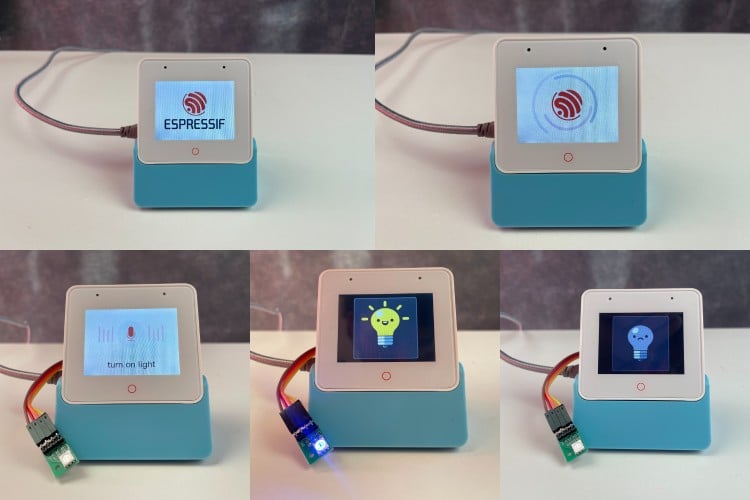
Power on your device using the USB-C cable. Once powered, within a few seconds, you will see the Boot Screen Animation.

⇒ Step 2: Learning the Basics

After the first successful boot, you will see a quick guide provided by the device, like the four screens shown below.

ESP32-S3-BOX-3 user interface showing sensor monitor device control and media player options

The first two pages of the quick guide give an overview of the buttons on your ESP32 S3 box 3. Press the Next button to proceed to the next page.
The following pages explain how to use AI voice control. Tap OK, Let’s Go to access the menu.

⇒ Step 3: Main Menu Exploration

The menu has six options: Sensor Monitor, Device Control, Network, Media Player, Help, and About Us. You can navigate between these options by swiping left or right.

For example, to access the Device Control screen, tap on Light to toggle the light on or off. After that, return to the menu, go to the Media Player screen, and either play music or adjust the system volume.

ESP32 S3 BOX 3 UI


Testing Factory Firmware

⇒ Step 4: Quick Testing

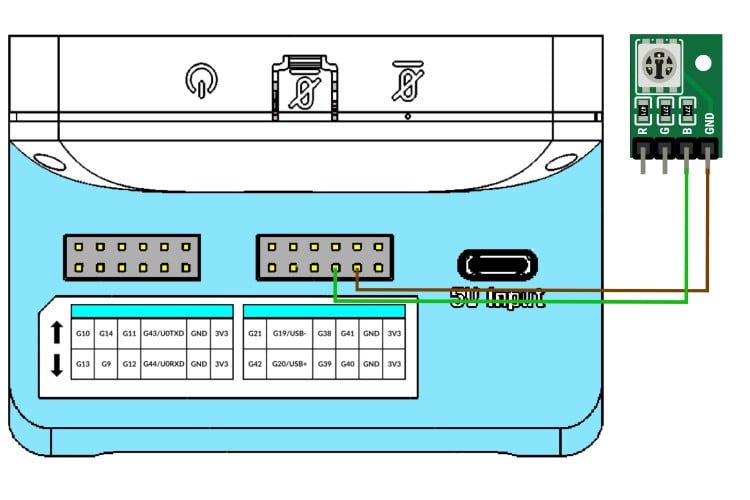
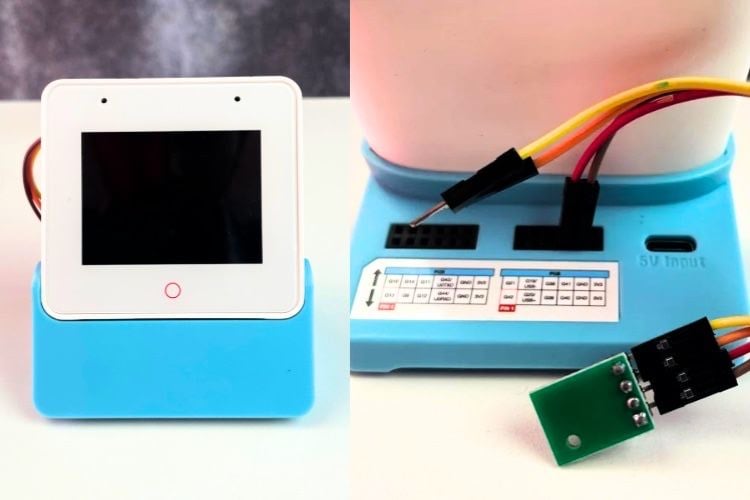
Device control and voice commands are a quick way to test the Espressif ESP32-S3-Box-3. To continue, you need to connect the provided RGB Light to the dock’s header pins.

Connections are shown in the image below:

RGB LED wiring diagram for ESP32-S3-BOX-3 tutorial testing with DOCK accessory

Now, in the UI, go to Device Control. By pressing the Light button, you can turn the light on or off.

You can also use voice commands like,

"Turn on the light"
"Switch off the light"
"Turn Red"
"Turn Green"
"Turn Blue"
The LED will respond. Don’t forget to say the wake word before giving commands.

Connecting to ESP-BOX Mobile App

⇒ Step 5: Advanced Feature Testing

So far, all features have been tested offline. Now, let’s move online with a few simple steps.

First, download the ESP-BOX app to your phone. It’s simple: go to Network, and in the top-right corner, click the button to install the app. You will see a QR code to download it.

ESP-BOX mobile app download QR code for ESP32-S3-BOX-3 network setup

After installing the app, sign in with your ESP-BOX account. Turn on Bluetooth on your phone, tap + at the bottom of the screen, and scan the QR code on your device to set up the network.

ESP-BOX app welcome screen and QR scanning function for device pairing

After adding the device, you will see prompts like these in the image below.

ESP-BOX app device connected confirmation screen

Remember:

  • Do not exit the QR code page during network setup.
  • Connect the device to 2.4 GHz Wi-Fi, not 5 GHz, and enter the correct password.
  • An incorrect password will trigger "Wi-Fi Authentication Failed."
  • Long-press the Boot button (Function button) for 5 seconds to clear network information and restore factory settings. If the QR code or Bluetooth does not work after resetting, restart your device using the Reset button.

After successfully adding the device, select it in the app. You can control the device here as well. Unlike the first time, it uses ESP RainMaker for communication.

Tap on the icon to access the Config Menu. Here, you can configure pins directly.

ESP-BOX app configuration menu showing GPIO pin settings and customization options

In Voice Command, you can add custom commands. Enter the text and its action, for example, set "Good Morning" to turn on the light. Click Save to return to the previous screen, then click Save again.

ESP-BOX app voice command input interface for custom command creation

In the Control tab, you can directly configure the LED from the app, adjusting colour, brightness, and saturation.

ESP-BOX app LED color control interface showing brightness and saturation settings

Working with Sensor Accessories

⇒ Step 6: Testing the Given Accessory

Among the accessories provided, the sensor module is the most unique, as it includes multiple sensors to work with, while the others mainly extend connectors for breadboard use. Additionally, it supports different orientations and mounting options.

The ESP32-S3-BOX-3-SENSOR is a versatile accessory that integrates a Temperature & Humidity sensor, a pair of IR Emitters and Receivers, and a Radar sensor. It allows users to easily create sensor networks and other sensor-based applications. The built-in firmware provides a real-time display of temperature and humidity, demonstrates human presence monitoring through a 2.4 GHz radar, and includes an IR learning interface. This lets you use the ESP32-S3-BOX for IR learning of your air conditioner, enabling remote control. The learning feature also works with other in-home IR controllers, such as fans, TVs, and projectors, making the experience interactive and engaging.

  • Temperature and Humidity Sensor

Go to the Sensor Monitor. The interface will prompt you to insert the sensor accessory.

ESP32-S3-BOX-3 sensor monitor interface prompting accessory insertion

After mounting the accessory, you will be able to see the temperature and humidity readings on the screen.

  • Radar Feature

To use the radar, enter the Sensor Monitor screen and tap the ON/OFF button to enable or disable radar monitoring. When the radar switch is ON, a red body icon will appear if a person is detected in front of the device. The icon will turn gray if no one is detected within two minutes.

ESP32-S3-BOX-3 radar sensor ON and OFF states showing presence detection

  • IR Learning

Below the temperature, humidity, and radar functions is the infrared learning module. Currently, this module can only learn the ON/OFF function of a remote controller. Follow the interface instructions to iteratively learn the ON/OFF command of your remote a total of four times. After successful learning, the interface will confirm it.

 IR Learning Interface UI

Perform an ON/OFF test on your air conditioner by pointing the ESP32-S3-BOX-3-SENSOR toward it. If the air conditioner’s ON/OFF behaviour is opposite to what you expect, click the Reversal button to correct it. You can also click Relearn to learn commands from other remote controllers.

Reversal and Relearn IR UI

Remember

  • When the ESP32-S3-BOX-3 is not mounted to the ESP32-S3-BOX-3-SENSOR dock, the entire Sensor Monitor function will not work.

  • While using the built-in firmware with the ESP32-S3-BOX-3-DOCK, avoid hot-plugging the dock or switching to the Sensor Accessory, as this may cause the accessory to be unrecognised. Simply power the ESP32-S3-BOX-3-SENSOR again to restore normal operation.

  • Due to the power limitations of the infrared emitter and differences among air conditioner brands, the effective range for IR learning has been tested to be between 1 and 1.5 meters.

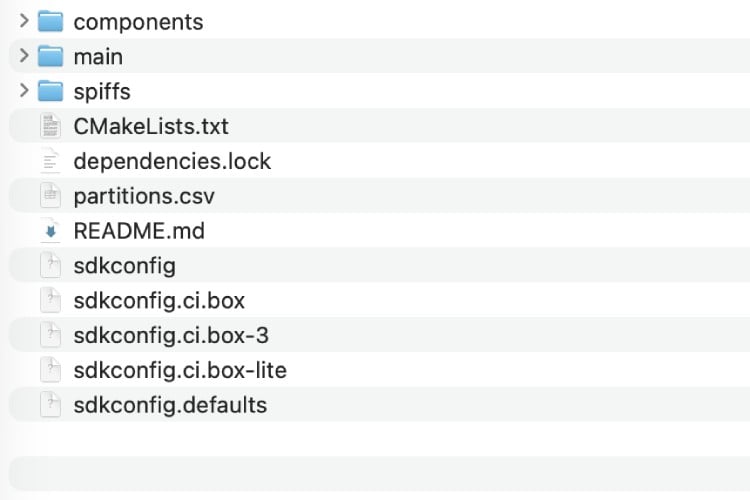
The features of the Box are not limited to the factory firmware; it’s mainly for demonstration purposes. To truly unleash the power of this device, you need to use ESP-IDF. I wouldn’t recommend the Arduino IDE, as many components supported in ESP-IDF don’t have full support in the Arduino IDE. To access all features, it’s best to stick with ESP-IDF.

There are up to 10 example programs available in Espressif’s official ESP-BOX Git repository,

  1. chatgpt_demo
  2. esp_joystick
  3. factory_demo
  4. image_display
  5. lv_demos
  6. matter_switch
  7. mp3_demo
  8. usb_camera_lcd_display
  9. usb_headset
  10. watering_demo

These samples illustrate different aspects of what the board is capable of, and provide useful ideas to get you started with your own projects. 
This development board offers plenty of functionality within a compact, ready-to-use board.  Regardless, if you are prototyping or building larger applications, it's worth analysing what each application provides. For now, take some time to work through the examples to see how they relate to your own project ideas.

So, enjoy exploring this dev board! With it, you can do a lot and really learn while having fun.

Have any question related to this Article?

Understanding MAXREFDES117 Module: A Tiny Optical Heart-Rate Sensor

For wearable projects, having the right sensor module makes all the difference. As you all know, this year’s contest theme is Smart Home and Wearables, so we came up with another sensor module, the MAXREFDES117 optical heart-rate module. This device comes with integrated red and IR LEDs, making it an ideal choice for developers and enthusiasts alike. The MAXREFDES117 optical heart rate module is a compact, low-power sensor designed specifically for wearable health monitoring projects.

How to Purchase on DigiKey using AqTronics as the Local Logistics Partner

Purchasing electronic components from international suppliers can often be a complicated process for customers in India. Traditional ordering from DigiKey in USD requires managing customs clearance, local freight, and cross-border payments, which can be time-consuming and prone to errors. To facilitate electronic component sourcing in India, DigiKey has aligned itself with AqTronics India, an electronics distributor certified in local logistics, to offer easy and seamless payment options for Indian buyers through DigiKey India. Whether you are an electronic hobbyist, a startup, or an established organisation, knowing how to buy at DigiKey using AqTronics will simplify your electronic component sourcing process. This partnership allows buyers to pay in Indian Rupees, receive GST-compliant invoices, and enjoy hassle-free door-to-door delivery. 

CircuitDigest presents the Smart Home & Wearables Project Contest 2025! Win exciting prizes worth up to ₹7,00,000 and receive free development boards through our partnership with DigiKey. For registration, dive into contest details. 

One of the key advantages of using AqTronics as the logistics partner is the simplification of the import process. Customers no longer need to obtain an Import Export Code (IEC) or handle customs clearing procedures themselves. AqTronics takes care of local freight and customs clearance, ensuring that orders reach the customer quickly and efficiently. For most locations in India, deliveries are completed within one to two working days after dispatch from AqTronics’ warehouse in Bangalore, making the entire process far more convenient than navigating international shipping independently.

Author Expertise: This comprehensive DigiKey India purchase guide is based on Circuit Digest's hands-on experience with successfully placing multiple orders through AqTronics as the authorised local logistics partner.

Key Benefits of Using AqTronics as DigiKey's Local Logistics Partner

The partnership between DigiKey and AqTronics India electronics distributor, offers several advantages for how to buy electronic components from DigiKey in India:

1. Simplified Import Process for Electronic Components Sourcing India
2. Financial Convenience with Local Payment Options
3. Reliable Access to Global Electronics Distributor Inventory

Another significant benefit is the financial ease it provides. Payments are made in INR through familiar Indian payment gateways, reducing foreign exchange risks and eliminating the complexities of cross-border transactions. Customers also receive official invoices from AqTronics Technologies, which are fully compliant with Indian GST regulations. This makes accounting simpler for businesses and hobbyists alike, aligning with local financial processes. Apart from that, using AqTronics ensures reliable support and access to the same wide product range offered by DigiKey. While the ordering process is handled locally, the products themselves are sourced directly from DigiKey, maintaining product quality and consistency. In addition, any issues or inquiries can be addressed through local customer service representatives, providing peace of mind and a smoother overall purchasing experience. By combining local expertise with DigiKey’s global inventory, AqTronics makes it easier than ever for Indian customers to access the components they need.

Complete DigiKey India Purchase Guide: Step-by-Step Process

⇒ Step 1: DigiKey India Account Setup and Registration

Before you begin, note that only registered DigiKey users can purchase using the local logistics partner. If you are a new user, create an account on DigiKey; it’s free and takes only a few minutes. Existing users can simply log in with their credentials.

Note: If you are registering as a new user, you will have to wait for the verification email from DigiKey. This usually takes 3-4 hours or more, depending on your region and time of registration. 

DigiKey India account setup and registration process showing login interface for electronic components sourcing

After logging in, locate the country flag icon next to the search bar on the header menu. Make sure India is selected as your country. If you need to change it, click on the flag icon to open a settings window, then select India as the country and INR (Indian Rupee) as the currency.

Setting India location and INR currency for DigiKey India payment options and local logistics

⇒ Step 2: Adding Electronic Components to Your Cart

Next, add the items you wish to purchase to your shopping cart.

DigiKey shopping cart showing electronic components selection for India purchase

Once all items are added, click the shopping cart icon at the top left to view your selections. On this page, you will see two checkout options: Checkout with DigiKey and Checkout with our local logistics partner. Note that the prices displayed are in INR and do not yet include customs taxes, which will be calculated later.

Selecting AqTronics local logistics partner during DigiKey India checkout process

⇒ Step 3: Checkout Process with AqTronics India Electronics Distributor

Under the checkout options, select Checkout with our local logistics partner. Clicking this option will change the checkout button to Checkout with our local logistics partner, and clicking on it will automatically transfer your order details to the AqTronics website for further processing.

DigiKey local logistics partner selection button for AqTronics India checkout

On the AqTronics checkout page, you will see the duty amount and GST fees applied to each item. The total at the bottom includes customs duties, GST, and shipping charges in INR. Once reviewed, click the “Proceed to Checkout” button to continue. 

AqTronics India electronics distributor checkout page showing duty, GST, and total pricing

Provide your billing and shipping address carefully to ensure smooth delivery. For business orders, enter your GST number along with the billing address. Once all details are filled, click on “Next Tab” to continue.

Billing and shipping address form for DigiKey India purchase through AqTronics logistics

⇒ Step 4: Completing Payment Through the Indian Payment Gateway

Review the total amount to be paid and click on “Click here to Pay.”

Final payment page for DigiKey India purchase showing total amount in INR

You will then be redirected to the Razorpay payment gateway, where you can complete your payment using UPI, debit or credit cards, net banking, or other supported online payment methods.

  • UPI payments (Google Pay, PhonePe, Paytm, BHIM)
  • Debit and credit cards (Visa, Mastercard, RuPay, American Express)
  • Net banking (all major Indian banks)
  • Digital wallets (supported e-wallets)

Razorpay payment gateway interface showing DigiKey India payment options including UPI and cards

After completing the payment, your order will be successfully placed on DigiKey with AqTronics as your delivery partner. An order confirmation email, containing your order ID and tracking link, will be sent to your registered email address. Keep this email for reference.

Order confirmation screen after successfully purchasing from DigiKey India using AqTronics

⇒ Step 5: Tracking Your DigiKey Shipping Process India

To track your order, visit the AqTronics website and enter your Order ID that you received via email in the above step. You will also receive all future status updates via email. Typically, deliveries within India take 7–10 business days.

Order tracking interface for monitoring DigiKey India shipment through AqTronics logistics

⇒ Step 6: Delivery and GST-Compliant Invoice Receipt

Orders placed through DigiKey using AqTronics are shipped first to the AqTronics fulfilment center and then delivered to your address using their local logistics network. AqTronics handles customs clearance and local delivery. GST-compliant invoices are shared via email once the order is shipped from the AqTronics warehouse, and a printed copy is provided with the delivery, ensuring full compliance with Indian tax regulations.

Final delivery package and GST invoice from DigiKey India order via AqTronics distributor

Frequently Asked Questions (FAQs) - DigiKey India Purchase

⇥ 1. Is an Import Export Code (IEC) required for ordering from DigiKey India through AqTronics? 

The answer is no, AqTronics, which is the local logistics partner of DigiKey, takes care of all the import documentation and customs clearance for you, so it is very easy for both individuals and organisations to source electronic components without IEC registration.

⇥ 2. What payment methods are available for customers buying from DigiKey India through AqTronics? 

DigiKey India payments through AqTronics are accepted in UPI (Google Pay, PhonePe, Paytm), debit/credit cards (Visa, Mastercard, RuPay, Amex), net banking from any major Indian bank, or selected digital wallets. All the payments will be done in INR via Razorpay's safe transaction gateway.

⇥ 3. Will I get a GST-compliant invoice for my DigiKey order?

Yes, AqTronics India electronics distributor, offers a complete GST-compliant invoice for every order. They have proper tax details, HSN codes, and are eligible for input tax credit. You are provided with both electronic copies through mail and a printed copy along with your shipment.

⇥ 4. Are the components sourced from DigiKey India legitimate and guaranteed?

Certainly! All electronic components are sourced from DigiKey's authorised global inventory, assuring 100% authenticity. These electronic components are guaranteed by the manufacturers, and you will receive the same components from DigiKey International as you would from DigiKey India, so you are assured of the same quality manufacturing by this global electronic components supplier. .   

⇥ 5. Can I cancel an order or make changes to an order once I've placed it with AqTronics?

Changes or cancellations should be made as soon as possible after your order is placed; you should contact AqTronics customer service 2-4 hours after your order is placed. If your order has been processed and shipped from DigiKey's international warehouse, the order cannot be cancelled. Changes must be communicated early.

⇥ 6. What are the steps to track my Digi-Key order through the AqTronics shipping method?

Simply go to the AqTronics URL and enter your Order ID (received in email) in the tracking section. You will receive an email notification as each shipping milestone goes through (customs clearance, out for delivery, etc.). The real-time tracking creates complete transparency for the DigiKey shipping process in India.

Related Resources: For technical specifications and component datasheets, visit DigiKey.in directly. For logistics inquiries, contact AqTronics customer support.

Have any question related to this Article?

Getting Started with Adafruit MEMENTO: Python Programmable DIY Camera Board

There have been many development boards recently built around the ESP32-S3. Most development boards come with a display, some also include cameras and buttons, and a few have speakers and microphones. Finding one that brings all these components together without compromising on quality has been the real challenge for makers and developers. Keeping all this in mind, we found a dev board that brings everything together in one module, the Adafruit MEMENTO.

GST Council’s 56th Meeting: What the ELCINA Webinar Revealed for the Electronics Industry

Submitted by Abhishek on

The GST is a framework that was specifically introduced to harmonize taxation across India. However, over the years, it has somehow evolved into a complex system that businesses, particularly small and medium-sized ones, struggle to navigate. We are now about to witness one of the most drastic changes GST has seen since its inception as the government attempts to rationalize tax slabs and make compliance less of a burden, while not compromising on revenue generation.

ELCINA, India's oldest electronics industry association, brought in Shashank Shekhar Gupta, Founding Partner at Marg Tax Advisors, as the speaker for its webinar on the 56th meeting of the GST Council. The expert shared his analysis, breaking down GST rate rationalization and the implications that it has on businesses at a granular level. The webinar was moderated by Rajoo Goel, Secretary General at ELCINA, and Sasikumar Gendham, President of the organization, delivered the opening remarks

Sasikumar expressed his appreciation for the council’s progressive efforts under the GST 2.0 reforms. He called attention to India’s ambition of achieving electronics manufacturing worth $500 billion by 2030 and also highlighted how the move promoted digital inclusion and quality of life. A washing machine or TV costing roughly ₹3000 to ₹5000 less is a noticeable difference that can really drive demand through sheer affordability. 

56th GST Council Meeting Overview

The meeting was chaired by Union Finance Minister Nirmala Sitharaman and largely focused on the common man. The council has approved Next-Gen GST reforms to make doing business easy for all citizens, as stated by Prime Minister Narendra Modi in his Independence Day speech. He said, “The government will bring Next-Generation GST reforms, which will bring down the tax burden on the common man. It will be a Diwali gift for you.” Aligning with his aspirations, the council proposed a reform package that put forward a relatively painless two-slab structure. The council reached this proposal through consensus. This change will take effect on September 22, 2025.


Expert Analysis: Key Changes and Industry Impact

The GST Council’s proposed changes are set to take effect from September 22, 2025. While these changes are significant, it is important to note that these reforms have not been notified yet. Meaning, they are still subject to official notification by the government. Shashank illustrated the changes using a slide deck presentation, and I have a table below that is reproduced from that.

GST Rate Applicability During the Transition Period (Not Yet Notified)

Goods/Services Supplied Before 22.09.2025

Invoice DatePayment DateGST Rate Applicability
Before 22.09.2025Before 22.09.2025Old Rate
After 22.09.2025After 22.09.2025New Rate
Before 22.09.2025After 22.09.2025Old Rate
After 22.09.2025Before 22.09.2025Old Rate


Goods/Services Supplied After 22.09.2025

Invoice DatePayment DateGST Rate Applicability
Before 22.09.2025Before 22.09.2025Old Rate
After 22.09.2025After 22.09.2025New Rate
Before 22.09.2025After 22.09.2025New Rate
After 22.09.2025Before 22.09.2025New Rate


Slab Changes

At the time of writing this article, there are primarily four tax slabs in GST: 5%, 12%, 18%, and 28% respectively. Coming September 22nd, this will be simplified to just 5%  and 18%, setting the focus on efficiency and making compliance easy. To speak of the electronics industry, this almost creates an even distribution between 5% and 18% slabs, with 18% taking the edge. The speaker touched on the journey from the complex pre-GST era, when there were numerous taxes, including central excise, service tax, VAT, and entry tax.

Note: A separate 40% rate will apply to luxury and sin goods.


Mid-Month Timing Concerns

While Shashank welcomed the reforms, he voiced his concerns about the implementation timelines. He believed that September 22 being the effective date would cause compliance challenges, and ideally, the change should have been planned at the beginning of a month. The current timing creates complications for businesses that are to deal with transactions that span the changeover date. An example would be when a business raises an invoice before the 22nd and receives the payment after. Looking back at the opening, Sasikumar did acknowledge temporary challenges. He said, “I’m sure we'll face a little bit of challenges in the interim period, both before and after. But I think that is just a pass through. It would just be there for few days. But if you really look at the long-term impact, I'm sure this is going to be one of the biggest beneficiaries to our industry.”


The Inverted Duty Structure Dilemma

The most contentious issues to come from the reforms will involve the companies that are currently operating under an inverted duty structure. It is when the tax rate on inputs exceeds that on output. A lot of electronics manufacturers have accumulated a good amount of input tax credits under the structure. So the dilemma is whether eventual refunds can still be expected. Transitioning out of the inverted duty bracket due to the new rate structure, Shashank clarified that there would be no refunds in such a scenario based on government FAQs. 

"Industry at large, especially where they were already under inverted duty structure, but are coming out of it going forward, are very displeased because for the past period, they are sitting on an accumulated input tax credit, and they have no clear visibility that whether they will be able to liquidate this input tax credit," he explained. This is a significant challenge for the companies that are affected, as accumulated credits may become stranded without a clear path of recovery except through constitutional remedies like approaching high courts.


Credit Protection and Transition Rules

Shashank confirmed that existing input tax credits will stay protected during the transition. "The credit, once availed, remains indefeasible, and that credit would continue with you. You can utilize that credit towards payment of your any outward tax liability," he assured attendees. This protection applies to scenarios where tax rates have been reduced, but some tax remains applicable, as opposed to cases where goods have become entirely exempt.


Faster Refunds

We are to see some significant procedural improvements that should benefit the electronics industry. For exports, the government has proposed an implementation of automatic release of 90% of refund claims within set timeframes, provided the exporter has not been classified as high-risk. Similar provisions will also apply to refunds under inverted structured duty for the industries that continue to qualify. Only 10% is to be withheld pending detailed scrutiny.


GST Appellate Tribunal

After eight years of delays, the GST Appellate Tribunal is set to become operational. In the same way as industries, the speaker noted that this is something that even GST consultants, practitioners, and lawyers have been eagerly waiting for. The announced timeline includes accepting appeals before the end of September 2025. Hearings should begin before December 2025, and the limitation period for filing appeals is extended to June 30, 2026. This is a development that should significantly reduce litigation uncertainty and offer quicker resolution of tax disputes.


Intermediary Services

The government has announced that they are eliminating the “intermediary” category from the GST law. This addresses a long-standing source of litigation dating back to the service tax era. This is a change that will greatly benefit Indian service exporters who were previously denied export benefits due to the complexity of place-of-supply rules.


Market Impact and Industry Outlook

As far as the electronics industry is concerned, these reforms fundamentally align with India’s manufacturing ambitions.  Through these changes, increased affordability should support the country’s digital inclusion objectives while potentially boosting domestic manufacturing. One of the stumbling blocks is that some electronic components will continue to attract 18% GST while their finished products will move to lower rates, and this could create a new inverted duty situation.

While broadly welcoming the reforms, ELCINA has urged the GST Council to provide “practical transition support and correction of any anomalies.” The timing concerns highlight the need for better coordination in future policy implementations. As businesses prepare for the September 22 changeover, many are calling for clearer guidelines and more generous transition provisions for all the companies caught between the old and new regimes.

As the electronics industry prepares for this landmark shift in India’s tax landscape, complete focus is set on managing short-term transition challenges while positioning for the long-term benefits of a simplified, more competitive tax structure. The success of these reforms certainly cannot be measured by revenue collection, but by their ability to boost manufacturing, increase exports, and make electronics more affordable for Indian customers.

Have any question related to this Article?

LiteWing-ESP32 Drone gets New Mobile App

Last year we built a drone using ESP32 and our community loved it. Since then the project has evolved and the drone is now called LiteWing - think of LiteWing as a low cost development platform for Drones using which you can not only easily build and fly a mini drone but can also control it using python, add your own sensors or even write the entire drone firmware using Arduino making it perfect for STEAM education and other fields.

Download the Latest Version of LiteWing Mobile App

LiteWing is an open source project based on ESP-Drone project from Espressif and it initially used the same ESP-Drone mobile App to control the drone, but this App only covers the basic flight capabilities and no longer seems to be actively maintained Espressif. So we at CircuitDigest have built a new mobile control drone App for LiteWing. In this article let’s understand what is new in this app and explore its features to understand how it can enhance your LiteWing experience.

Old and New App LiteWing UI

What's New with LiteWing ESP32 Drone App

The LiteWing mobile app supports all basic features to quickly pair and fly your drone, but we have also added few extra features which was not originally available in the ESP-Drone mobile app.

LiteWing ESP32 Drone App

Few key features are mentioned below

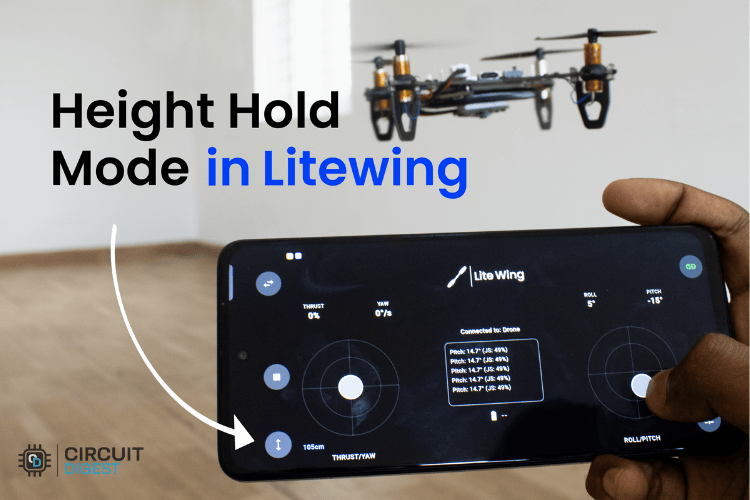
Height-Hold:You can enable height hold mode right from your mobile app, this feature was previously limited to cfclient and cflib.
Battery Voltage Monitoring:You can read and monitor battery voltage of your drone right from your mobile app, it also shows warning when battery voltage is low.  
Console Logging:The console box shows any warnings or error that the drone pilot should know about.
 
Emergency Stop:If the drone losses control the emergency stop button can be used to turn off all motors immediately.  
Connection Monitoring:The app constantly monitors the connection with drone and provide audio and visual feedback when connection is lost with drone.
Landing Sequence:Both height hold and normal flight mode has gradual Landing allowing you to land the drones and touch the ground smoothly, implemented using throttle decay
Drift Prevention:The pitch and roll joystick uses a exponential response curve and also provide more fine tuned trim control which helps in calibrating the drone and minimizing drift. 
ID Monitoring:The mobile app shows the ID of the drone to which it is connected to, which is very useful when working with multiple drones in a classroom environment.  
Android & iPhone Support: This latest app is developed using Flutter, meaning it works both on Android and iPhone devices.

And the best part is, this LiteWing Mobile App is based on the same Crazyflie 2.0 protocol so the app not only supports LiteWing Drone, but also other mini drones that works using the crazyflie protocol.

How to Fly LiteWing Drone using LiteWing Mobile App

Flying LiteWing Drones using the LiteWing mobile app is pretty straight forward, but if you are an absolute beginner then this guide will help you get started and along with some tips and debugging techniques.

Before start flying let’s make sure your Drone is ready, if you have built LiteWing by yourself or have purchased it as a DIY kit then check out how to assemble LiteWing Drone, pay attention to the propeller marking and orientation. Also make sure you are using the right battery for Drone and the battery is fully charged.

Power up the Drone

Once your LiteWing drone is ready, power it on and wait for the powering sequence to complete. During this sequence you should notice that each of the four motors spin momentarily for second and after that your green LED blinks every 500ms like shown in the image below. This ensures that all motors are working and the MPU6050 (on board IMU) is calibrated and ready for flight.

Litewing Drone Powering Sequence working demonstration

Connect and Fly

At this point you can use your phone to connect to the drone, open the WiFi settings and look for something like “LiteWing_xxxxxxxxxxxx” the x’s represents the unique MAC ID of your Drone. You can connect to this WiFi network using the password “12345678”. Now you can launch the LiteWing App and use the link button on the top left corner to connect to you drone. If connecting is successful you will notice the blue LED on the drone blinking and your app will also indicate the connection status. You can also see the debug information, the drone MAC ID and the battery status on the mobile app as shown below

LED blink  Link button working demonstration

Now your LiteWing Drone is ready to fly, use the left joystick for throttle and the right joystick to control the pitch and roll of the drone. By default the yaw control will be disabled, after you have learnt the basic control you can enable yaw control using the top left toggle button.

Important: During testing we noticed that few android devices were not able to connect to drone when data was enabled. If you connection keeps disconnecting or if the drone shows no response. Turn on airplane mode and then connect to drone, this will solve the problem.

LiteWing Drone App Drone Flying

Trim Settings for Drift Correction

After take-off if you notice your drone to drift automatically on the pitch and roll axis you can change the trim settings for pitch and roll. Use the Trim and sensitivity settings button on the bottom right, if the drone is drifting towards to left increase the value of Roll Trim, if its drifting towards right decrease the value of Roll Trim. Similarly if the drone is drifting forward, decrease the Pitch Trim value and if the drone is drifting backward increase the Pitch Trim value. 

Drift DirectionAxisTrim Adjustment
Drifting LeftRollIncrease Roll Trim
Drifting RightRollDecrease Roll Trim
Drifting ForwardPitchDecrease Pitch Trim
Drifting BackwardPitchIncrease Pitch Trim

Note: By default LiteWing does not support position hold, so minor drift during flight is expected. Position hold can be achieved by external position hold sensors.

Trim Sensitivity Adjustment Drone App

Apart from normal flight mode, the LiteWing mobile app also supports height hold mode. Meaning you can set a specific height and the drone will automatically take off and maintain that height, after which the pilot can just control the pitch and roll (X and Y) using the right joystick.

Height Hold mode

In order to fly the drone in height hold mode, you should add a height hold sensor to the sensor. The basic version of LiteWing drones does not get shipped with a height hold sensor, you have to purchase the VL53L1 sensor module separately and solder it to the backside of the drone like shown below.

Height Hold Sensor

If you are not sure how to connect this sensor you can check out the tutorial on how to use height hold mode in LiteWing. Once you have the drone ready with height hold sensor added, you can power on the drone and connect to it like we did earlier. But now, instead of using the left joystick to provide throttle you can use the 'height hold button' on the bottom left of your app. Clicking this button will prompt a pop up box enabling you to set the height at which your drone should fly like shown in the image below.

Height Hold Mode App

After selecting your preferred height you can click on 'start'. The debug dialog box will begin count down and after that your drone will take off automatically and maintain the set height. You can use the right joystick to control the drone pitch and roll axis like always but your left joystick will remain inactive. To land the drone just tap the height hold button again and your drone will begin landing slowly.

Other New Features on LiteWing ESP32 Drone App

Apart from basic flight, height hold mode and trim corrections the app supports few more key features like an emergency stop button, battery voltage monitoring, audio feedback for connection status, sensitivity control etc. The below image show few key buttons and their position on the app.

UI Interface Drone App

If you have faced any problem in using the app or if you would like to add any new features please use the comment section below to share your thoughts. We will surely write back to each comment. LiteWing is an active open source community project maintained by circuitdigest, and this app aims to get one step close in making LiteWing the most cost effective educational drones for makers and hobbyists. If you need more info please check our official LiteWing Documentation

Have any question related to this Article?

How to Boot Raspberry Pi from USB without SD Card

Submitted by Dharagesh on

Want to boot your Raspberry Pi from USB instead of unreliable SD cards? If you've used a Raspberry Pi long enough, you've probably faced the dreaded SD card failure. Maybe it corrupted right after a power outage, or maybe it just wore out from thousands of log writes. That's when I finally decided no more SD cards. They're great for getting started with Raspberry Pi, but when you want reliability and speed, it’s best to boot Raspberry Pi from USB.

And with the newer Raspberry Pi models, boot Raspberry Pi from USB is not only just possible, it's surprisingly easy once you know which Pi you're dealing with. I went through the process for multiple models – Pi 3B, 3B+, 4B, and even the new Pi 5. So if you're wondering whether your Pi can ditch the microSD and run from USB alone, this guide is for you.

Quick Overview

Duration: 1-2 hours | Type: Tutorial | Difficulty: Beginner-Intermediate

Technical Scope:
USB boot configuration for Raspberry Pi

Use Cases:
Server deployments, continuous monitoring systems, performance-critical applications

Why Boot Raspberry Pi from USB Instead of SD Card?

By default, Raspberry Pi boots from a microSD card. It's cheap and works fine, until it doesn't. Performance aside, SD cards wear out over time, especially with heavy I/O. If you're running anything that involves a lot of reads and writes, such as databases or frequent logging, this can become a real issue.

But there's also a speed factor. I found out that the Raspberry Pi 4's SD interface maxes out at around 50 MB/s. Older models like the 3B and 3B+ are even slower, topping out at roughly 25 MB/s. And in reality, even the best SD cards only deliver around 38 MB/s write speeds. That's just not ideal for running an operating system or doing any kind of heavy disk activity.

Now compare that to a USB 3.0 SSD. In real-world tests, it was able to hit read speeds of 208 MB/s and write speeds of 140 MB/s. That's over five times faster than the best SD cards.

The difference is noticeable. Booting, installing packages, file operations, and even just browsing the Raspberry Pi OS desktop all feel significantly snappier with USB boot. If you’re moving beyond basic projects, configuring your setup to Raspberry pi boot from SSD can significantly boost performance.

Advantages of USB Boot

Real-world file operations show dramatic improvements when you boot Raspberry Pi from USB. The speed factor is significant when you boot the Raspberry Pi from a USB. Here's what I discovered through real-world testing:

Storage TypeRead SpeedWrite SpeedInterface Limit
SD Card (Class 10)38 MB/s25 MB/s50 MB/s (Pi 4)
USB 3.0 SSD208 MB/s140 MB/s480 MB/s
Performance Improvement5.5x faster5.6x faster9.6x higher
  • 5-10x faster performance than SD cards.
  • More reliable and fewer storage failures.
  • Performance advantages for application load times and overall system responsiveness.
  • Better for server deployments and continuous use.
  • Professionally deployed & production-ready.

How to Boot Raspberry Pi from USB?

I quickly learned that not all Raspberry Pi models behave the same when figuring out how to boot Raspberry Pi from USB without SD card. I discovered that how to boot Raspberry Pi from USB without SD card varies significantly across models. Let me walk you through each method:

Raspberry Pi Model

USB Boot Support

Description

Pi 3B

With one-time config

Needs an OTP flag set via SD card

Pi 3B+

Out of the box

USB boot enabled by default

Pi 4

Native with EEPROM

Supports USB 3.0 boot

Pi 5

Full support

Supports USB, PCIe NVMe boot

Raspberry Pi 3B: The One-Time USB Unlock

This one took a bit of digging. The Pi 3B doesn't support USB booting out of the box; you need to flip a hidden internal switch. More specifically, you need to set a flag in the Pi's OTP (One-Time Programmable) memory. It's permanent, but once set, you can boot from USB Raspberry Pi 3 forever, even without a microSD card present.

⇒ Step 1: Boot from an SD Card with Raspberry Pi OS

To get started, I flashed the standard Raspberry Pi OS onto a microSD card and booted the Pi 3B from it. You can use Raspberry Pi Imager to do this. Once the OS is running, open up a Terminal window; you'll need it for the next steps.

⇒ Step 2: Enable USB Boot Mode via config.txt

Here's the command I ran:

USB Boot Mode on Raspberry Pi
echo program_usb_boot_mode=1 | sudo tee -a /boot/config.txt

What this does:

echo program_usb_boot_mode=1

writes the config flag to enable USB boot.

The(pipe)

sends that string into the next command.

sudo tee -a /boot/config.txt

appends that line to the file /boot/config.txt using superuser privileges.

By adding program_usb_boot_mode=1 to the config file, the Pi knows to write a flag to its OTP memory on the next reboot. This only needs to be done once in the Pi's lifetime; it won't harm the Pi or prevent future SD card boots.

⇒ Step 3: Reboot to Apply the Change

After modifying config.txt, I ran:

sudo reboot

This reboots the Pi and triggers the bootloader to read that new config option. If it sees program_usb_boot_mode=1, it writes the USB boot flag to the Pi's OTP memory.

⇒ Step 4: Verify OTP Flag is Set

Once the Pi restarted, I wanted to make sure the USB boot flag had been written correctly. So I ran:

vcgencmd otp_dump | grep 17:
OTP Verification to Boot Raspberry Pi from USB

Here's what that does:

vcgencmd otp_dump

dumps the contents of the Pi’s OTP memory (One-Time Programmable).

| grep 17:

filters for line 17, which contains the specific USB boot bit.

If the command returns something like:

17:3020000a

That's your confirmation, to boot Raspberry Pi from USB is now permanently enabled on your Pi 3 B.

⇒ Step 5: Boot from USB (No SD Card!)

I flashed Raspberry Pi OS to a USB stick (just like I would with an SD card), plugged it into the Pi 3B's USB port, and removed the SD card. When I powered the Pi back on, it booted straight from USB. No more SD cards needed!

Raspberry Pi 3B+: Native USB Boot Support

If you're using a Raspberry Pi 3B+, you're in luck. USB boot is already enabled from the factory. That means you don't need to tweak any config files or run terminal commands. You just flash the OS to a USB drive and can boot from USB Raspberry Pi 3 immediately. The Pi 3B+ includes factory-enabled USB boot support, making Raspberry Pi 3 boot from USB without SD card.

Here's exactly what I did using Raspberry Pi Imager:

⇒ Step 1: Open Raspberry Pi Imager: I started by opening the Raspberry Pi Imager on my PC. It's the official tool for flashing OS images onto SD cards or USB drives.

⇒ Step 2: Choose Your Pi Model: On Raspberry Pi Imager lets you can specify the target board. I clicked the "Choose Device", and I selected Raspberry Pi 3B+. This helps the tool optimise the OS for your model.

Choose Raspberry Pi Model In Imager

⇒ Step 3: Choose Your Raspberry Pi OS: I clicked "Choose OS" and selected Raspberry Pi OS (32-bit) from the list. You can also use Raspberry Pi OS Lite if you're setting up a headless Pi (no monitor).

Choose Raspberry Pi OS In Imager

⇒ Step 4: Select the USB Drive: Next, I clicked "Choose Storage" and selected my USB stick from the list. Make sure you're selecting the correct drive; it will be erased during flashing.

Select USB Drive Raspberry Pi

⇒ Step 5: Write the OS: I clicked "Write", confirmed the warning, and let it flash the OS to my USB stick. This part took about 5-10 minutes.

⇒ Step 6: Boot the Pi 3B+ from USB: With the USB stick ready, I unplugged the SD card from the Pi (if there was one), inserted the USB stick into one of the Pi's USB ports, and powered it on.

And that was it. The Pi 3B+ booted from USB without any extra setup. No config files, no flashing bootloaders, just plug and go.

Raspberry Pi 4: Bootloader with EEPROM

The Raspberry Pi 4 is a major step forward. Instead of hard-coded boot logic, it uses a dedicated EEPROM chip to store its bootloader, enabling flexible boot configurations for Raspberry Pi 4 boot from USB without SD card. That means you can update it and change how the Pi boots. By default, older Pi 4 boards may still prioritise microSD boot, but this can be reconfigured to allow a Raspberry Pi 4 boot from USB without SD card. 

Option 1: CLI Method

⇒ Step 1: Boot from SD and Open Terminal

As before, I booted from an SD card loaded with Raspberry Pi OS and opened Terminal

⇒ Step 2: Update Everything

I ran the following to make sure my system and bootloader were fully up to date:

sudo apt update
Boot Raspberry Pi from SD and Open Terminal

sudo apt update: Fetches the latest package info from the repositories.

sudo apt full-upgrade -y

sudo apt full-upgrade: Installs updates for everything, including firmware and kernel.

Then I ran:

sudo rpi-eeprom-update -a

EEPROM Raspberry Pi

This command checks for the latest bootloader update and installs it if necessary. The -a flag means "apply any available updates automatically."

⇒ Step 3: Set Boot Order to USB

Next, I opened the Raspberry Pi configuration tool:

sudo raspi-config
Raspberry Pi Configuration Tool

Then navigated to: "Advanced Options → Boot Order → USB Boot"

Raspberry Pi ConfigurationBoot Order SelectSD Card BootRaspberry Pi Reboot

This sets the EEPROM bootloader to look for a USB drive first, before falling back to microSD.

⇒ Step 4: Reboot and Remove SD Card

Once the boot order was set, I rebooted, powered down the Pi, removed the SD card, and plugged in my USB SSD with Raspberry Pi OS installed. On the next power-up, you can now boot Raspberry Pi 4 from USB, faster than ever.

Option 2: Raspberry Pi Imager Bootloader Update

If you want to know how to boot a Raspberry Pi from USB without an SD card and avoid the terminal, Raspberry Pi Imager offers a user-friendly solution. Here is how.

→ Open Raspberry Pi Imager on your PC and choose the Board.

Choose Raspberry Pi Model In Imager

→ Click "Choose OS" → scroll down to Misc Utility ImagesBootloader → select USB Boot.

Boot Raspberry Pi from USB


→ Click "Choose Storage" and select an SD card.

Select USB Drive Raspberry Pi

→  Click Write and wait for it to finish.

Erase SD from Raspberry Pi

→  Insert the SD card into your Pi and power it on.

In about 10 seconds, the green LED will blink rapidly, or the screen may turn green; this means the bootloader update succeeded. Power off, remove the SD card, and you're now USB-boot ready.

Raspberry Pi 5 with Native USB and NVMe Boot

The Pi 5 is the most powerful Raspberry Pi yet, and it comes with native support for USB 3.0 and PCIe booting right out of the box. No updates, no flags, no EEPROM tweaks required. The Pi 5 provides the most comprehensive boot support, including Raspberry pi boot from SSD via multiple interfaces.

Here's All I Did:

  • Used Raspberry Pi Imager to flash Raspberry Pi OS to a USB SSD.
  • Plugged the SSD into one of the blue USB 3.0 ports.
  • Powered on the Pi 5 (with no SD card).

For insane performance on a Pi 5, use its PCIe port with a compatible NVMe adapter to make your Raspberry Pi boot from SSD just like a mini PC.

Troubleshooting USB Boot Issues

IssueSymptomsSolution
Power insufficientDrive not detectedUse powered USB hub or high-quality power supply
Boot partition corruptedBoot loops or failuresReflash drive with fresh OS image
Incompatible USB driveWon't boot despite setupTest with different USB drive brands
Outdated bootloaderUSB not recognizedUpdate EEPROM bootloader to latest version
Wrong USB portSlow performanceUse USB 3.0 ports (blue) on Pi 4/5

Should You Boot Raspberry Pi From USB?

If you're tired of SD card failures, want faster performance, or just want your Pi to feel more like a real computer, yes, the reliability you gain when you learn how to boot Raspberry Pi from USB without SD card is 100% worth it.

For casual hobby projects, SD cards remain adequate, but for serious applications requiring reliability and performance, boot from USB Raspberry Pi 3 and newer models offer compelling advantages. A good USB SSD is worth the cost in terms of better system responsiveness, reliability and even less work from SD card failure and maintenance delays.

If you want help flashing Raspberry Pi OS to a USB SSD, choosing the best drives, or even trying out NVMe booting on the Pi 5, especially for Raspberry Pi 4 boot from USB without SD card setups, I'd be happy to walk you through that next.

FAQs: Raspberry Pi USB Boot

⇥ Q1. How do I know if my Raspberry Pi 4 supports USB boot?
All Pi 4 models support USB boot, but units manufactured before mid-2020 may need a bootloader update. Check your bootloader version with vcgencmd bootloader_version - you need version 2020-04-16 or later for stable USB boot support.

⇥ Q2. Is booting Raspberry Pi from a USB faster than an SD card?
Yes, but the speed improvement depends on your storage and Pi model. USB 3.0 SSDs can achieve significantly faster data transfer rates than SD cards. However, the Pi 4's USB controller shares bandwidth with Ethernet, and actual performance varies by workload.

⇥ Q3. How do I troubleshoot USB boot failures?
Check systematically: verify bootloader version (vcgencmd bootloader_version), ensure USB drive has proper boot partition structure, test with known-good USB device, try different USB ports, check power supply adequacy (especially for SSDs), and verify boot order in raspi-config for Pi 4.

⇥ Q4. Do all Raspberry Pi models support booting from USB?
No, only the Pi 3B (with config), 3B+, 4 and 5 support USB booting. All other boards need an SD card for booting.

⇥ Q5. What is the best USB drive for booting a Raspberry Pi?
USB 3.0 SSD drives are easily our best choice if you are on the high end. Another option is USB memory sticks (the better quality they are, the better), but you may want to stay away from a cheap flash unit that may not last if you are continuously running them.

⇥ Q6. If I enable USB booting, can I still use an SD card?
Yes, in most situations, enabling USB boot will also enable you to still use an SD card. If you have both, the Raspberry Pi will boot from USB.

⇥ Q7.Can the Pi 5 derive power from NVMe drives?
Yes, the Pi 5 powers NVMe boot, as long as you take advantage of the M.2 adapters, you will achieve maximum storage performance.

⇥ Q8.How do I undo the USB boot configuration?
The Pi 3B's OTP changes are permanent, but you can still boot from the SD. On the Pi 4/5, the boot order can be changed using raspi-config


Raspberry Pi Setup Tutorials

Basic Raspberry Pi setup and configuration tutorials for beginners. If your goal is a seamless Raspberry Pi boot from SSD, start by solidifying your foundation with these basic configuration steps.

 Getting Started with Raspberry Pi - Introduction

Getting Started with Raspberry Pi - Introduction

New to Raspberry Pi? This beginner-friendly guide takes you through the setup, OS installation, and basic usage of Raspberry Pi boards with practical tips.

 How to install Android on Raspberry Pi

How to install Android on Raspberry Pi

In this tutorial, we will convert the Raspberry Pi into an Android device using a popular platform - emteria. OS.

How to setup DietPi on Raspberry Pi

How to set up DietPi on Raspberry Pi

Learn how to install DietPi on Raspberry Pi with this step-by-step guide. Set up a lightweight, optimised OS for your Pi with better speed and control.


Have any question related to this Article?

Understanding SR Latches: Complete Guide to Set-Reset Latch, Gated & Clocked Versions

An SR latch is a basic memory element in digital electronics that stores binary data using Set and Reset inputs. This tutorial covers the SR latch truth table, the circuit diagram, and the working principle of basic, gated, and clocked SR latch variants. 

Initially, after the introduction of transistors, engineers constructed simple latch circuits using transistors. After several stages of evolution, dedicated latches were built using logic gates like the NAND gate and NOR gate. These latches were used to store data, essentially binary data. In this article, we’ll briefly take a look at the SR Latch, along with its Gated SR Latch and Clocked SR Latch versions.

Quick Overview

Duration: 1-2 hours | Type: Digital Logic | Difficulty: Beginner

Technical Scope:
SR latch variants, truth tables, gate circuits

Use Cases:
Memory storage, control flags, data buffering, timing synchronisation

What is a Latch?

The latch is just a simple bistable circuit and hence has two stable states: set (logic 1) and reset (logic 0). It is a digital circuit that stores one bit of information and retains that output until input variations change it. On the other hand, compared to flip-flops, latches are asynchronous sequential circuits and do not operate with the help of a clock signal. So, output changes occur immediately after the input changes when the latch is enabled.

Key Features of Latches

  • Memory unit: Storing one data-bit as long as there is power.
  • Asynchronous: There is no clock input; state changes directly with the input.
  • Constructed from logic gates: Usually, the gates used will be NAND, NOR, AND, OR, and NOT. 
  • Basic building blocks of digital systems: They find use in data storage, control circuits, and sequential logic designs. 
  • Outputs: As the inputs change, outputs keep reflecting that change if it is enabled; else, they hold the stored value.

Types of latches

The primary types of latches that are used in digital circuits and systems

∗ SR Latch
∗ JK Latch
∗ D Latch
∗ T Latch

Let us now discuss the SR Latch in detail.

What is an SR Latch?- Complete Definition

The SR Latch, also known as the Set-Reset Latch, is a fundamental digital memory circuit that stores one bit of binary data using two inputs, namely Set (S) and Reset (R). When Set is activated, the latch outputs '1' (HIGH), and when Reset is activated, it outputs '0' (LOW). The stored value remains stable even after inputs are removed, making it a basic memory element. This latch can be built using either NOR or NAND gates, with the key difference being that NAND implementation uses inverted (active LOW) inputs compared to NOR gates.

Note: If a latch circuit, such as an SR Latch, is edge-triggered using a clock pulse, it becomes a flip-flop. So, ideally, latches and flip-flops are two different things and should not be confused for the same. In our case, if the SR latch is given a clock pulse, it becomes a clocked SR latch, which is also called an SR Flip-Flop. 

If you are completely new to flip-flops and latches, check out our tutorial on the Basics of Flip-Flops in Digital Electronics

More Digital Electronics Tutorials

Sequential Logic Circuits:


SR Latch Quick Reference Guide

ParameterDescriptionFunction
Set (S) InputControl input for setting output to HIGHForces Q = 1 when activated
Reset (R) InputControl input for resetting output to LOWForces Q = 0 when activated
Q OutputPrimary output representing stored bitShows current state (0 or 1)
Q̅ OutputComplementary output (inverted Q)Always opposite of Q in stable states

Key Elements of SR Latches

  • Set (S) Input: Forces Q output to the HIGH state (logic 1)
  • Reset (R) Input: Forces Q output to the LOW state (logic 0) 
  • Q Output: Primary output (representing stored bit)

Sometimes you may also see a Q̅, which is nothing but an inverted output of Q. In the image below, you can see the symbol and a simple SR Latch truth tableFrom the table, you can notice that the logic is straightforward since it's a memory element.

SR Latch Truth Table - Complete Analysis

The SR latch truth table defines all possible input combinations and corresponding outputs. This table serves as the foundation for understanding SR latch behaviour in digital circuits.

SR Latch Truth Table - Set Reset Logic States and Output

SR Latch Diagram States Explained

There are four possible logic states for this latch:

  1. When both inputs are LOW, the output remains unchanged. Initially, the output will be undefined (random), but after any other condition is applied, the “both LOW” state will retain the last output.
  2. When Set is LOW and Reset is HIGH, the output Q goes to the Reset state, which is LOW.
  3. When Set is HIGH and Reset is LOW, the output Q enters the Set state, which is HIGH.
  4. In the rare case where both Set and Reset are HIGH, the output Q becomes unstable due to the racing condition. Therefore, this state is considered invalid.
Set (S)Reset (R)Q OutputQ̅ OutputStateDescription
00QpreviouspreviousHold/MemoryNo change - maintains previous state
0101ResetOutput forced to LOW (0)
1010SetOutput forced to HIGH (1)
11??Invalid/ForbiddenUndefined state - avoid in design


SR Latch Circuit Diagram - NAND and NOR Implementations

The SR latch circuit diagram can be implemented using either NAND gates or NOR gates, each with distinct characteristics and input polarities. Below, you can see a working simulation of a simple SR Latch made using NAND gates, built using Proteus. You can notice how the output values Q and Q̅ change based on the input values S and R. 

SR Latch NAND Gate Circuit Working Animation - Digital Logic Tutorial


Now, let’s take a look at the Gated and Clocked versions of the SR Latch.

Gated SR Latch - Enhanced Control Mechanism

For the most part, the gates SR Latch is similar to the standard SR Latch. The only difference is the addition of one extra input, known as Enable. Below, you can see the Gated SR latch truth table and symbol for better understanding.

Gated SR Latch Truth Table with Enable Input

The Enable input allows us to enable or disable the latch, providing more control compared to the basic version. Below is a Gated SR Latch built using NAND logic gates in Proteus. This simulation will help you understand the concept clearly.

Gated SR Latch NAND Implementation - Enable Control Working Demo

The logic here is generally the same as a standard SR Latch, with the only addition being the Enable input.

  1. If the Enable input is HIGH, the Gated SR Latch works as expected.
  2. If the Enable input is LOW, regardless of the S and R inputs, the output remains unchanged—in other words, the previous state is held.

Clocked SR Latch

The Clocked SR Latch, also known as the SR Flip-Flop, is very similar to the Gated SR Latch, except that the Enable input is replaced by a Clock input. Instead of a stable enable line, the output now depends on the rising or falling edge of the clock signal. This is called edge-triggered behaviour.

Below, you can see the symbol and the truth table for a better grasp of the concept.

Clocked SR Latch Truth Table - SR Flip Flop Working Principle

Clocked SR Latch Benefits

  • Edge Triggered: Changes in state occur with the clock transition; the latch is insensitive to the input during any other time
  • Noise-Immunity: Glitches get through only when the clock is not transitioning
  • Synchronous Operation: Enables timing coordination in consecutive processes
  • Timing Predictability: Sidesteps race hazards in systems with complex timing

So, this Clocked SR Latch is essentially an SR Flip-Flop. To learn more about this, you can check out the Flip-Flop in Digital Electronics article for additional information and practical demonstrations. You can also view the simulation result using Proteus in the simulation image below.

Clocked SR Latch Working Animation - Edge Triggered Flip Flop


As mentioned earlier, the Clocked SR Latch is an edge-triggered device, which makes it more reliable for timed operations in sequential circuits. The working logic is slightly different from that of a regular latch circuit.

To keep it simple, here’s how it works:

  1. No Change (S = R = 0): The flip-flop retains its previous state.
  2. Set (S = 1, R = 0): Output Q becomes ‘1’ (Set).
  3. Reset (S = 0, R = 1): Output Q becomes ‘0’ (Reset).
  4. Invalid (S = R = 1): Both outputs (Q and Q̅) may become ‘1’, leading to instability. This condition is generally avoided in practical designs.

All these transitions happen only on the positive or negative clock edge, depending on the specific components used in the circuit.

SR Latch Applications in Modern Digital Systems

Application DomainLatch TypeSpecific Use CasesKey Benefits
Memory SystemsClocked SRCache registers, buffer memory, register filesFast access, reliable storage
Control LogicBasic SRState machines, flag registers, event detectionSimple implementation, low cost
CommunicationGated SRUART buffers, protocol controllers, data latchingControlled access, timing flexibility
Timing CircuitsClocked SRClock dividers, frequency synthesis, timing generationPrecise timing, synchronization

Frequently Asked Questions on SR Latch Table

⇥ 1. What is the difference between an SR latch and a D latch? 
An SR latch works with two distinct inputs, Set and Reset, and careful activation of only one of the inputs is required to avoid race conditions. By contrast, a D latch has one data input; the complementing actions take place automatically, hence preventing invalid states and providing a simpler and more reliable operation for digital systems.

⇥ 2. What is invalid for the SR latch if S=1, R=1? 
By establishing both inputs of the latch as HIGH and consequently trying to set a 1 at Q and reset a 0 at Q̅, creates an indeterminate state of either 0 or 1. This indeterminate state can initiate an oscillating output and/or lead to unpredictable or undefined behaviour of the circuit. More importantly, the race condition invalidates the fact that Q and Q̅ must be complementary values at any stable output state.

⇥ 3. What is the limiting factor of the SR latch propagation delay? 
Propagation delay can restrict switching speed and timing margins. Propagation delay governs the maximum operating frequency of sequential circuits and the setup and hold time, and gated SR latches based on NAND typically achieve about 2-5ns of propagation delay, and NOR is assumed to be slower.

⇥ 4. What will happen to the output of the SR latch at power-on?
The latch will not have a defined output as it will be unpredictable due to component variation, as well as noise at startup. Most latch/systems would contain a power-on reset circuit to force a specific initial state and would likely take advantage of RC networks or power-on reset integrated circuits for reliable startup at system power-on.

⇥ 5. How much power does an SR latch consume? 
For CMOS implementations, static power consumption will be almost negligible, with the exception of leakage current; however, dynamic power will depend on switching frequency. At moderate switching speeds, it would be quite minute, about 0.1 - 1 mW. Generally, a NAND implementation will consume less power than the NOR counterparts for most logic families.

⇥ 6. How will temperature affect the SR latch's behaviour? 
Increased temperature will increase propagation delays while also compromising noise margins. Commercial-rated devices will be operable within a temperature range of 0 °C - 70 °C, with the industrial counterparts rated -40 °C - 85 °C. Compensation circuits may thus be needed for some applications that require exactness.

⇥ 7. How fast can SR latches operate at?
Most modern CMOS implementations of the SR latch can operate at a frequency of a few GHz, limited by the propagation delay of the latch and parasitic capacitances that result from wiring in the implementation.  The practical frequency of operation will depend on what logic family the latch is in: TTL (50 - 100 MHz), CMOS (500 MHz - 2 GHz), and newer processes have demonstrated even greater speeds.

Conclusion

This tutorial covered the fundamental working principle, truth table, and circuit diagrams of basic SR latch, gated SR latch, and clocked SR latch implementations. Understanding these digital logic building blocks is essential for sequential circuit design and memory applications in electronics. If you have any questions, leave them in the comment sections at the bottom of this page, and we will be happy to answer them. You can also join our community or forums to start a discussion. 

This tutorial was created by the Circuit Digest engineering team. Our experts focus on creating practical, hands-on tutorials that help makers and engineers master electronic circuit projects.

I hope you liked this article and learned something new from it. If you have any doubts, you can ask in the comments below or use our forum for a detailed discussion.
 

DIY Projects with SR Flip Flops

If you would like to learn more about SR Flip-Flops, these tutorials include helpful diagrams, truth tables, and logic circuits to guide you through the concepts.

Clocked SR Flip Flop: Complete Guide with Circuit, Truth Table, and Working

Clocked SR Flip Flop: Complete Guide with Circuit, Truth Table, and Working

Learn how Clocked SR Flip-Flops work using NAND and NOR gates. Includes truth tables, logic diagrams, and real-world timing applications.

SR Flip-Flop with NAND Gates: Circuit, Truth Table and Working

SR Flip-Flop with NAND Gates: Circuit, Truth Table and Working

Learn how to build an SR Flip-Flop circuit using NAND gates. Understand the logic, truth table, working principle, and output behaviour with a complete circuit diagram and explanation

 What is Switch Bouncing and How to prevent it using Debounce Circuit

What is Switch Bouncing and How to Prevent It Using a Debounce Circuit

Learn how switch bouncing can affect SR Flip-Flop circuits and how to prevent false triggering using debounce techniques like RC filters and Schmitt triggers in digital logic systems.

Have any question related to this Article?

Introduction to Optocouplers

Have you ever heard the word isolation, especially in electronics? As you might guess, isolation is a key factor when it comes to optocouplers. Isolation is sometimes mandatory and sometimes an extra feature in circuits. Optocouplers are used in many electronic devices, from mobile electronics to household electronics.

So, in this article, let's learn more about optocouplers along with their basics, types, working principles, simulation, hardware demonstration, and live application demonstration. For our demo purposes, we will be using the PC817, a commonly used transistor output optocoupler in electronics.

Starting with a brief explanation of the optocoupler, we begin our walkthrough.

Basics of Optocoupler

In the path of Exploring Optocoupler, let's dig deep into answering questions like WHAT, WHERE, WHY, and HOW. 

Key Components of Optocouplers:

Input side: infrared LED that converts an electrical signal to light
Output side: photodetector (phototransistor, photodiode, or TRIAC) that converts the light back to an electrical signal
Isolation barrier: the non-conductive material which will provide isolation up to 5000V. 

ComponentFunctionVoltage Rating
IR LEDSignal transmission1.2V forward voltage
PhototransistorSignal reception80V max collector-emitter
Isolation BarrierElectrical separation5000V breakdown

What is an Optocoupler?

Let's understand the term Optocoupler. It can be separated as OPTO + COUPLER. So, technically, as per the name, it is used as a coupler with the help of some sort of optical technology. In brief, a light source is used as a link between two isolated circuits.

In terms of textual Representation: 

An optocoupler, also known as an opto-isolator, is an electronic component that transfers electrical signals between two isolated circuits using light. It typically consists of an LED (light-emitting diode) and a photodetector, such as a phototransistor, housed within a single package. When the LED is energised by an input signal, it emits light that is detected by the photodetector, which then produces an output signal. This optical coupling allows the input and output circuits to remain electrically isolated from each other, protecting against high voltages and electrical noise.”

Here, I would like to add a point that not only optical technology but also electromagnetic induction is used for isolation more commonly.

Where are the optocouplers used?

Commonly, the optocouplers are used in circuits where isolation is required between any two regions.

Relay Module

For example, let’s consider that we are working on a project where an Arduino UNO-like microcontroller needs to control an AC tube light. In this case, the first thing that will come to mind is a Relay module. Of course, we use a relay module, but do you know exactly why we use a relay module when even a TRIAC can be used to do the same work? Yes, it’s isolation. In the case of a TRIAC, there is a chance of higher AC voltage entering the low-power DC network, which, of course, fries the ICs like chips. So, the relay makes a suitable choice. Yet our concern is not about the relay, it’s the optocoupler. 

A relay is the first level of protection, and an optocoupler is also used between the microcontroller and the relay coil as a second level of protection. Being an electromechanical component, a relay could wear out over time. In that rare case, the AC power might touch the coil of the electromagnet inside the relay, which once again creates a path for AC to enter the DC network. This is where the optocoupler comes in handy and isolates both networks. The fundamental optocoupler circuit requires proper component selection.

Actually, apart from the relay, some types of Optocouplers can be used to switch a TRIAC directly.

Hope you understand the usage of optocouplers. Next, let's know why optocouplers are still preferred to do the job.

Why are Optocouplers Preferred Over Other Options?

The answer is simple. Unlike other options, there is no chance of electrical bonding between the separated regions even in the event of system failure. The possibility is very rare, such as if the potential is greater than the isolation voltage between the input and output of the optocoupler, which is about 5000 volts for the Optocoupler like PC817. That's why I said it's rare. There is no chance of placing such low-power electronics in such a high-voltage area. So, we trust optocouplers more than others.

Now you should have a clear understanding of optocouplers. Let's move to the interesting part of how it works.

How do Optocouplers Work?

There are numerous ways to understand the Working of the optocoupler. I would like to ask you to compare the wireless Remote with the optocoupler. The PC817 optocoupler's working principle operates through optical coupling. Let's look at it in detail.

Optocoupler’s Working Explanation

In the above illustration, you can see the remote car [Output] setup along with the wireless remote [Input]. Each has a separate power source, so the remote needs to be charged separately, and similarly, the car needs to be charged as well. If neither is charged, there is no chance of driving the car. Even if there is an issue with the car, it won't affect the remote, and vice versa. This is because there is wireless transmission and reception technology in between. The overall working will only be affected if some other RF signal interferes with the existing system. So, that's the point I wanted to deliver.  The PC817 optocoupler circuit can be configured

introduction to optocouplers working demonstration

In the Above Animated GIFs, you can see the working of the optocoupler. Like the remote control car, the optocoupler has an LED as an input and a phototransistor as an output. The LED transmits infrared rays, and the phototransistor receives the transmitted infrared waves at its base as a signal, which turns on the transistor. Similar to the remote control car, the functioning of the optocoupler can be disturbed by any external light sources. That’s why the optocoupler is completely sealed to avoid external light interference. Remember, this explanation using the remote car is only for understanding the concept of the Optocoupler.

You might wonder if there is a physical connection between the input and output internally, which may cause any trouble. Ha ha, don't worry; there is a term known as dielectric strength. Usually, the material used to isolate the LED and phototransistor is non-conductive epoxy resin, which has a dielectric strength of Vmax = 20kV/mm. So, let's assume there is a 0.25 mm gap in between, which might require nearly 5000 volts to start conducting. 

Hereby, the working of the optocoupler PC817 is completed.

Types of Optocouplers

Optocouplers can generally be classified into three categories: Based on their Input, Output, and Functions. Let's see each category in detail.

Types of Optocoupler

Types of Optocouplers Based on Input:

Optocouplers can be categorised based on their input types into two divisions: unidirectional input and bidirectional input, also known as DC input and AC input, respectively. The primary difference lies in the configuration of the LEDs within the optocoupler.

  • Unidirectional (DC) Input: This type has a single LED that responds to current flowing in one direction only.

  • Bidirectional (AC) Input: This type features two LEDs connected in opposite directions (one inverted), allowing it to respond to current flowing in either direction, making it suitable for AC input signals.

Types of Optocoupler based on their Input

Types of Optocouplers Based on Output:

Here, the optocoupler can be classified based on the type of Output Device used. Some of the output devices used are Photodiode, Phototransistor, Photodarlington, MOSFET, SCR, and TRIAC.

Optocoupler with Photodiode Output:

In this type, the output is a direct photodiode. This optocoupler is widely used in proximity detection, Rotary encoders, and Photo Interrupter sensors.

Optocoupler with Photodiode Output

The above is the image and symbol of the photo-interrupter sensor used for measuring the speed of rotating motors and in many other applications.

Optocoupler with Phototransistor Output:

Phototransistor output optocouplers are widely used due to their simplicity and low cost. In this type of optocoupler, a phototransistor is integrated at the output, providing an easy way to draw output from the device using a load resistor.

Optocoupler with Phototransistor Output

https://components101.com/sites/default/files/component_datasheet/PC817%20Datasheet.pdf

The above is the image and symbol of the PC817, a commonly used optocoupler that has a phototransistor as its output device.

Optocoupler with Photodarlington Output:

Photodarlington output optocouplers are utilised when a higher current transfer ratio (CTR) is required. This type of optocoupler incorporates a Photodarlington transistor pair at the output.

Optocoupler with Photodarlington Output

https://www.vishay.com/docs/83617/il221at.pdf

Above, you can see the image and Symbol of IL221AT, an Optocoupler with Photodarlington Output, Low Input Current, High Gain, and Base Connection.

Optocoupler with MOSFET Output:

MOSFET output optocouplers are used in applications that require high-speed and efficient power switching. These optocouplers incorporate a MOSFET at the output, providing several advantages over other types of optocouplers, like High-speed Switching, Efficiency, and immunity to Noise

Optocoupler with MOSFET Output

https://www.farnell.com/datasheets/461023.pdf

In the above image, you can see the TLP222A, which consists of an infrared-emitting diode optically coupled to a photo-MOSFET in a DIP package. It is suitable for use as an on/off control for high current.

Optocoupler with Triac & SCR Output:

Triac & SCR Output optocouplers are known for their requirement in higher power switching and the capability of triggering thyristor and triac on their own. This comes in handy when we need to switch the AC appliance with a Triac directly from a microcontroller.

Optocoupler with Triac & SCR Output

https://www.farnell.com/datasheets/3929882.pdf

The above is the image and symbol of the MOC301XM/MOC302XM, which contains a GaAs infrared-emitting diode and a light-activated silicon bilateral switch, functioning like a triac. They are designed for interfacing between electronic controls and power TRIACs to control resistive and inductive loads.

Types of Optocouplers Based on Function:

Optocouplers based on Function are designed to perform specific tasks, often integrating multiple Blocks into a single device. There are eight primary types of function-based optocouplers, each tailored for distinct applications. These optocouplers have more complex internals compared to other types due to their specialised nature.  

The most common types are

  1. Logic Output Optocouplers (Eg, 4N35)

  2. High Linearity Optocouplers (Eg, IL300)

  3. High-Speed Optocouplers (Eg, 6N137)

  4. Galvanically Isolated Gate Drivers (Eg, ADuM3223)

  5. Optically Isolated Gate Drivers (Eg, HCPL3120)

  6. Optically Isolated Amplifiers (Eg, HCPL-7800A)

  7. Solid State Relays (SSR) (Eg: G3MB-202P-5VDC)

  8. Voltage and Current Sensors (Eg, ACPL_798J)

To know more about these, you can explore its example links nearby.

And this might not be the end of the types of optocouplers. There are still many optocouplers out there, of which the above were our basic considerations. So out of these, let's consider the PC817 as an example optocoupler for our following simulations and practical demonstrations. 

Next, let's get introduced to the PC817.

Pinout of PC817 IC

Pinout of PC817 IC

The above image shows the pinout of the PC817, providing a clear explanation of each pin. Below is the pin description of the PC817, explained in the following table:

Pin NoPin NameDescription
1AnodeAnode Pin of Infrared Light Emitting Diode.
2CathodeCathode Pin of Infrared Light Emitting Diode.
3EmitterEmitter Pin of the Internal Photo Transistor.
4CollectorCollector Pin of the Internal Photo Transistor.

Let’s look at some of the important specifications of PC817.

Specifications of PC817

Here's the quick specification table for the PC817:

Specification of PC817

First, let’s look at the input parameters, starting from the anode and cathode sides. Consider it as a simple LED. Like a light-emitting diode, it has a forward voltage (Vf) and forward current (If), as shown above. Using these, we can calculate the appropriate resistor to be used in series with the input side. Make sure you are mindful of polarity because the IR LED inside has a very low reverse voltage of around 6V, which can permanently damage the LED.

The output part, consisting of the emitter and collector, can be considered as a transistor. As a transistor, it has a maximum collector current of 50mA and a higher collector-emitter voltage range of 80V maximum. Another important factor to consider is the frequency, with a typical cutoff frequency of 80kHz. So, it too has its limitations.

Finally, the operating temperature ranges from -30 to +125 ˚C, and storage should be between -55 to +100 ˚C. While soldering, you can reach a maximum of 260˚C for up to 10 seconds on the pins of the PC817. If the conditions exceed these limitations, the PC817 will be damaged internally.

Next, we are moving to the Stimulation of PC817 Optocoupler.

Stimulation of PC817 Optocoupler in Proteus:

In this simulation section, we will delve deeper into the workings of the PC817, starting with a basic simulation of the PC817. 

introduction to optocouplers direct output working demonstration

In the above diagram, you can see the direct output method. Here, R1 is the current-limiting resistor for the IR LED inside the PC817, and a button is connected between R1 and the positive power supply. R2 is the load resistor, which allows you to control the voltage gain and frequency response directly by adjusting this resistor. The output is connected directly to the LED via R3, completing the circuit. When the push button is pressed, the output LED turns off.

Input StateOutput State
HIGHLOW
LOWHIGH

In the above table, you can see the logic state difference between the input and output for the direct method. Now, let’s move to the next method, the inverted output method.

introduction to optocouplers inverted output working demonstration

In the inverted method, everything is the same except for Q1, which is a PNP transistor used to invert the output from the optocoupler, ensuring that the output state matches the input state. Below, you can see the output of the inverted method.

Input StateOutput State
HIGHHIGH
LOWLOW

As the signal is inverted by the PNP transistor Q1, the logic states of the input and output are directly proportional.

Next, we have a bonus simulation of the actual relay module available in the market. Optocoupler relay circuits provide double isolation between microcontrollers and high-power loads.

introduction to optocouplers relay simulation working demonstration

Here, the inverted output from Q2 is connected to one side of the relay coil, and the other side is grounded. A diode is connected in parallel to the relay coil to protect the circuit from reverse EMF, and an LED is also connected in parallel to the output for indication.

At the output, the switch of the AC light bulb is connected to the Normally Open (NO) and Common (COM) terminals of the relay. So, when the push button is pressed, the relay turns on, along with the AC light, as shown in the above GIF.

Essential Components for Relay Control

ComponentRatingPurpose
PC81750mA collector currentPrimary isolation
Relay coil5V/12V, 50-200mAMechanical switching
Flyback diode1N4007Coil protection
Base resistor1kΩCurrent limiting
Pull-up resistor10kΩLogic level setting

Now, let us move towards the Hardware demonstration of the Optocoupler PC817.

Hardware Demonstration of PC817 Optocoupler:

Below, you can see the hardware demonstration of the PC817 Optocoupler.

introduction to optocouplers hardware demonstration working demonstration

In this hardware demonstration, the direct output method is applied. Choosing different power supplies helps you understand more about how they work. Here, there are two different power supplies, one for the input side and another for the output side. You can see that both sides are perfectly isolated on the breadboard.

You might wonder about taking output directly from the optocoupler by driving the output in a source or sink drive method, which doesn’t invert the signal. Yes, it doesn't invert the signal, but this method is not recommended in the datasheet, even if it requires less current than the maximum collector-emitter current of 50mA. However, if you are confident about your circuit, you can proceed that way.

When you press the button, the LED goes off. This demonstrates the concept of direct output.

Let’s learn more about testing the PC817 Optocoupler.

How to Test an Optocoupler?

Testing an optocoupler is very simple and easier than you might think. There are many ways to do that, which we will discuss next.

Test Circuit for Optocoupler:

This method is preferred for professionals who need to ensure that the component meets its specific requirements and operates correctly within the intended application. However, if you are a hobbyist, you can skip this section and move to our next method, where you only need a multimeter to carry out the process.

You can find the test circuit in the datasheet of the respective optocoupler you selected. In our case, it's the PC817. If you explore its datasheet, you will find two test circuits: one to check response time and another to check frequency response. These two test methods require a function generator and an oscilloscope.

Test Circuit For Optocoupler

The above is the test circuit for checking the response time of the optocoupler PC817. Here, a square wave of the desired frequency is passed as an input to the anode side of the optocoupler through a current-limiting resistor Rd. The input square wave is verified using the output received between the load resistor Rl and the collector of the optocoupler. This input and output wave is compared simultaneously using a two-channel oscilloscope, and the deflection in response time can be easily found and classified.

Test Circuit for Frequency Response

The above is the test circuit for checking the frequency response of the optocoupler. As you can see, the hardware setup is the same as above. The only difference is that the input signal’s frequency is adjusted, and you can use the above graph to verify the results. You can adjust the load resistance to set the gain to the required amount. That's how we can check the working using the test circuit provided in the datasheet.

Next, let's look at the easiest and most affordable method.

Using a Multimeter for Testing an Optocoupler:

In this method, the concept is simple: you will consider the input side (anode and cathode) as a diode and the output side (collector and emitter) as a transistor. So, the next step is straightforward. Yes, we keep the multimeter in diode mode and check the optocoupler's input in both forward and reverse bias as follows.

Checking Procedure for Input Side of the Optocoupler

In the illustration above, you will get the following results. In forward bias, you should see a voltage of around 1V with an accepted tolerance of ±0.1V. In reverse bias, you should get no voltage, so "OL" should be displayed on the multimeter, indicating that no current is flowing. This verifies the input infrared LED. If there are any abnormalities, there might be an issue with the LED side.

Next, we need to determine the resistance value to connect to the anode of the optocoupler. You can use a free LED resistance calculator tool to find out the required resistance value. Check the specifications of the optocoupler you are using, or use the data below for the PC817 to fill in the input spaces in the tool. Once you have the value, if you don't have that exact resistor, use a combination of series and parallel resistors to approximate it. A slightly higher value is acceptable.
[Screenshot of the Parameters used in our Online LED resistor Calculator]

 Online Led Resistor Calculator

In my case, it calculated a 190-ohm resistor, but I am using a 220-ohm resistor, which is close enough. Now, follow these steps:

Checking Procedure for Output Side of the Optocoupler

Forward Bias of the Collector-Emitter of the Optocoupler with Connected Input Power:

  • Power up the input side of the optocoupler by connecting the calculated resistance in series with the anode and providing 5V. Connect the cathode to the ground.

  • Set the multimeter to resistance mode. Connect the positive lead to the collector and the negative lead to the emitter. The measured resistance value should be below 100 ohms. In my case, it read 90 ohms. The read resistance is proportional to the power supplied to the infrared LED. For correct calculations, the value should be less than 100 ohms. If it exceeds 100 ohms and moves into the kilo-ohm range, there may be an issue.

Without Powering the Input Side:

  • The resistance should read "OL." If it shows values in the ohm or kilo-ohm range, there may be a short in the transistor part.

This completes the testing process, and you should now understand how to test an optocoupler using a multimeter.

Next, we see a few real-world applications of the Optocoupler.

Application Of Optocoupler:

Let's see some of the applications where optocouplers play a crucial role in our DIY projects for a better understanding of the concept.

  1. Relay Modules - Here, the optocoupler PC817 is widely used for isolating the relay side from the main control circuitry.

  2. AC Light Dimmer using Arduino and TRIAC - This project uses two types of optocouplers: a transistor output optocoupler and a TRIAC output optocoupler. The transistor output optocoupler is used to detect the zero crossing of the AC signal, while the TRIAC output optocoupler is used to drive the TRIAC directly, enabling phase angle control using a microcontroller or other circuitry. This is crucial for applications like dimming AC lights and regulating power to AC equipment.

  3. AC Lights Flashing and Blink Control Circuit Using 555 Timer and TRIAC - Similar to the AC light dimmer project, this application also uses both a transistor and TRIAC output optocouplers. The transistor output optocoupler finds the zero crossing of the AC signal, and the TRIAC output optocoupler drives the TRIAC for precise control, enabling the flashing and blinking of AC lights.

  4. Raspberry Pi Emergency Light with Darkness and AC Power Line Off Detector - In this project, a transistor output optocoupler is used to drive the MOSFET, which controls the brightness of multiple LEDs. This setup ensures that the emergency light activates in the absence of AC power or in low-light conditions, providing reliable illumination.

  5. Design and Build a Compact 3.3V/1.5A SMPS Circuit for Space Constraint Applications - In this application, the PC817 optocoupler provides feedback of the output to the internal SMPS IC in an isolated manner. This isolation is crucial for maintaining the stability and safety of the power supply, especially in space-constrained applications where efficient and compact design is essential.

Conclusion

Optocouplers are designed elements required in modern electronics. These components are well recognised for providing a solid way to achieve electrical isolation and signal transfer. The operation of the PC817 optocoupler illustrates how electrical isolation can be achieved between the distinct voltage domains using optical coupling.
Understanding basic principles and the design principles to operationalise, whether it is a simple optocoupler circuit, a complex optocoupler relay circuit, or an optocoupler circuit project, will establish performance and safety. Regardless of whether they are controlling a simple LED or an automated industrial process, optocouplers are required in a host of applications that require electrical isolation.
As with successful board design, putting an optocoupler circuit diagram into production will depend on proper component selection, having a viable copy of an optocoupler circuit diagram, and being mindful of safety. With sound design principles, we can expect to have reliable circuits using optocouplers for years to come in challenging applications. I hope you understand this article about optocouplers in detail. Visit our site for more projects that use optocouplers and to gain a deeper understanding of their applications.

Frequently Asked Questions: Optocoupler Circuit 

⇥ 1. What is the main duty of an optocoupler in circuits?
Optocouplers provide electrical isolation between two circuits while transferring a signal via light. They protect sensitive components from high voltages, noise and ground loops, and they allow for safe operation in mixed-voltage systems.

⇥ 2. What is the difference between the PC817 optocoupler and other models?
PC817 has a 50-600% current transfer ratio phototransistor output, 3μs response time, and 5000V isolation. It has a faster switching speed but lower current gain compared to high-sensitivity types.

⇥ 3. What is the resistor value for the input circuit of PC817?
For a 5V supply, employ a 190-220Ω resistor to restrict LED current to 15-20mA. Compute using: R = (Vsupply - 1.2V) / 0.02A. Larger supply voltages require larger resistors proportionally.

⇥ 4. Are optocouplers suitable for AC signal isolation?
Yes, back-to-back LED bidirectional optocouplers can handle AC signals. Photo-TRIAC output types, such as MOC3021, drive AC loads directly, whereas conventional types need special circuitry for AC applications.

⇥  5. What is the difference between optocoupler relay circuits and direct switching?
An optocoupler relay provides double isolation with optical isolation and mechanical relay contacts. Optocoupler direct switching has a faster response time but has limited current handling versus relay-based systems.

⇥ 6. How do you test optocoupler is working properly?
Place the multimeter into diode mode, and measure the LED-it should show a forward resistance of about 1.2 and infinite reverse resistance. For the output switch the LED on, and measure the resistance between the collector and emitter. It should show less than 100 Ohms with the LED on, and more than 1 MΩ when the LED is off.

⇥ 7. What are typical uses for an optocoupler?
Typical candidates for these include relay modules, AC dimmer circuits, motor speed controllers, feedback isolation in SMPS, and interface circuits for microcontrollers. Snuggly fitting the finest circuits from Arduino to mains voltage control applications.

Practical Projects Using Optocouplers

This Optocoupler has been featured in many of our practical projects—check out the references below to learn more.

AC Light Dimmer using Arduino and TRIAC

AC Light Dimmer using Arduino and TRIAC

So in this tutorial, we will learn about an AC lamp dimmer using Arduino and a TRIAC. Here, a TRIAC is used to switch the AC lamp, as this is a Power electronic fast switching device which is best suited for these applications.

Zero-Crossing Detector Circuit

Zero-Crossing Detector Circuit

A zero-crossing detector can be designed using various methods, including transistors, operational amplifiers, or optocoupler ICs. In this article, we will use an op-amp to build a zero-crossing detector circuit, and as mentioned previously, the op-amp will work as a comparator here.

Optocoupler: Its Types and Various Application in DC/AC Circuits

Optocoupler: Its Types and Various Applications in DC/AC Circuits

Opto-coupler is an electronic component that transfers electrical signals between two isolated circuits. An optocoupler, also called an Opto-isolator, photo coupler or optical isolator.

Have any question related to this Article?