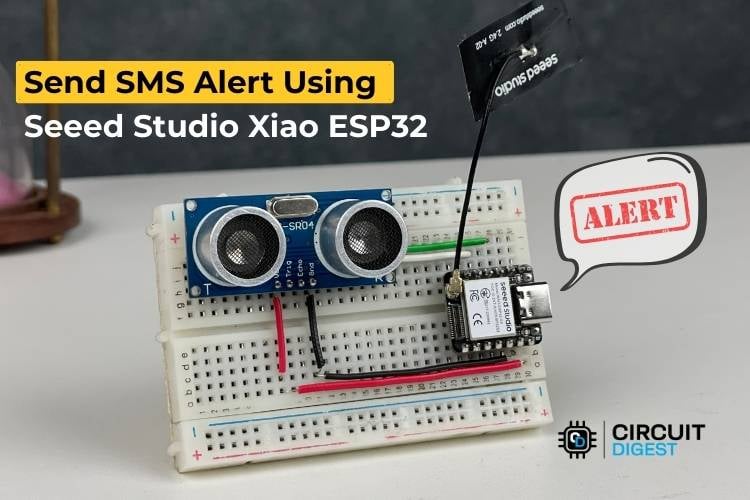
The Smart SMS Alert System using Seeed Studio Xiao ESP32 is one of the compact IoT projects that uses an HC-SR04 ultrasonic sensor to detect nearby movement. The system acts like a motion detector whenever something moves close to the sensor and crosses the set threshold. The ESP32 Seeed Studio module instantly triggers an SMS alert. The ESP32 can send real-time SMS notifications straight to your phone, using just Wi-Fi and a Free API from CircuitDigest Cloud.
The Circuit Digest Cloud provides a free platform to send SMS alerts over the internet. By generating an API key and template ID, users can easily configure custom messages that are sent instantly to any mobile number, making it easy to integrate automated notifications into IoT projects without needing complex backend servers.
What You'll Learn:
∗ A Detailed Introduction to the Complete Pinout and GPIO (General-Purpose Input/Output) Pins Configuration for the Seeed Studio XIAO ESP32 S3.
∗ Detailed Instructions on Physical Connection between Hardware for Implementation of SMS Alerts.
∗ Example of How to Use Arduino Code on an ESP32 to Send an SMS Alert.
∗ How to Send SMS Using Circuit Digest's Cloud SMS API without Using GSM Hardware.
∗ Examples of Real-Life IoT Applications Used in Security and Surveillance Systems.
Table of Contents
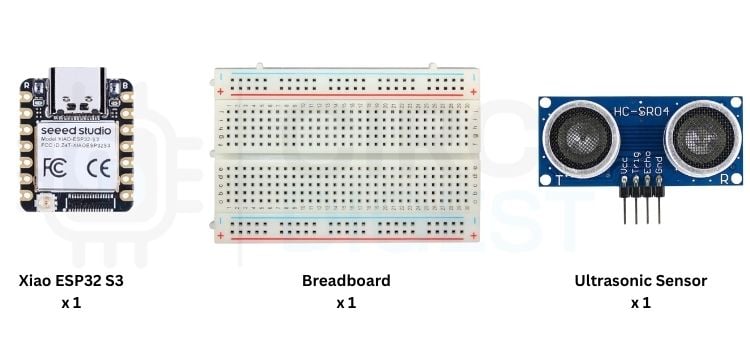
- Required Components
- System Workflow
- Why Choose Seeed Studio XIAO ESP32 S3
- Board Comparison
- Circuit Diagram
- └ Pin Connection Guide
- Hardware Setup and Assembly
- └ Alternative WiFi-Enabled Boards
- Arduino Code Implementation
- Working Demonstration and Testing Results
- └ Expected Output and Troubleshooting
- GitHub Repository
Required Components for XIAO ESP32 SMS Alert System
| Components | Description | Qty |
| XIAO ESP32-S3 | The main controller that reads the sensor and sends SMS alerts. | 1 |
| HC-SR04 Ultrasonic Sensor | Detects movement by measuring how close an object is. | 1 |
| Breadboard | Makes it easy to connect parts. | 1 |
| Jumper Wires | Used to link the sensor and board on the breadboard. | 6-8 |
As a demonstration, we use an HC-SR04 Ultrasonic Sensor to detect nearby objects, and the ESP32 send SMS alerts using Seeed Studio XIAO whenever something comes within a specified distance. Depending on your application, you can replace the ultrasonic sensor with any other sensor. For example, to trigger an SMS alert based on temperature changes, you could use a DHT11 sensor, following the How to send SMS using ESP32 tutorial.
System Workflow: How SMS Alerts Work with Seeed Studio XIAO ESP32
Understanding the complete workflow helps you grasp how the Seeed XIAO ESP32 processes sensor data and delivers SMS notifications through cloud infrastructure:
- Initialization - The ESP32-S3 powers up and initializes all required components. It then establishes a connection to the configured Wi-Fi network to enable cloud communication.
- Distance Monitoring -The ultrasonic sensor continuously transmits trigger pulses and measures the reflected echo time to calculate the distance of nearby objects in real time.
- Movement Detection -When an object is detected within the predefined threshold distance of 100 cm, the ESP32-S3 interprets this change as a motion or intrusion event.
- Alert Trigger - Upon detecting movement, the ESP32-S3 generates an HTTP POST request containing the necessary credentials, such as the API key, template ID, and dynamic variables required for sending an SMS alert.
- Cloud Processing -The Circuit Digest Cloud server receives the request and authenticates the device, processes the data and formats the message according to the selected SMS template.
- User Notification - The processed alert is then delivered as an SMS to the user’s registered mobile number, providing instant notification of the detected movement.
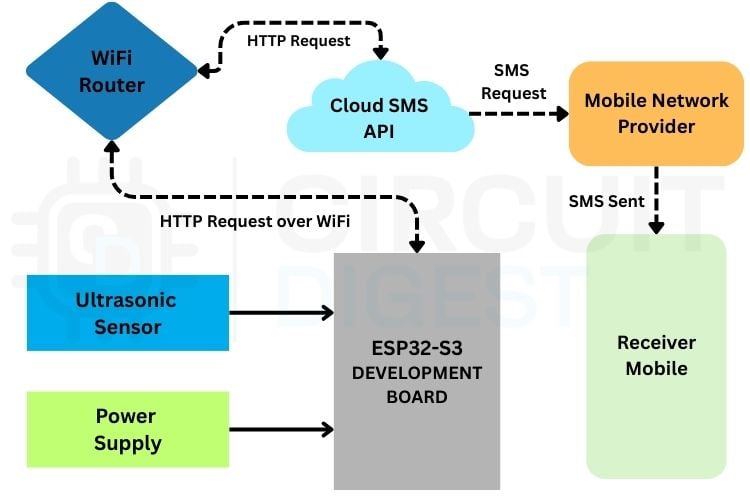
This diagram illustrates an ESP32-S3-based SMS alert system that works over Wi-Fi. The ESP32-S3 reads data from a connected sensor, and when triggered, it sends an HTTP request over Wi-Fi to a cloud SMS API through a router. The cloud service then forwards the request to the mobile network provider, which delivers the SMS to the receiver’s mobile phone, enabling real-time remote alerts without using a GSM module.
Seeed Studio XIAO ESP32 S3 Pinout and Specifications
Understanding the Seeed Studio XIAO ESP32 S3 pinout is crucial for successful project implementation.

Here is a comparison highlighting the key differences between a normal ESP32-S3 board and the XIAO ESP32-S3, focusing on how each one fits the requirements of an ultrasonic sensor–based SMS alert project.
Why Choose Seeed Studio XIAO ESP32 S3 for SMS Projects?
The Seeed XIAO ESP32 stands out as an exceptional choice for IoT communication projects due to its unique combination of features that address both technical requirements and practical constraints:
- XIAO ESP32-S3 is ultra-minature, which makes it very suitable for space-limited projects, wearable, or embedded projects.
- This module's on-board WiFi and Bluetooth make it perfect for IoT applications that require sending SMS alerts, logging to the cloud, or wireless control.
- It can be programmed through the Arduino IDE, making it beginner-friendly and easy to develop.
- Cost-effective and compact, it performs really well compared to other ESP32 development boards.
- For the details on the connectivity and layout, see the pinout for Seeed Studio XIAO ESP32 S3, which has all the pins noted, from power, to ground, to the GPIOs.
Seeed XIAO ESP32-S3 vs Standard ESP32 S3 Board Comparison
This comparison highlights the strategic advantages of choosing the Seeed XIAO ESP32 over traditional ESP32 development boards for ultrasonic sensor-based SMS alert applications:
| Feature | Normal ESP32-S3 Board | Seeed Studio XIAO ESP32-S3 |
| Size & Space Requirement | Larger board, more space needed in the setup | Very small, fits easily in compact SMS-alert projects |
| GPIO Needs | Has many GPIOs (more than needed for ultrasonic + WiFi setup) | Has enough GPIOs for your project (Ultrasonic + WiFi) despite being small |
| Ease of Mounting | Takes more space on breadboards or enclosures | Fits easily inside small enclosures for finished IoT products |
| Power Efficiency | Standard power consumption | Optimized for battery-powered applications |
| Cost | Moderate pricing | Budget-friendly for prototyping and production |
Circuit Diagram: Connecting HC-SR04 to Seeed Studio XIAO ESP32 S3
This wiring setup connects the HC-SR04 ultrasonic sensor to the Seeed XIAO ESP32 using just four simple connections. The simplicity of this design makes it perfect for beginners while maintaining the reliability required for production-grade IoT systems.

Pin Connection Guide for Seeed XIAO ESP32:
Follow these precise connection guidelines to ensure proper communication between your Seeed XIAO ESP32 and the HC-SR04 sensor:
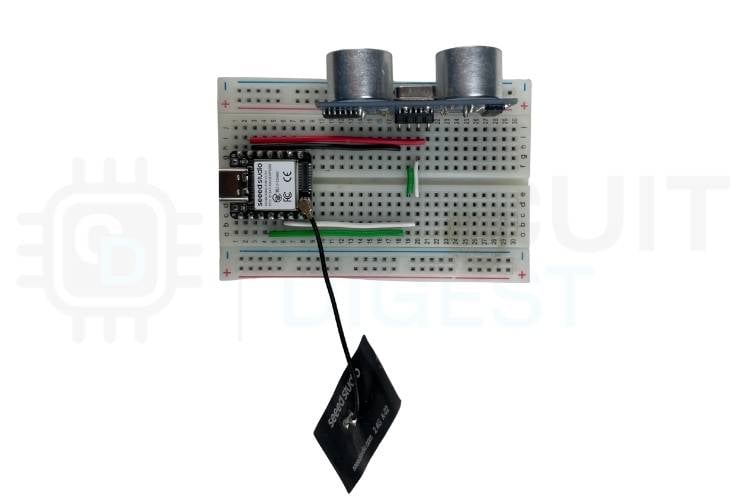
The sensor’s VCC goes to the 5V rail, GND connects to the ground rail, the Trigger pin is connected to GPIO 5, and the Echo pin to GPIO 3 on the Seeed XIAO ESP32. With only power wires and two signal wires, the setup remains simple and beginner-friendly. In the wiring diagram, the yellow wire represents the connection between the Trigger pin and GPIO 5, while the green wire represents the Echo pin connection to GPIO 3, making it easy to identify and connect the sensor correctly.
Hardware Setup and Assembly
The system is built using the ESP32 Seeed Studio module and an HC-SR04 ultrasonic sensor to create a compact motion-activated SMS alert setup, with a simple hardware connection that requires only two components and a few connecting wires.
Alternative WiFi-Enabled Boards for SMS Alerts
While this tutorial focuses on the Seeed Studio XIAO ESP32 S3, you can implement the same SMS alert functionality using other WiFi-capable microcontrollers:
» Arduino UNO R4 WiFi: Follow the Arduino SMS tutorial guide for setting it up.
» Standard ESP32 Dev Module: Just requires some minor changes to your code related to GPIO pins.
» NodeMCU ESP8266: A cost-effective alternative that contains very similar WiFi capabilities.
» ESP32-C3: A new option based on RISC-V architecture, which has WiFi capability.
Any microcontroller on the market that can connect to WiFi and make HTTP requests can interface with the SMS service and operate with an ultrasonic distance sensor. Thus, it provides many options for both different hardware platforms and different projects that you're working on.
Arduino Code Implementation for XIAO ESP32 SMS Alerts
Let’s look at the core logic. The Seeed XIAO ESP32 connects to Wi-Fi using your credentials, continuously monitors the HC-SR04 ultrasonic sensor, and sends an SMS notification whenever the measured distance falls below the defined threshold.
Essential Library Inclusion
#include <WiFi.h>This library enables the ESP32 to connect to a WiFi network, which is necessary for sending SMS through an online API.
GPIO Pin Configuration for HC-SR04 Sensor
#define TRIG_PIN 5
#define ECHO_PIN 3
ECHO_PIN is the pin that receives the reflected pulse. On the XIAO ESP32-S3, GPIO 3 and GPIO 5 can be safely used.
Wi-Fi Network Credentials Configuration
const char *ssid = " network name";
const char *password = " password";
Place your WiFi network name (SSID) and password in the above block to connect your ESP32 to the internet.
Circuit Digest SMS API Authentication Setup
const char* apiKey = "ABvHFhFlKJk";
const char* templateID = "103";
const char* mobileNumber = "91xxxxxxxxxx";
const char* var1 = "Sensor";
const char* var2 = "In the Room";
The apiKey is used to authenticate with the SMS service, templateID selects the predefined message format, mobileNumber is the recipient’s phone number (including country code), and var1 and var2 are variables that can be included in the SMS message.
HTTP Client Connection and API Request
if (WiFi.status() == WL_CONNECTED) {
   WiFiClient client;
   String apiUrl = "/send_sms?ID=" + String(templateID);
   Serial.print("Connecting to server...");
   if (client.connect("www.circuitdigest.cloud", 80)) {
     Serial.println("connected!");
First, the code checks if the ESP32 is connected to WiFi using WiFi.status(). It then creates a client object with WiFiClient to make an HTTP connection, sets the API endpoint with apiUrl including the template ID, and attempts to connect to the SMS server on port 80 using client.connect(). If the connection is successful, it prints “connected!” to the Serial Monitor.
// JSON payload
String payload = "{\"mobiles\":\"" + String(mobileNumber) +
                "\",\"var1\":\"" + String(var1) +
                "\",\"var2\":\"" + String(var2) + "\"}";
// HTTP POST request
client.println("POST " + apiUrl + " HTTP/1.1");
client.println("Host: www.circuitdigest.cloud");
client.println("Authorization: " + String(apiKey));
client.println("Content-Type: application/json");
client.println("Content-Length: " + String(payload.length()));
client.println();
client.println(payload);
// Print server response
while (client.connected() || client.available()) {
 if (client.available()) {
   String line = client.readStringUntil('\n');
   Serial.println(line);
 }
}
Serial.println("SMS sent (or attempted)!");
client.stop();
A JSON payload is created with the recipient’s number and message variables (var1 and var2). The ESP32 then sends an HTTP POST request to the server with headers for the host, API key (authorization), content type (JSON), and content length. The payload is sent after a blank line, and the server’s response is read and printed line by line. Finally, it prints “SMS sent (or attempted)!” and closes the connection with the client.stop().
Ultrasonic Distance Measurement Function
float readDistance() {
 digitalWrite(TRIG_PIN, LOW);
 delayMicroseconds(2);
 digitalWrite(TRIG_PIN, HIGH);
 delayMicroseconds(10);
 digitalWrite(TRIG_PIN, LOW);
 duration = pulseIn(ECHO_PIN, HIGH);
 distance = duration * 0.034 / 2; // Distance in cm
 return distance;
}
The readDistance() function measures how far an object is from the HC-SR04 ultrasonic sensor by sending a short pulse from the TRIG pin, timing how long it takes for the sound to bounce back to the ECHO pin, converting that time into centimeters using the speed of sound, and returning the calculated distance.
System Initialization and Setup
void setup() {
 Serial.begin(9600);
 pinMode(TRIG_PIN, OUTPUT);
 pinMode(ECHO_PIN, INPUT);
 // Connect to WiFi
 Serial.println();
 Serial.println("Connecting to WiFi...");
 WiFi.begin(ssid, password);
 while (WiFi.status() != WL_CONNECTED) {
   delay(500);
   Serial.print(".");
 }
 Serial.println("");
 Serial.println("WiFi connected");
 Serial.println("IP address: ");
 Serial.println(WiFi.localIP());
}
The setup() function initialises the Serial Monitor for debugging, sets the TRIGGER pin as the output and the ECHO pin as an input for the ultrasonic sensor, and then connects the ESP32 to WiFi, printing connection progress and the assigned IP address to the Serial Monitor once connected.
Main Loop: Continuous Monitoring and Alert Logic
void loop() {
 float dist = readDistance();
 Serial.print("Distance: ");
 Serial.print(dist);
 Serial.println(" cm");
 // Trigger SMS if object closer than threshold (100 cm)
 if (dist < 100 && !alertSent) {
   Serial.println("Object too close! Sending SMS...");
   sendSMS();
   alertSent = true;  // prevent repeated SMS
 }
 // Reset alert once object moves away
 if (dist >= 100) {
   alertSent = false;
 }
 delay(500);
}
This loop() function continuously measures the distance using the ultrasonic sensor. The measured distance is printed on the Serial Monitor. If an object comes closer than 100 cm and if an alert has not been sent yet, it prints a warning message, calls sendSMS() to send an SMS, and sets the alertSent flag to prevent repeated messages. Once the object moves away (distance ≥ 100 cm), the alertSent flag is reset so that alerts can be sent in the future. The function then waits for 500 milliseconds before repeating the process.
Working Demonstration and Testing Results
The completed XIAO ESP32 SMS alert system has been thoroughly tested, demonstrating reliable real-time SMS delivery via Wi-Fi connectivity. We’ve reached the testing stage, where the Seeed Studio XIAO ESP32 sends real-time SMS alerts via Wi-Fi using the HC-SR04 sensor. Once you've uploaded the code to your Seeed XIAO ESP32, open the Serial Monitor (9600 baud) to observe real-time distance measurements and SMS alert confirmations.
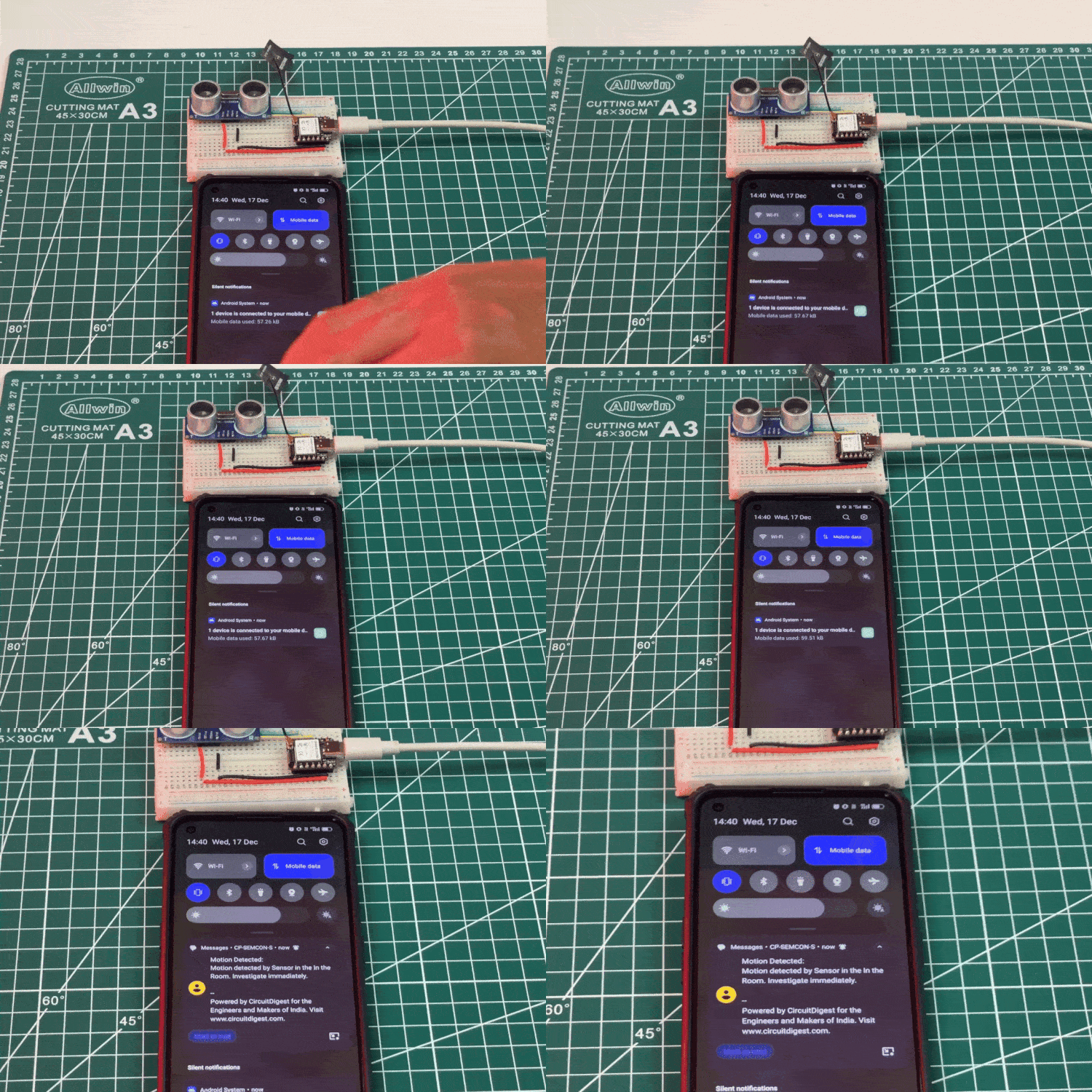
Expected Output and Troubleshooting
⇢ Successfully Connected to Wi-Fi: The Serial Monitor should show the IP address of the ESP32 Seeed Studio Board.
⇢ Readings of Distances: Continuous real-time distance measurements will appear in centimeters.
⇢ Confirmation of Alerts: An SMS delivery status response from the server will be available.
⇢ Common Issues: verify your API credentials, WiFi Password and mobile number format, which should include your country code.
GitHub Repository and Source Files
Access the complete source code, circuit diagrams, and documentation for this Send SMS Alert Using Seeed Studio Xiao ESP32


Real-World Applications and Use Cases
The Seeed Studio XIAO ESP32 SMS alert system offers versatile applications across residential, commercial, and industrial sectors, providing cost-effective monitoring and security solutions:
- Home Security and Intrusion Alerting: Install systems on all entrances, windows, or secure areas so that an alert can immediately be sent via SMS upon detection of unauthorised entry, providing a low-cost option to install your own security system.
- Smart Parking Parking Space Alerting: Install in parking lots and have them send SMS alerts when leaving or taking an existing space. This is the most efficient way to manage the parking needs of multiple tenants/residents in residential properties and commercial buildings.
- Industrial Safety Alerting System: Place these sensors in areas where workers would normally not be allowed to go and send SMS notifications to safety personnel if someone enters that area. This not only improves adherence to workplace safety regulations but also provides an avenue for prompt emergency response should a safety incident occur.
- Tank Level Measurement: Install water tanks with ultrasonic sensors above the tanks to measure the water level. These sensors will instantly send an SMS notification to you when your water tank needs to be filled, or it is about to overflow.
- Agricultural and Livestock Prevention: The agricultural community uses remote monitoring systems to protect crops and livestock from intruders, such as people and animals, providing immediate notification through SMS for farmers to take action quickly.
- Equipment & Asset Theft Prevention: Remote monitoring systems enable you to receive SMS text alerts whenever there is a motion detected on a piece of equipment, helping you to monitor the location of your valuable equipment 24/7 with little additional investment.
- Warehouse Inventory and Inventory Tracking Technology: Keep track of your goods and assets in a warehouse by monitoring the movement of items through the warehouse. By sending SMS notifications when items are added or removed from designated areas, you can improve the accuracy of your inventory database and help prevent theft.
Frequently Asked Questions Seeed Studio XIAO ESP32 SMS Alerts
⇥ 1. Why is a cloud SMS API used instead of a GSM module?
A cloud SMS API eliminates the need for SIM cards and GSM hardware. It allows SMS delivery through the internet, reduces cost, and offers better reliability and scalability.
⇥ 2. How fast are the SMS alerts delivered?
SMS alerts are typically delivered within a few seconds, depending on the internet connection and the mobile network provider.
⇥ 3. Is the system secure?
Yes, communication with the cloud SMS API is done using authenticated HTTP requests, ensuring secure data transmission.
⇥ 4. Can the alert be triggered manually?
Yes, a push button can be used to manually trigger or toggle SMS alerts, making the system suitable for emergency notifications.
⇥ 5. What is the limit of SMS alerts that I can send each day via the free API?
Each user on Circuit Digest has a stated SMS alert range of 100 - 500 SMS alerts sent each day, which is dependent on whichever of their plans you are set up on. If you need to send a high volume of SMS alerts on a production system, Circuit Digest has premium plans specifically designed for those kinds of cases. To see what a user can do for free and the associated costs, please refer to the Circuit Digest API Documentation at circuitdigest.cloud.8. If Wi-Fi is disconnected while XIAO ESP32 is running,
⇥ 6. If Wi-Fi is disconnected while XIAO ESP32 is running, what will occur?
When Wi-Fi is disconnected, the XIAO ESP32 will automatically attempt to reconnect to Wi-Fi until a successful connection occurs. The system will continue monitoring for distance while there is no Wi-Fi connection; however, there will be no ability to send SMS alerts. If this functionality is critical, we also recommend that you add local visual and audible signals (LEDs & buzzers) to be used for local alerts.
⇥ 7. Is it possible to send SMS messages to multiple numbers at once?
Yes, you can send SMS alerts to multiple mobile phones at once by formatting the mobiles parameter correctly. For example: mobiles="919876543210,919876543211" will send the SMS alerts to both phone numbers at the same time. Rather than sending three messages via the same API request, you can send one SMS to both of them.
This tutorial was created by the CircuitDigest engineering team. Our experts focus on creating practical, hands-on tutorials to help makers and engineers learn Raspberry Pi projects, Arduino projects, ESP32 projects and more.
I hope you liked this article and learned something new from building yourSeeed Studio XIAO ESP32 SMS Alerts. If you have any doubts, you can ask in the comments below or use our CircuitDigest forum for a detailed discussion.
Related Projects Using CircuitDigest SMS API
We have used the SMS API in several interesting projects before. You can explore those projects using the links below.
How to Send SMS from NodeMCU without Using a GSM Module?
Learn how to send SMS using NodeMCU ESP8266 without a GSM module. Step-by-step guide with free API integration, code examples, and real-world applications. Perfect for IoT projects
Build a Raspberry Pi-Based SMS Alert System Using Cloud API
Build a Raspberry Pi-based SMS alert system using a cloud API. No GSM module needed, just Wi-Fi, a DHT11 sensor. A perfect beginner-friendly IoT and automation project.
How to build a Smoke and Fire Alarm System using Arduino with SMS Notification
Learn how to build a WiFi-based fire and smoke alarm system using Arduino UNO R4 that sends real-time SMS notifications through the Circuit Digest API for emergencies, without requiring a GSM module. This cost-effective and reliable solution enhances safety in homes and offices.
Complete Project Code
#include <WiFi.h>
// Ultrasonic sensor pins
#define TRIG_PIN 5
#define ECHO_PIN 3
long duration;
float distance;
// WiFi credentials
const char *ssid = "Enter your SSID";
const char *password = "Enter your Password";
// API credentials and SMS details
const char* apiKey = "your API Key";
const char* templateID = "103";
const char* mobileNumber = "91xxxxxxxxxx" //Mobile Number to Receive the Alert
const char* var1 = "Sensor";
const char* var2 = "In the Room";
// Variable to avoid repeated SMS
bool alertSent = false;
void sendSMS() {
 if (WiFi.status() == WL_CONNECTED) {
   WiFiClient client;
   String apiUrl = "/send_sms?ID=" + String(templateID);
   Serial.print("Connecting to server...");
   if (client.connect("www.circuitdigest.cloud", 80)) {
     Serial.println("connected!");
     // JSON payload
     String payload = "{\"mobiles\":\"" + String(mobileNumber) +
                      "\",\"var1\":\"" + String(var1) +
                      "\",\"var2\":\"" + String(var2) + "\"}";
     // HTTP POST request
     client.println("POST " + apiUrl + " HTTP/1.1");
     client.println("Host: www.circuitdigest.cloud");
     client.println("Authorization: " + String(apiKey));
     client.println("Content-Type: application/json");
     client.println("Content-Length: " + String(payload.length()));
     client.println();
     client.println(payload);
     // Print server response
     while (client.connected() || client.available()) {
       if (client.available()) {
         String line = client.readStringUntil('\n');
         Serial.println(line);
       }
     }
     Serial.println("SMS sent (or attempted)!");
     client.stop();
   } else {
     Serial.println("Connection to server failed!");
   }
 } else {
   Serial.println("WiFi not connected!");
 }
}
// Function to read distance from ultrasonic sensor
float readDistance() {
 digitalWrite(TRIG_PIN, LOW);
 delayMicroseconds(2);
 digitalWrite(TRIG_PIN, HIGH);
 delayMicroseconds(10);
 digitalWrite(TRIG_PIN, LOW);
 duration = pulseIn(ECHO_PIN, HIGH);
 distance = duration * 0.034 / 2; // Distance in cm
 return distance;
}
void setup() {
 Serial.begin(9600);
 pinMode(TRIG_PIN, OUTPUT);
 pinMode(ECHO_PIN, INPUT);
 // Connect to WiFi
 Serial.println();
 Serial.println("Connecting to WiFi...");
 WiFi.begin(ssid, password);
 while (WiFi.status() != WL_CONNECTED) {
   delay(500);
   Serial.print(".");
 }
 Serial.println("");
 Serial.println("WiFi connected");
 Serial.println("IP address: ");
 Serial.println(WiFi.localIP());
}
void loop() {
 float dist = readDistance();
 Serial.print("Distance: ");
 Serial.print(dist);
 Serial.println(" cm");
 // Trigger SMS if object closer than threshold (100 cm)
 if (dist < 100 && !alertSent) {
   Serial.println("Object too close! Sending SMS...");
   sendSMS();
   alertSent = true;  // prevent repeated SMS
 }
 // Reset alert once object moves away
 if (dist >= 100) {
   alertSent = false;
 }
 delay(500);
}