
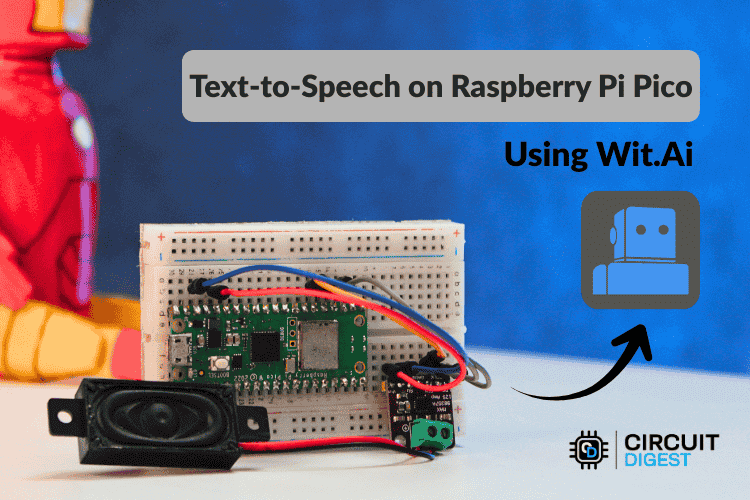
Text-to-Speech, or TTS, is a technology that converts written text into spoken audio. It is widely used in voice assistants, accessibility tools, alert systems, kiosks, and smart devices. On computers and smartphones, TTS works smoothly because these systems have enough processing power and memory to handle speech generation locally. Microcontrollers are different. They have limited speed, limited memory, and no built-in support for advanced audio processing, which makes direct speech generation difficult. The Raspberry Pi Pico, a popular choice for embedded projects, faces these same constraints, making cloud-based TTS solutions essential for practical implementations. For more innovative applications using this microcontroller, explore our collection of Raspberry Pi Pico Projects.
The Raspberry Pi Pico is a capable microcontroller, but generating natural speech directly on the device is not practical in real-world use. For this reason, Raspberry Pi Pico text-to-speech online methods are commonly used. In Raspberry Pi Pico TTS setups, the Pico sends text to an online service where speech is generated and returned as audio. The device then plays the sound through a speaker, allowing clear speech output without overloading the hardware or increasing system complexity. For similar implementations on other microcontrollers, explore our ESP32-Based Online Text-to-Speech and ESP32-Based Offline Text-to-Speech projects.
Table of Contents
- Overview of Text-to-Speech (TTS)
- Cloud-Based TTS Approach
- What is Wit.ai?
- Hardware Requirements
- └ Pin Connection Table
- Creating and Configuring a Wit.ai Account
- Installing the WitAITTS Library in Arduino IDE
- Source Code Explained
- Uploading Sketch to Raspberry Pi Pico
- └ Audio Streaming and Playback
- Troubleshooting
- Github Repository
Overview of Text-to-Speech (TTS)
Text-to-speech may seem simple, but it involves several important steps. First, the text is prepared by converting numbers into words, expanding abbreviations, and turning symbols into readable characters. Next, the system analyzes the text and breaks it into speech sounds. It also decides how the voice should sound by setting pauses, emphasis, and tone so the speech feels natural. Finally, the processed speech is converted into digital audio and played through a speaker.
On computers, these steps are completed quickly and efficiently. Microcontrollers such as the Raspberry Pi Pico have more limitations. They do not have enough memory to store large speech models, and their processors are not designed to generate high-quality speech in real time. Storage space is also limited. Because of this, Raspberry Pi Pico text-to-speech online solutions usually rely on cloud-based processing, where the main speech generation is handled remotely, and the Pico focuses only on sending text and playing back the received audio. Explore cutting-edge machine learning and embedded AI projects with step-by-step tutorials, including voice recognition, computer vision, and ESP32-based intelligent systems.
Cloud-Based TTS Approach for the Raspberry Pi Pico
The whole process is simple and fast when using a cloud-based Text-to-Speech system. The hardware device sends the text to a remote server, where all the complicated tasks of creating speech are handled. Once the speech audio is created, it is sent back to the device in real time, and the device only needs to play the audio through its speaker. Even small devices produce clear and natural-sounding speech without performing heavy processing on their own.
This approach offers several important benefits. High-quality voice output can be done without increasing hardware requirements. Adding support for different languages and voices can be done without changing the device's firmware. Because speech models are stored on the server, the system remains lightweight and easier to handle. The WitAITTS library is built this way, making it easy to add reliable and scalable Text-to-Speech features to Raspberry Pi Pico TTS programming projects.
What is Wit.ai? (The AI Engine Behind Pico TTS)
Wit.ai is a cloud-based AI platform created by Meta Platforms, Inc. It simplifies speech and language processing by providing easy-to-use HTTP-based APIs. The platform supports features such as Text-to-Speech, Speech-to-Text, and basic natural language understanding. For Text-to-Speech, the process is straightforward. Text is sent to the service through a secure HTTPS request with authentication, and the platform returns the generated speech in WAV or MPEG audio format. The audio can be streamed as it is received, allowing playback to begin before the full file is downloaded.
Wit.ai also offers a free usage tier that is suitable for learning, testing, and early-stage development. Request limits apply, so applications that send frequent requests should be designed accordingly. All complex processing, including language analysis and speech generation, is handled on Wit.ai's servers. The microcontroller only sends text and plays back the received audio. This design makes Raspberry Pi Pico TTS using AI practical, enabling advanced speech features on hardware with limited memory and processing power without increasing system complexity.
Hardware Requirements for Raspberry Pi Pico TTS
The image shows the list of components which is required for the TTS converter on Raspberry Pi Pico. The following components are required to build the Raspberry Pi Pico text-to-speech system.
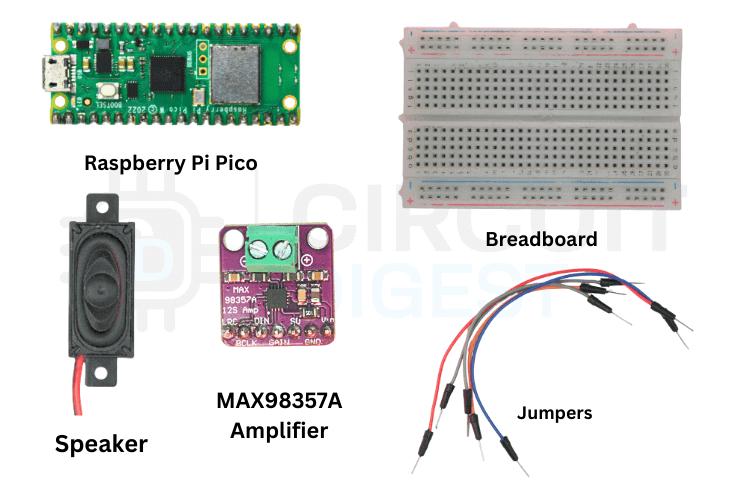
The table below lists the components required to enable speech output on a Raspberry Pi Pico-based system.
| Component | Quantity | Notes |
| Raspberry Pi Pico W | 1 | Microcontroller with Wi-Fi support |
| MAX98357A Amplifier | 1 | Digital audio amplifier module |
| Speaker | 1 | 4Ω or 8Ω impedance speaker to play audio |
| Breadboard | 1 | For prototyping connections |
| Jumper Wires | Several | Male-to-female or male-to-male as needed |
| USB Cable | 1 | To power and programming |
Circuit Diagram - Connecting the Pico W to the MAX98357A
Follow the wiring diagram to connect your Raspberry Pi Pico to the I2S amplifier and speaker. Check your connections before powering on to prevent short circuits. We have also completed projects using I2S audio communication with detailed instructions.

Pin Connection Table - Pico W to MAX98357A
The pinout used in the library to make Text-to-Speech is given below
| Raspberry Pi Pico Pin | MAX98357A Pin | Connection Type |
| GP18 | BCLK | Bit Clock |
| GP19 | LRC | Left/Right Clock |
| GP20 | DIN | Data Input |
| 5V | VIN | Power Supply |
| GND | GND | Ground |
Creating and Configuring a Wit.ai Account
Step 1⇒ Create Your Account
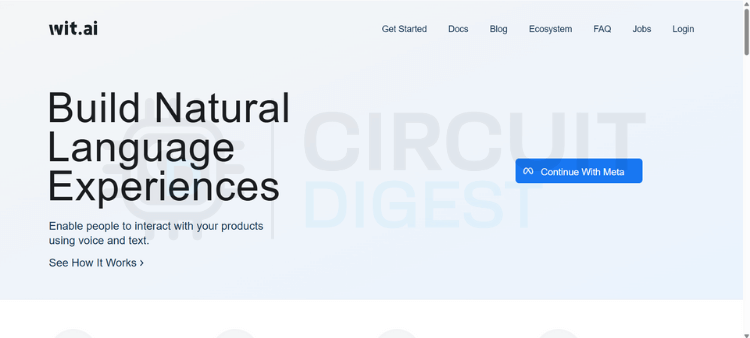
Go to the Wit.ai website and click to sign in through Meta. You'll have a few options for authentication, but email is the simplest and keeps things separate from your other accounts. Fill in your date of birth, create a password, and verify your email address with the six-digit code they send you. Once that's done, you're in.
Step 2 ⇒ Create a New App
From the dashboard, you need to create a new app before you can perform any useful actions. This is where naming matters; pick something meaningful because this name will follow you through logs, training data, and integrations. Also, choose your language carefully, since it affects how well the system understands intents and extracts information.
Step 3 ⇒ Get Your Server Access Token
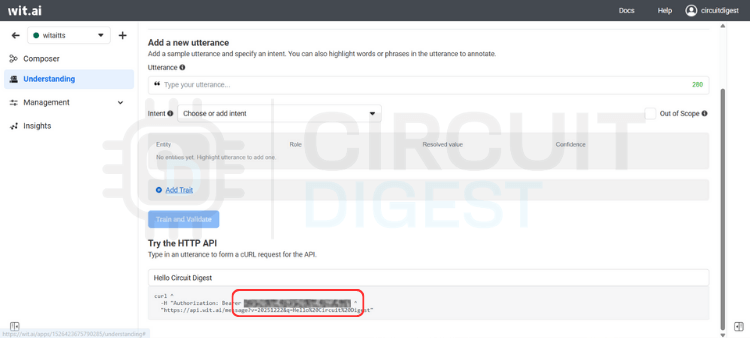
Navigate to the Management section and click on Settings. Look for the HTTP API section where you'll find your Server Access Token (it's listed as a Bearer token). This token is critical; it's how your application talks to Wit.ai.
Step 4 ⇒ Secure Your Token
Copy the Server Access Token and store it somewhere safe. Avoid hardcoding it directly into your code or committing it to version control. Instead, use environment variables or a secure configuration system. Once you're running in production, avoid regenerating this token unless necessary.
Step 5 ⇒ You're Ready
That's it. Your Wit.ai account is set up and ready to integrate with your embedded devices, backend services, or any other system you're building. You shouldn't need to touch these settings again unless something changes in your project.
Installing the WitAITTS Library in Arduino IDE
The WitAITTS library is distributed through the Arduino Library Manager.
Open Arduino IDE, go to the Library Manager icon on the left sidebar, type "WitAITTS" into the search bar, and click Install when it pops up.
The Output window shows whether the library is successfully installed or not.
Instead of writing everything from scratch, let's use the example sketch. Go to File > Examples > WitAITTS and select PicoW_Basic. This will open the ESP32-based example sketch.
Replace the YourWiFiSSID and YourWiFiPassword with the actual network details. Paste that Server Access Token you copied earlier into the YOUR_WIT_AI_TOKEN_HERE spot.
Raspberry Pi Pico TTS Source Code Explained
This program converts typed text into spoken audio by using an online text-to-speech service and playing the sound through an audio output on the board. The system depends on WiFi and a valid cloud token. When text is sent, the board requests speech from the server, receives digital audio, and plays it through the I2S interface. The design stays simple and blocking, which suits demos and maker projects. The PicoW_Basic sketch demonstrates the complete Raspberry Pi Pico TTS programming flow. Below is each key statement with its purpose explained.
WitAITTS tts;This line creates the main text-to-speech engine. The object manages the entire workflow, including WiFi handling, secure communication with the Wit.ai server, audio decoding, and sound output to the speaker. All speech-related features depend on this object.
tts.begin(WIFI_SSID, WIFI_PASSWORD, WIT_TOKEN);This line connects the board to the WiFi network and authenticates with the Wit.ai service using the access token. The program verifies network access and service availability at this stage. If this step fails, the system cannot request or play any speech.
tts.setVoice("wit$Remi");This line selects the voice used for speech output. The chosen voice defines the tone, gender, and character of the sound. Changing this value directly changes how the device sounds to the user.
tts.setSpeed(100);
tts.setPitch(100);
These lines control how fast and how high the voice speaks. Normal values keep the speech clear and natural. Adjusting these settings helps tune clarity, comfort, and listening experience.
tts.speak(text);This line sends the text to the cloud service for conversion into audio. The board waits while the server generates speech and streams the audio back. The system plays the audio immediately and pauses all other work until playback finishes.
Uploading Sketch to Raspberry Pi Pico
Before uploading, click the Verify icon in the top-left corner to ensure your code and credentials are typed correctly.
Keep an eye on the Notifications tab at the bottom right; once it says "Done compiling," you know the library and code are ready for the hardware.
Connect your board to your computer and hit the Upload arrow icon to send the sketch to your ESP32.
Check the Output window at the bottom of the screen. You will see the writing progress says 100% along with the "Hard resetting via RTS pin..." message.
Click the magnifying glass icon in the top right to open the Serial Monitor.
The serial monitor shows a log of the WitAITTS Configuration, including your WiFi and IP status.
Type a sentence into the input bar at the top of the Serial Monitor and hit Enter to send it to the Wit.ai API.
The console will log "Requesting TTS" followed by "Buffer ready, starting playback," confirming that your ESP32 is successfully receiving audio data.
Audio Streaming and Playback
Audio is received asana MP3 stream and processed incrementally. This approach offers three practical advantages for Raspberry Pi Pico TTS using AI:
Advantages:
- Reduced memory usage
- Faster perceived response
- No need for full file buffering
- Playback quality depends heavily on:
- Network latency
- Power stability
- Speaker quality
Common Errors and Troubleshooting
It was determined that hardware integrity must be validated prior to the commencement of software-level debugging. Most issues with Pico TTS projects trace back to wiring, power, or authentication errors.
| Category | Observed Issue | Potential Root Cause |
| Audio Output | No Sound Output | • Incorrect wiring configurations • Absence of amplifier power supply • Erroneous I2S pin assignments |
| Communication | HTTP Errors | • 400: Provision of invalid or empty text strings • 401: Utilization of an invalid access token • Network Timeout: Presence of Wi-Fi instability |
| Signal Quality | Distorted Audio | • Insufficient power supply voltage • Mismatch in speaker impedance • Improper clock configuration settings |
Future Enhancements for Raspberry Pi Pico TTS Projects
The WitAITTS library and Raspberry Pi Pico TTS implementations can be extended in several meaningful ways to expand functionality and improve user experience:
- Integrate language detection and automatic voice switching to support multiple languages in a single application, making devices accessible to diverse user groups
- Explore Wit.ai's voice customization options to create distinctive audio identities for different device types or application contexts
- Implement a hybrid approach that stores essential pre-recorded audio files locally for critical messages, ensuring basic functionality during network outages
- Add intelligent caching mechanisms to store frequently used phrases locally, reducing API calls and improving response times for common notifications
- Combine TTS with Speech-to-Text capabilities to create fully interactive voice-controlled systems that can listen and respond naturally
- Implement dynamic bitrate adjustment based on network conditions to maintain smooth playback even on unstable connections
- Connect TTS functionality with popular IoT platforms like Home Assistant, Blynk, or MQTT-based systems for seamless smart home integration
Wit.ai supports language selection at the API level, making it straightforward to adapt this Raspberry Pi Pico TTS tutorial for non-English voice output for regional deployments.
Frequently Asked Questions - Raspberry Pi Pico TTS
⇥ 1. Can the Raspberry Pi Pico perform Text-to-Speech without internet connectivity?
While offline TTS is technically possible using pre-recorded audio segments or limited synthesis libraries, the quality and flexibility are significantly reduced compared to cloud-based solutions. The WitAITTS library requires an active internet connection to access Wit.ai servers for speech generation. For offline applications, consider storing pre-generated audio files for fixed phrases, though this eliminates the dynamic text conversion capability that makes TTS valuable.
⇥ 2. How much does Wit.ai cost for TTS usage?
Wit.ai provides a free tier suitable for development, prototyping, and moderate-use applications. Request limits apply, so high-frequency or commercial deployments should review Meta's current usage policies and rate limits. The free tier typically accommodates hobbyist projects and educational purposes without issue.
⇥ 3. What audio quality can I expect from the Raspberry Pi Pico TTS system?
Audio quality depends on network stability, speaker specifications, amplifier performance, and power supply consistency. Wit.ai delivers clear, natural-sounding speech in various voices and languages. The final output quality is influenced by the MAX98357A amplifier configuration, speaker impedance matching, and electrical noise in your circuit. Proper wiring and adequate power supply are essential for optimal results.
⇥ 4. Can I use different voices or languages with this setup?
Yes, Wit.ai supports multiple voices and languages. The WitAITTS library includes functions like setVoice(), setStyle(), setSpeed(), and setPitch() for customising speech characteristics. Available voices and languages depend on Wit.ai's current offerings, which you can explore through their platform documentation or by experimenting with different voice identifiers in your code.
⇥ 5. Why is audio playback blocking on the Raspberry Pi Pico W?
Unlike more powerful microcontrollers, the Raspberry Pi Pico's single-core architecture means audio playback blocks other operations during speech output. This is a hardware limitation. For applications requiring simultaneous operations, consider designing your code to complete other tasks before initiating speech, or explore using the second core with the Pico's dual-core capabilities for advanced multitasking implementations.
⇥ 6. How is online Raspberry Pi Pico text-to-speech (TTS) different from offline TTS?
Online TTS (such as that provided by Wit.ai) utilises the cloud for a high-quality, customizable, multiple-voice synthesiser through Wi-Fi connection. Offline TTS provides pre-recorded files (audio) or phoneme data (stored in memory). Offline TTS sacrifices audio quality and versatility for use without Wi-Fi. For dynamic or unpredictable text generation, we recommend cloud-based TTS.
⇥ 7. What produces an HTTP Error 401 in Pico TTS sketches?
An HTTP Error 401 indicates that the Bearer Token submitted with the request is not valid or does not exist, or has been updated in the Wit.ai Dashboard since the sketch was last uploaded. To update an existing sketch for use with a new Bearer Token, you must copy the Token again from Management → Settings → HTTP API, and then re-upload the sketch. Generating a new Token invalidates all of the previous Tokens.
Conclusion
The WitAITTS library adds dependable Text-to-Speech features to your Raspberry Pi Pico by using Wit.ai's online speech synthesis service, which represents a practical, scalable approach to Raspberry Pi Pico text-to-speech. This approach follows standard embedded systems practice, where running AI models locally is generally impractical. Once properly configured, the setup delivers consistent audio output, simpler firmware design, and speech functionality that can scale as the project evolves. Whether you're building a smart home announcement system, an accessible kiosk, or an educational project, this Pico TTS tutorial gives you a solid foundation. Investing time in a correct initial setup helps avoid debugging complications later. Special thanks to Meta Platforms, Inc. for providing the Wit.ai platform that powers this implementation.
Library Github Repository
The WitAITTS library source code, example sketches, and wiring documentation are maintained at the official Raspberry Pi Pico TTS GitHub repository:


Voice-Enabled Smart Alarm Clock & TTS Project Collection
Explore similar voice-enabled smart alarm clock and text-to-speech automation projects using Raspberry Pi and Arduino, featuring intelligent alerts, speech output, and embedded system integration for smart applications.
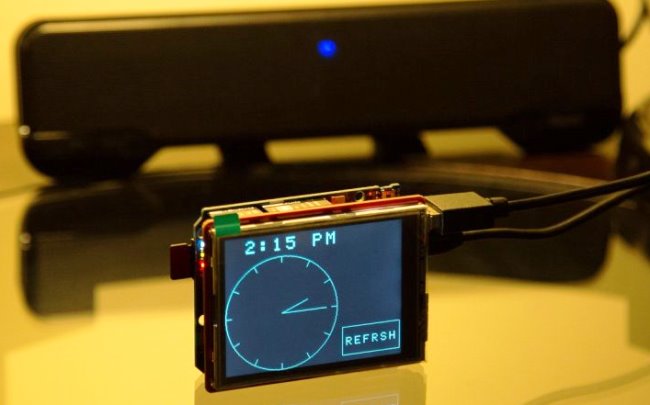
An Arduino Alarm Clock is a cool and popular project, and most of the Electronic Hobbyists at least built it once. You can find lots of Alarm Clock Projects with simple LCD and a few settings, but here we are sharing the Alarm Clock with a touch screen TFT LCD, in which the alarm can be set through the Internet, using Google Calendar.
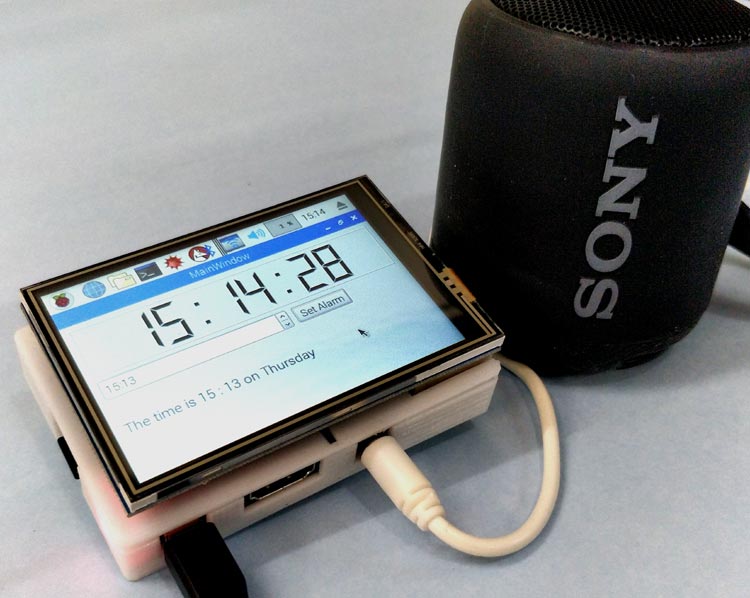
Raspberry Pi Based Jarvis themed Speaking Alarm Clock
We will create a very basic GUI using which we can set an alarm, and when the alarm goes on we will have a voice which tells us the current time and day with some pre-defined text. Sounds cool, right!! So let us build one.
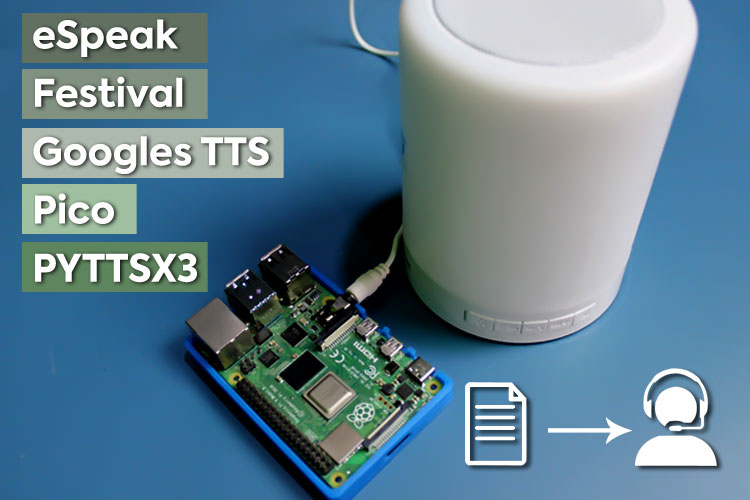
So, in this tutorial, we are going to compare different open-source TTS applications by installing them on a Raspberry Pi. Previously, we used TTS to build a Raspberry Pi Based Jarvis themed Speaking Alarm Clock.
Complete Project Code
#include <WitAITTS.h>
const char* WIFI_SSID     = "YourWiFiSSID";
const char* WIFI_PASSWORD = "YourWiFiPassword";
const char* WIT_TOKEN = "YOUR_WIT_AI_TOKEN_HERE";
WitAITTS tts;
void setup() {
   Serial.begin(115200);
   while (!Serial) delay(10);
   Serial.println("\n\n========================================");
   Serial.println("   WitAITTS Pico W Basic Example");
   Serial.println("   Copyright (c) 2025 Jobit Joseph");
   Serial.println("           Circuit Digest");
   Serial.println("========================================\n");
   tts.setDebugLevel(DEBUG_INFO);
   if (tts.begin(WIFI_SSID, WIFI_PASSWORD, WIT_TOKEN)) {
       Serial.println("✓ TTS Ready!\n");
       tts.setVoice("wit$Remi");
       tts.setStyle("default");
       tts.setSpeed(100);
       tts.setPitch(100);
       tts.setGain(0.5);
       tts.printConfig();
       Serial.println("Type any text and press Enter to speak:");
       Serial.println("(Note: Audio playback is BLOCKING on Pico W)\n");
   } else {
       Serial.println("✗ TTS initialization failed!");
       Serial.println("Check WiFi credentials and Wit.ai token");
   }
}
void loop() {
   tts.loop();
   if (Serial.available()) {
       String text = Serial.readStringUntil('\n');
       text.trim();
       if (text.length() > 0) {
           Serial.println("Speaking: " + text);
           if (!tts.speak(text)) {
               Serial.println("TTS request failed. Check token/connection.");
           }
       }
   }
}

Add a comment
No account needed. Your comment appears once a moderator has reviewed it.