

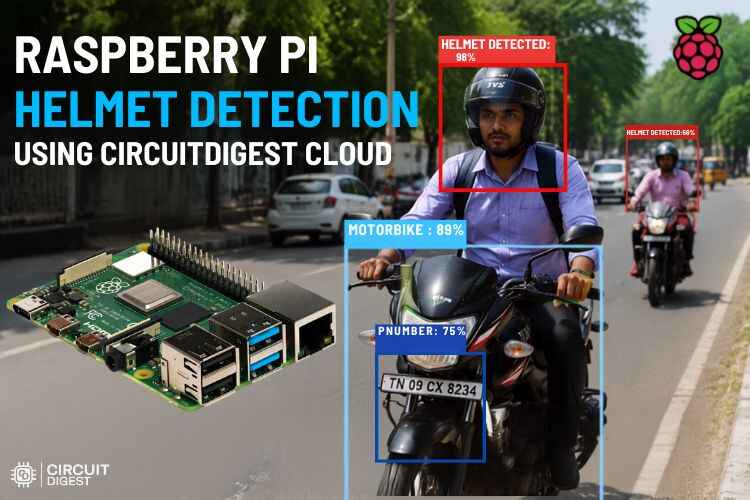
As adults, it is our duty to follow traffic rules, and the most important rule is to wear a helmet while riding a two-wheeler and not to cross the speed limit. It's not a rule, but it's also for safety. Now, let’s think from the traffic police officer’s side. Their duty is to monitor traffic and check whether everyone is following the rules, but it is quite difficult for a traffic officer to constantly check in heavy traffic whether every rider is wearing a helmet or not. This is exactly the problem that this Raspberry Pi Helmet Detection project solves.
So, what if there were a compact system that could make this task easier, provide accurate results, and reduce the burden on traffic police? That's exactly what this system does; here we used the Raspberry Pi, a powerful controller that can process data, analyse the images, and give the results instantly. Let’s dive in and learn more about it. You can also check out similar AI projects and Raspberry Pi projects done previously here at Circuit Digest.
Table of Contents
How the Raspberry Pi Helmet Detection System Works
The system starts with the USB camera continuously capturing live traffic images of riders and vehicles. OpenCV is used to access the camera, display the live video feed, and capture images either manually by pressing the space key in keyboard mode or automatically after a fixed time interval in auto mode. After capturing, the image is converted into JPEG format. The Requests library then sends the image securely to the CircuitDigest Cloud Helmet Detection API. The cloud server processes the image using AI-based helmet detection and checks whether the rider is wearing a helmet or not. The result is then sent back to the system and displayed in the terminal. We also built an interesting project related to object detection; spare some time and go through our Object Detection using ESP32-CAM and Edge Impulse project.
Components Required for the Raspberry Pi Helmet Detection Project
The components below are the ones that are used to build the Raspberry Pi-based Helmet Detection tutorial.
| S.No | Components | Purpose |
| 1. | Raspberry pi | It is the main controller in this setup for processing. |
| 2. | USB Camera | Used to capture the image for processing |
| 3. | MicroSD Card | Stores the Raspberry Pi OS and the project code |
Circuit Diagram of Helmet Detection Using Raspberry Pi
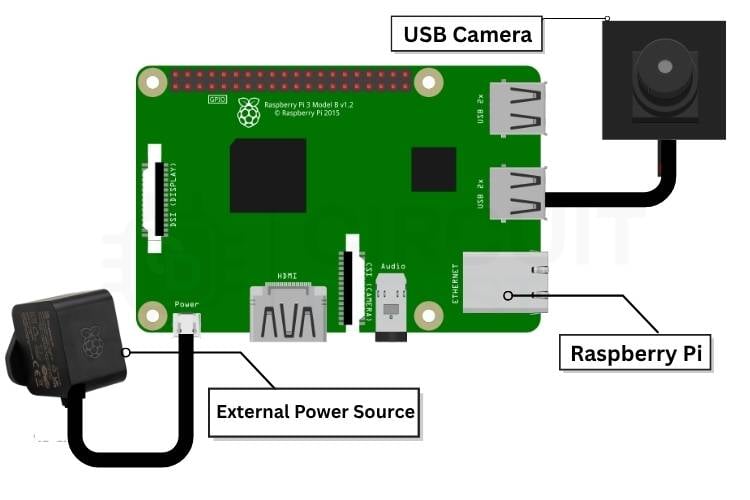
The circuit diagram below shows that the Raspberry Pi is connected to the external power supply for sufficient power, and the USB camera is connected to the Raspberry Pi board's USB port. The Raspberry Pi is remotely connected to the laptop.
Step-by-Step Setup for the Raspberry Pi Helmet Detection System
Unlike ESP32 or Arduino, the code cannot be flashed directly to the Raspberry Pi using the Arduino IDE. Before running the project, the Raspberry Pi must be properly set up by installing the operating system on a microSD card. This process is done using Raspberry Pi Imager on a laptop or PC. First, the microSD card is inserted into the system, and through Raspberry Pi Imager, the required Raspberry Pi OS and initial configurations such as Wi-Fi, username, password, and SSH settings are selected and installed. After the OS installation is completed, the SD card is removed and inserted into the Raspberry Pi’s memory card slot, and the board is powered ON. Although the first-time setup may seem like a lot of work, it is actually simple once completed. A detailed step-by-step guide for the complete Raspberry Pi setup can be found in the Raspberry Pi Complete Setup tutorial. The ways to get the Raspberry Pi connected are as follows,
- Direct Hardware Connection
The first method is by connecting external components such as a monitor, keyboard, and mouse directly to the Raspberry Pi. This allows the Raspberry Pi to work like a normal desktop computer and is mainly useful during the initial setup and for direct operation. - Using SSH (Secure Shell)
The second method is through SSH, where the Raspberry Pi can be accessed remotely from another computer using the same network connection. This method provides command-line control without needing a separate monitor, keyboard, or mouse connected to the Raspberry Pi. - Using VNC Viewer
The third method is by using VNC Viewer, which allows remote access to the full graphical desktop of the Raspberry Pi from another computer. This makes it possible to control the Raspberry Pi exactly like working directly on its own screen, but from a remote location. To work on the setup using VNC Viewer, you can refer to this VNC Viewer for Raspberry Pi tutorial for the detailed step-by-step procedure.
Before stepping into the Thonny IDE present in the Raspberry Pi desktop, first you need the code; for that, follow the steps below,
Step 1⇒ Create the Account
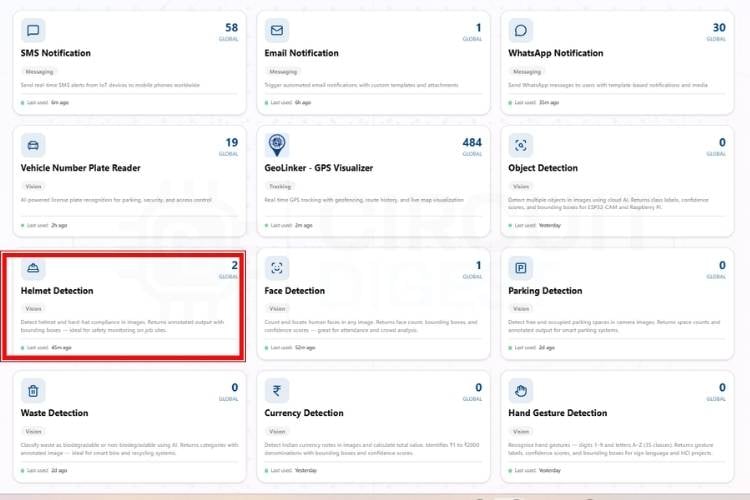
First, you need to make an account on the CircuitDigest Cloud. If you already have one, just go to the CircuitDigest Cloud website, scroll down, and there you will notice the helmet detection feature; click that, and enter.
Step 2 ⇒ Configure the Confidence Threshold
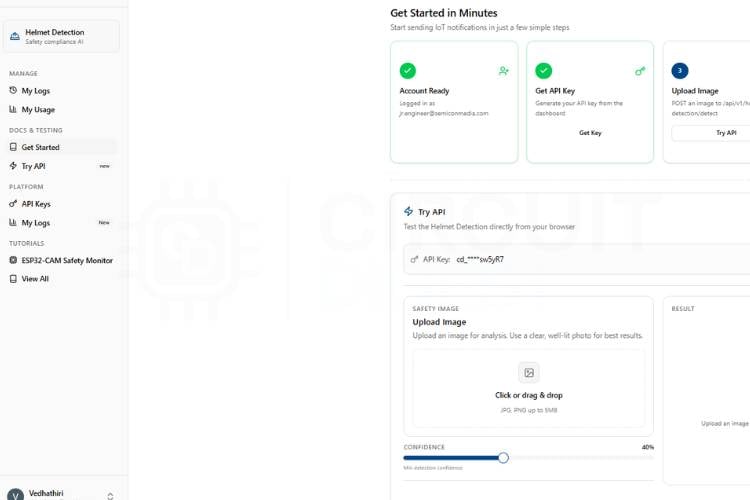
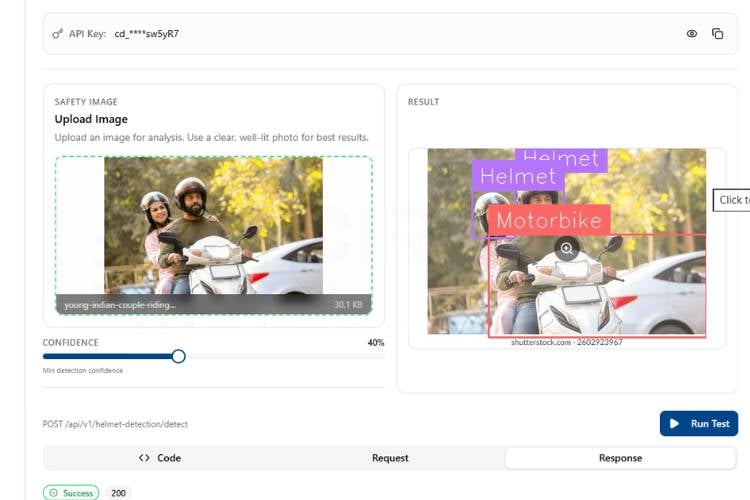
There, you will notice the try api section, various options like image, classes, confidence, result, and a board selection section with its relevant codes. First, you can minimise and maximise the confidence level according to your needs because the confidence value sets the minimum probability threshold for helmet detection. A higher value results in more accurate detections but may miss some, while a lower value detects more objects but with less certainty.
Step 3⇒ Test the API with a Sample Image
Now, to try without any microcontroller boards, you need to take a picture that has some people wearing helmets and some not. Upload it to the image section and click Run Test. In a few seconds, you will get the result with helmet detection and its count also.
Step 4 ⇒ Copy Code and Run in Thonny IDE
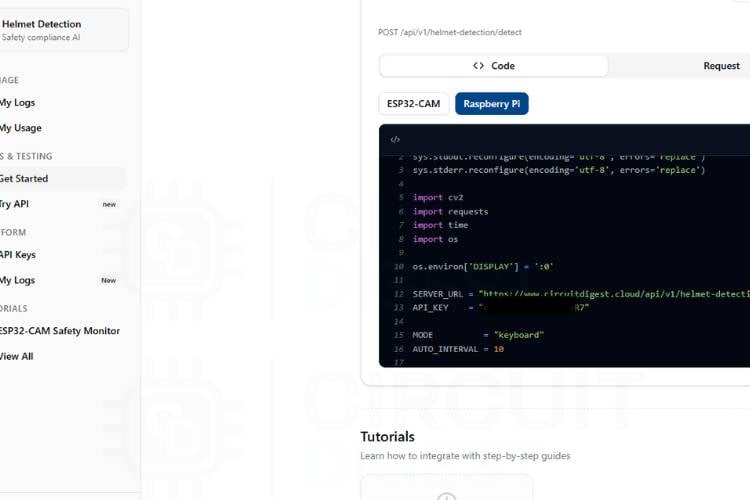
Below the page, you can see the microcontroller selection. Now, we are going to try this system with the Raspberry Pi. Click the Raspberry Pi, and the website will give you the code. Just copy the code; then go to the Raspberry Pi desktop and click Thonny IDE to program. Paste the copied code after ensuring all connections are correct. Nothing, just connect the USB camera to the Raspberry Pi and run the code; that's it. Take any dummy picture from the internet that has someone wearing a helmet and someone not wearing one, or you can test this in real time by taking a picture of the real-time by taking a person with or without a helmet, using the keyboard keys. You can set it automatically by changing MODE = "keyboard" in the code, like,
- Keyboard Mode
In this mode, the user captures the image manually by pressing the SPACE key on the keyboard. It is mainly used when working directly with a monitor or through VNC Viewer. - Auto Mode
In this mode, the system automatically captures images after a fixed time interval without any user interaction. It is useful for continuous monitoring applications. - SSH Mode
In this mode, the program runs through terminal access using SSH and captures images automatically without using the OpenCV display window. The results are shown directly in the terminal.
Output of the Raspberry Pi Helmet Detection System
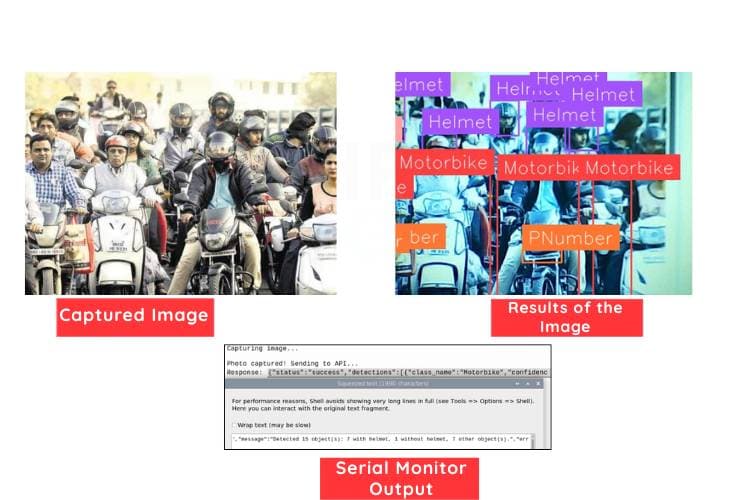
The image below shows the captured image from the Raspberry Pi. Along with it, you can see the detection results of the image, where the people with helmets and without helmets are identified. Below that, the serial monitor displays the detection output, which includes the count and the confidence value for each identified object.
Why Use CircuitDigest Cloud for Helmet Detection?
Embedded AI projects very commonly require a machine learning training environment such as Edge Impulse or TensorFlow Lite, where labelled datasets, computational power for training, and the optimisation of machine learning models for deployment on low-resource devices must all be done. The CircuitDigest Cloud helmet detection API eliminates all of these stages and allows you to perform the entirety of your helmet detection through one API call.
- Dataset not required: This pre-trained model is meant to identify different types of helmets which come in different colors when lit up differently.
- Labelling not required: Everything related to localization and classification of objects will be done by the server.
No model conversion: There are no requirements for you to convert the model to TFLite or ONNX format before you deploy it on a Raspberry Pi. - Hardware-agnostic code: The same API works with your Raspberry Pi, ESP32-CAM, Arduino Nano 33 BLE, etc.
- Continuous enhancements: The model will continue to improve over time as Circuit Digest updates the cloud model for better detection accuracy without the need to reflash the firmware.
Code Explanation for the Raspberry Pi Helmet Detection Project
The code is written in Python for real-time helmet detection using a USB camera and CircuitDigest Cloud API. OpenCV is used to capture live images and display the camera feed on the screen. The program supports keyboard mode for manual capture and auto mode for automatic image capture. The captured image is converted into JPEG format for easy transmission. Using the Requests library, the image is sent securely to the cloud API through HTTPS. The server processes the image and returns the helmet detection result in the terminal.
import cv2
import requests
import time
import os
import sys
SERVER_URL = "https://www.circuitdigest.cloud/api/v1/helmet-detection/detect"
API_KEY    = "YourApikey"
This section imports all the required Python libraries for camera access, API communication, timing control, and system handling. OpenCV is used for capturing images, while the Requests library sends the captured image to the CircuitDigest Cloud API. The server URL and API key are also defined here for helmet detection processing
MODE = "keyboard"
AUTO_INTERVAL = 10
cap = cv2.VideoCapture(0, cv2.CAP_V4L2)
cap.set(cv2.CAP_PROP_FRAME_WIDTH, 1280)
cap.set(cv2.CAP_PROP_FRAME_HEIGHT, 1024)
This part selects the working mode of the project, either keyboard mode or auto mode. The USB camera is initialised using OpenCV, and the resolution is set for better image quality. The auto interval value decides how often images are captured in automatic mode.
if not cap.isOpened():
   print("Camera not found! Check USB camera connection.")
   sys.exit()
This section checks whether the USB camera is properly connected and detected by the system. If the camera is not available, the program displays an error message and stops execution. This prevents the project from running without valid hardware input.
_, img_encoded = cv2.imencode('.jpg', frame, [cv2.IMWRITE_JPEG_QUALITY, 90])
img_bytes = img_encoded.tobytes()
response = requests.post(SERVER_URL, headers=headers,
                       files=files, timeout=15)
This part captures the image from the live camera feed and converts it into JPEG format for efficient transmission. The image is then sent securely to the CircuitDigest Cloud Helmet Detection API using an HTTPS POST request. The API processes the image and checks for helmet detection.
if response.status_code == 200:
  safe_response = response.text.encode('utf-8', errors='replace').decode('utf-8')
  print("Response:", safe_response)
This section handles the response received from the cloud server after image processing. If the API request is successful, the result is displayed in the terminal, showing whether a helmet is detected or not. This helps in quickly identifying traffic rule violations.
Troubleshooting the Raspberry Pi Helmet Detection System
If you encounter issues running the raspberry pi helmet detection system tutorial.
Issue 1: Camera not detected
If the USB camera is not detected, the program may show “Camera not found” and stop running. This usually happens because of a loose USB connection or incorrect camera port selection. Reconnect the camera properly and make sure it is firmly attached. You can also try changing cv2.VideoCapture(0) to cv2.VideoCapture(1) if multiple cameras are connected.
Issue 2: API request timeout
Sometimes the image may not be sent to the server, and the program shows a timeout error. This usually happens due to a slow internet connection or an unstable network. Check whether the Raspberry Pi is connected to Wi-Fi or Ethernet properly. Increasing the timeout value in the code can also help solve this issue.
Issue 3: Invalid API key error
If the API key is wrong, the cloud server will reject the request, and helmet detection will fail. This can happen if the key is copied incorrectly or contains extra spaces. Recheck the API key from the CircuitDigest Cloud account and paste it correctly in the code. Make sure there are no missing or extra characters.
Issue 4: Poor helmet detection accuracy
Sometimes the system may fail to detect the helmet correctly because of poor lighting or unclear images. Low camera quality and wrong camera angle can also affect detection. Place the camera in a proper position with good lighting conditions. Increasing image resolution can also improve accuracy.
Issue 5: Program crashes during execution
The program may stop suddenly because of missing Python libraries or frame capture errors. This usually happens when OpenCV or Requests is not installed properly. Make sure all required libraries are installed before running the code. Restarting the Raspberry Pi and checking the camera feed can also help fix the problem.
Advantages and Limitations of Helmet Detection Using Raspberry Pi
The following table gives a clear idea about the limitations and the advantages of Helmet detection using Raspberry Pi
| S.No | Advantages | Limitations |
| 1. | Automatically detects helmet violations in real time | Requires a stable internet connection for cloud processing |
| 2. | Reduces manual work for traffic police | Detection accuracy depends on camera quality |
| 3. | Easy to install and use with a USB camera | Poor lighting can affect detection results |
| 4. | Supports both manual and automatic capture modes | Cloud API usage may have daily or monthly limits |
| 5. | Improves road safety monitoring efficiently | Slight delay may occur due to API response time |
The key advantage of this setup is that we don't need to take any datasets manually or download them from the internet, don't need to label the objects, or create any model. With the help of the CircuitDigest Cloud, we are just flashing the code and using it like a ready-made model. This saves time, and with this time, we can focus more on other hardware modifications for future enhancements. This method will eliminate the use of ML training websites like Edge Impulse and TensorFlow Lite.
Raspberry Pi Helmet Detection GitHub
This GitHub repository contains a Raspberry Pi–based helmet detection system designed for real-time safety monitoring. The project includes source code, hardware schematics, and setup instructions for easy deployment. It serves as a practical solution for enhancing safety compliance in workplaces and public areas.


Frequently Asked Questions About the Raspberry Pi Helmet Detection System
⇥ 1. Does this system work without an internet connection?
No, this system requires an internet connection because the captured image is sent to the CircuitDigest Cloud API for helmet detection processing. Without the internet, the detection will not work.
⇥ 2. Can I use any USB camera for this project?
Yes, most standard USB webcams can be used with the Raspberry Pi for this project. However, using a good-quality camera gives better image clarity and improves detection accuracy.
⇥ 3. What is the use of keyboard mode and auto mode?
Keyboard mode allows the user to manually capture an image by pressing the SPACE key. Auto mode captures images automatically after a fixed time interval, making it useful for continuous traffic monitoring.
⇥ 4. How can I improve helmet detection accuracy?
You can improve accuracy by placing the camera in proper lighting conditions and using a clear camera angle. Increasing the image resolution and adjusting the confidence level also help in better detection results.
⇥ 5. Can this system be used in real-time traffic monitoring?
Yes, this project is suitable for real-time traffic monitoring at signals, highways, toll gates, and parking areas. It helps authorities quickly identify helmet violations without constant manual checking.
⇥ 6. Why is Raspberry Pi used instead of directly using ESP32-CAM?
Raspberry Pi is used because it can run Python, OpenCV, and internet-based API communication more efficiently. It provides better processing power for handling image capture and cloud communication smoothly.
Email Notification Projects Using CircuitDigest Cloud
Learn how to send real-time email notifications from your IoT projects using CircuitDigest Cloud. Whether you're working with ESP32, Arduino, or Raspberry Pi Pico, these tutorials demonstrate how to configure cloud-based email alerts for remote monitoring, event detection, and smart automation applications without the need for complex email server setups.
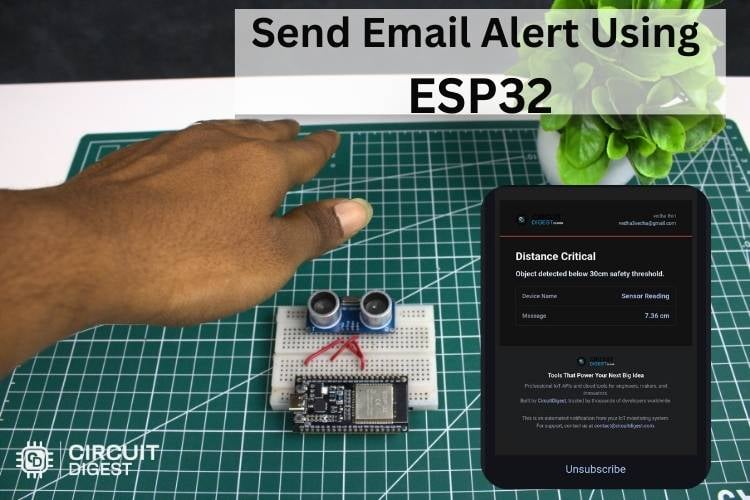
How to Send Email Notifications from ESP32 using CircuitDigest Cloud
In this tutorial, we will learn how to send an email from your ESP32 microcontroller. This feature allows important details such as sensor data, time of occurrence, images, and system status to be sent through email in a clear and reliable format.
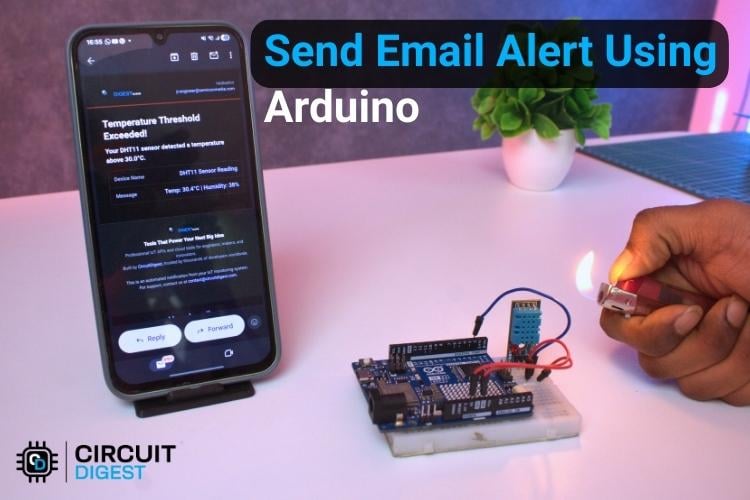
How to Send Email Notifications from Arduino using CircuitDigest Cloud
In this project, we will show you exactly how to send an email alert using Arduino paired with a DHT11 temperature and humidity sensor. The DHT11 monitors the environment continuously, and if readings exceed your preset limits.
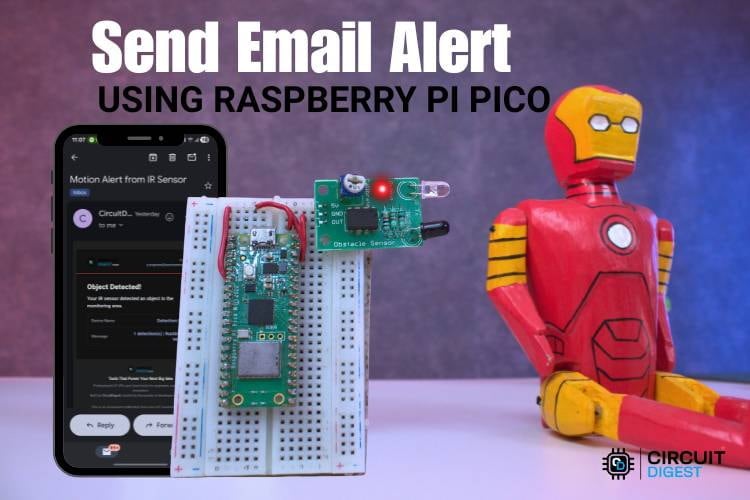
How to Send Email Notifications from Raspberry Pi Pico using CircuitDigest Cloud
In this project, the Raspberry Pi Pico W connects to WiFi and sends an automatic email notification when a trigger event happens. You will also find full code references and links to the Raspberry Pi Pico W email alert GitHub repository for implementation.
Complete Project Code
import sys
sys.stdout.reconfigure(encoding='utf-8', errors='replace')
sys.stderr.reconfigure(encoding='utf-8', errors='replace')
import cv2
import requests
import time
import os
os.environ['DISPLAY'] = ':0'
SERVER_URL = "https://www.circuitdigest.cloud/api/v1/helmet-detection/detect"
API_KEY    = "YourApikey"
MODE          = "keyboard"
AUTO_INTERVAL = 10
cap = cv2.VideoCapture(0, cv2.CAP_V4L2)
cap.set(cv2.CAP_PROP_FRAME_WIDTH, 1280)
cap.set(cv2.CAP_PROP_FRAME_HEIGHT, 1024)
if not cap.isOpened():
   print("Camera not found! Check USB camera connection.")
   sys.exit()
print("Camera initialized.")
print(f"Running in [{MODE}] mode")
if MODE == "keyboard":
   print("Press SPACE to capture | Press ESC to quit")
elif MODE == "auto":
   print(f"Auto capturing every {AUTO_INTERVAL} seconds | Press ESC to quit")
def check_helmets(frame):
   for _ in range(3):
       cap.read()
   ret, frame = cap.read()
   if not ret:
       print("Capture failed")
       return
   _, img_encoded = cv2.imencode('.jpg', frame, [cv2.IMWRITE_JPEG_QUALITY, 90])
   img_bytes = img_encoded.tobytes()
   headers = { "X-API-Key": API_KEY }
   files   = { "imageFile": ("snap.jpg", img_bytes, "image/jpeg") }
   try:
       print("\nPhoto captured! Sending to API...")
       response = requests.post(SERVER_URL, headers=headers,
                                files=files, timeout=15)
       if response.status_code == 200:
           safe_response = response.text.encode('utf-8', errors='replace').decode('utf-8')
           print("Response:", safe_response)
       else:
           print(f"HTTP error: {response.status_code}")
   except requests.exceptions.Timeout:
       print("Request timed out!")
   except Exception as e:
       print(f"Error: {str(e).encode('utf-8', errors='replace').decode('utf-8')}")
last_capture_time = 0
while True:
   ret, frame = cap.read()
   if not ret:
       print("Failed to grab frame")
       break
   cv2.imshow("Helmet Detection - SPACE: capture | ESC: quit", frame)
   key = cv2.waitKey(1) & 0xFF
   if MODE == "keyboard":
       if key == 32:
           print("\nCapturing image...")
           check_helmets(frame)
   elif MODE == "auto":
       current_time = time.time()
       if current_time - last_capture_time >= AUTO_INTERVAL:
           last_capture_time = current_time
           print("\nAuto capturing...")
           check_helmets(frame)
   if key == 27:
       print("Quitting...")
       break
cap.release()
cv2.destroyAllWindows()

Add a comment
No account needed. Your comment appears once a moderator has reviewed it.