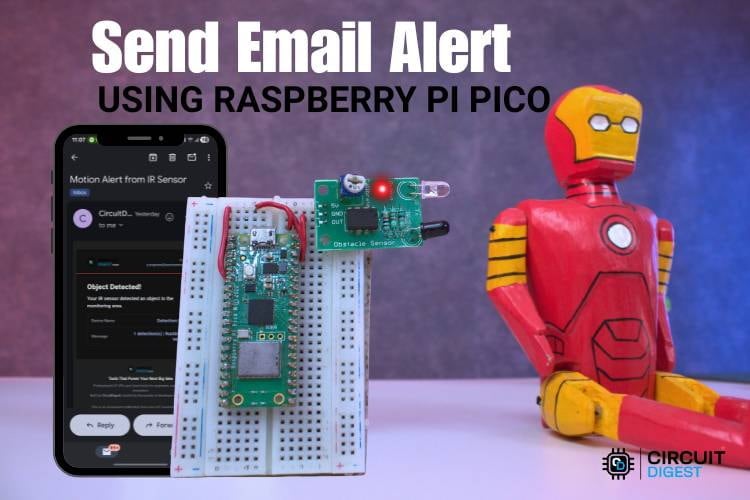
With the rapid growth of IoT-based monitoring systems, staying informed about what’s happening in real time has become extremely important. Whether it’s detecting an intruder, monitoring equipment, or tracking activity, users need instant alerts without constantly checking dashboards or screens. Email notifications offer a simple and reliable way to receive detailed updates, such as event status and sensor information, directly in the inbox, making monitoring both easy and efficient. This Raspberry Pi Pico W Email Alert System tutorial explains how to send an email alert using Raspberry Pi Pico W. In this project, the Raspberry Pi Pico W connects to WiFi and sends an automatic email notification when a trigger event happens. You will also find full code references and links to the Raspberry Pi Pico W email alert GitHub repository for implementation. Simply follow the tutorials below to get started and understand the complete email notification workflow. Here is the Beginner’s guide on how to Send Email Using ESP32. and CircuitDigest Cloud API.
Table of Contents
Components Required
The table shows what are all the components and their quantities that are needed to build the complete setup.
| Component | Quantity |
| Raspberry Pi Pico W | 1 |
| IR Sensor | 1 |
| Breadboard | 1 |
| Connecting Wires | Required Amount |
Circuit Diagram
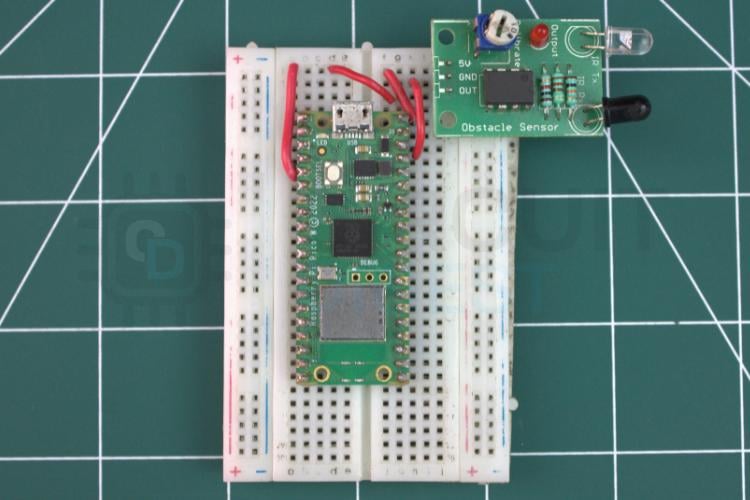
The circuit diagram shows an IR sensor interfaced with the Raspberry Pi Pico W, where the signal output pin of the IR sensor is connected to the 2nd GPIO pin of the Raspberry Pi Pico W.

This GPIO pin is configured as a digital input to continuously monitor the output from the IR sensor.
Hardware Configuration for Email Alert System Using Pico W
The hardware connection clearly explains how the components connected in real time. Since the Pico W has built-in Wi-Fi capability, it can easily send email notifications over a wireless network.
Functional Overview of Pico W Email Notification
In this project, the IR sensor operates by emitting infrared radiation and detecting the reflected signal from nearby objects.Based on the reflection, the sensor generates a digital output indicating whether an object is present or not. The Raspberry Pi Pico W is programmed to read the output of the IR sensor and identify a detection event. Once the trigger condition is detected, the Raspberry Pi Pico W processes the sensor data and uses its built-in Wi-Fi capability to send an email notification request to the CircuitDigest Cloud Platform through the Email Notification API. If you need to know about the IR sensor fully check this Interfacing IR Sensor Module with Arduino.
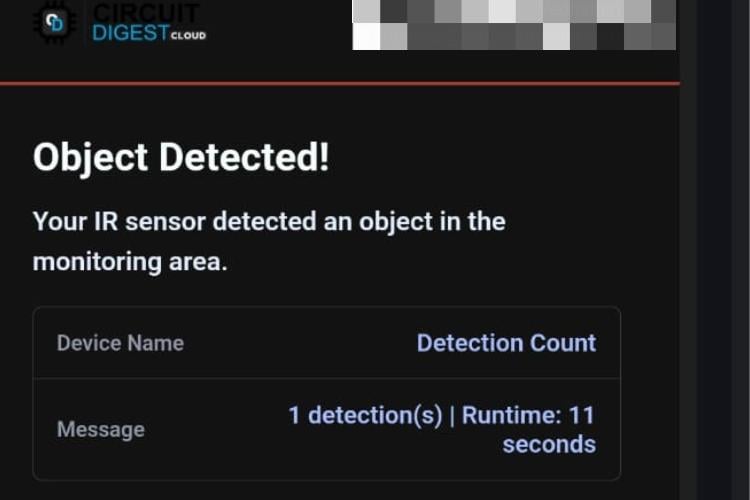
The cloud platform processes the request and immediately sends an email alert to the registered email address, enabling real-time monitoring. If you need to get the data remotely as a sms ,check this project How to send SMS using ESP32.
Code explanation
The code continuously reads the digital output of an IR sensor connected to the Raspberry Pi Pico W and checks for object detection at regular intervals. When a valid and sustained detection is identified, the program establishes a secure Wi-Fi connection and constructs a JSON payload containing detection details. This payload is sent to the CircuitDigest Cloud Email API using an HTTPS POST request.
#include <WiFi.h>
#include <WiFiClientSecure.h>
#define IR_SENSOR_PIN 2  // GPIO2 for IR sensor
This section includes the necessary libraries required for Wi-Fi connectivity and secure HTTPS communication. The WiFi.h library enables the Raspberry Pi Pico W to connect to a wireless network, while WiFiClientSecure.h allows secure communication with the email server. The IR sensor pin is defined and assigned to GPIO pin 2, which is later configured as an input pin to receive object detection signals from the sensor.
const char* ssid = "Your wifi name";
const char* password = "your password";
const char* host = "www.circuitdigest.cloud";
const int port = 443;
const char* apiKey = "yourapikey";
const char* toEmail = "Yourmailid";
const int templateID = 1001;
This part defines the Wi-Fi network credentials required for internet access. It also configures the email notification service details such as the cloud server address, HTTPS port number, API key, email template ID, and recipient email address. These parameters are essential for authenticating with the CircuitDigest Cloud Platform and sending email alerts securely.
bool sendEmail(int detections) {
 WiFiClientSecure client;
 client.setInsecure();
 if (!client.connect(host, port)) {
   return false;
 }
The sendEmail() function is responsible for triggering the email alert when an object is detected. A secure Wi-Fi client is created and connected to the email server using HTTPS. A JSON payload is dynamically generated, containing the email subject, message content, and detection count.
snprintf(payload, sizeof(payload),
"{"
"\"to_email\":\"%s\","
"\"template_id\":%d,"
"\"variables\":{"
"\"subject\":\"Motion Alert from IR Sensor\","
"\"title\":\"Object Detected!\","
"\"description\":\"Your IR sensor detected an object.\","
"\"var1\":\"Detection Count\","
"\"var2\":\"%d detection(s)\""
"}}",
toEmail, templateID, detections
);
This payload is then sent to the Email Notification API using an HTTP POST request, and the server response is checked to confirm successful email delivery.
void setup() {
 Serial.begin(115200);
 pinMode(IR_SENSOR_PIN, INPUT);
 WiFi.mode(WIFI_STA);
 WiFi.begin(ssid, password);
The setup() function initializes serial communication for debugging and configures the IR sensor pin as an input. It then sets the Pico W to station mode and attempts to connect to the configured Wi-Fi network. Once connected, the system displays the IP address and signal strength, confirming that the device is ready to monitor sensor data and send email notifications.
int sensorState = digitalRead(IR_SENSOR_PIN);
bool currentDetection = (sensorState == LOW);
if (currentDetection && detectionDuration >= DETECTION_DURATION && !emailSent) {
 sendEmail(totalDetections);
 emailSent = true;
}
The loop() function continuously reads the IR sensor output at fixed intervals. When the sensor output goes LOW, the system identifies it as an object detection event and starts a timer to ensure sustained detection. If the object remains detected for the specified duration, the email alert function is triggered. Once the object is removed, the system resets the flags and resumes monitoring, preventing repeated alerts for the same event.
Troubleshooting
Issue 1: False Detection or Noise Triggering
False detections can be caused by environmental factors such as ambient light, reflections, or electrical noise. Place the IR sensor away from direct sunlight and reflective surfaces. Use proper grounding and short connection wires to reduce noise. Fine-tuning the detection duration in the code helps filter out brief and unwanted triggers.
Issue 2: Multiple or Repeated Email Alerts
Repeated email notifications may occur if the object remains in front of the sensor for a long time. To avoid this, the code uses timing delays and flags to send only one email per detection event. If the issue persists, increase the detection duration or retry delay values in the code. Proper placement of the IR sensor can also reduce false and repeated triggers.
Issue 3: Email Not Being Delivered
If the email alert is not received, confirm that the API key, email template ID, and recipient email address are correctly entered in the code. Check the serial monitor for server response messages to identify API errors. Sometimes it will be receive in the spam folder so check that too.Ensure that the CircuitDigest Cloud service is active and accessible. A stable internet connection is essential for successful email delivery.
Issue 4: IR Sensor Not Detecting Objects
If the IR sensor does not detect objects, first check the power supply connections and ensure the sensor is receiving a stable 3.3 V supply. Verify that the sensor output pin is correctly connected to GPIO pin 2 of the Raspberry Pi Pico W. Adjust the sensitivity potentiometer on the IR sensor module, if available, to improve detection accuracy. Also, confirm that the sensor logic (LOW for detection) matches the code configuration.
Applications
- Intrusion Detection System:
The system can be used to detect unauthorised movement in restricted or sensitive areas. When an intrusion is detected, an instant email alert is sent, enabling a quick response without continuous monitoring. - Home Security Monitoring:
This setup is suitable for home security applications where movement detection is required. The email notification feature ensures homeowners are informed immediately about unexpected activity. - Office and Warehouse Monitoring:
In offices and warehouses, the system helps monitor entry into important zones. Email alerts allow staff to take timely action when motion is detected. - Smart Automation Systems:
The system can be integrated into smart automation environments to trigger alerts or actions based on object presence. It supports efficient monitoring with minimal human intervention. - Restricted Area Surveillance:
The solution is ideal for surveillance in restricted or hazardous locations. Real-time email notifications improve safety and security by providing immediate alerts. - Remote Monitoring Applications:
This system enables remote monitoring where physical supervision is not always possible. Email alerts allow users to stay informed from any location using internet connectivity.
Overall, the project of building an email alert system using the Raspberry Pi Pico W meets its objective of providing a reliable and efficient notification solution with minimal hardware requirements. The combination of sensor-based detection and wireless communication enables timely alerts and stable performance. The system is easy to implement and can be extended with additional features or sensors in the future. Hence, this project serves as a practical and effective solution for real-world monitoring and alert applications. If you need more project ideas related to electronics, check out our electronics projects section.
Frequently Asked Questions
1.Can this project be extended with other sensors?
Yes, additional sensors such as PIR, ultrasonic, or gas sensors can be integrated to enhance functionality.
2. What happens if Wi-Fi is disconnected?
If Wi-Fi connectivity is lost, the system continues monitoring but email alerts will only be sent once the connection is restored.
3. Can the detection range be adjusted?
Yes, the detection range can be adjusted by tuning the IR sensor’s sensitivity and by modifying timing parameters in the program.
4. How does the system send email notifications?
The Pico W connects to the internet via Wi-Fi and sends a request to the CircuitDigest Cloud Email API, which then delivers the email to the registered address
5. Is this system suitable for real-time security applications?
Yes, the system provides instant email alerts upon detection, making it effective for real-time security and surveillance applications.
GitHub Repository
Access the complete Email alert using Raspberry pi pico, circuit diagrams, and additional resources for this project in our GitHub repository.


Projects Using Email Feature
If you need more projects related to the Email Feature, check out the links below
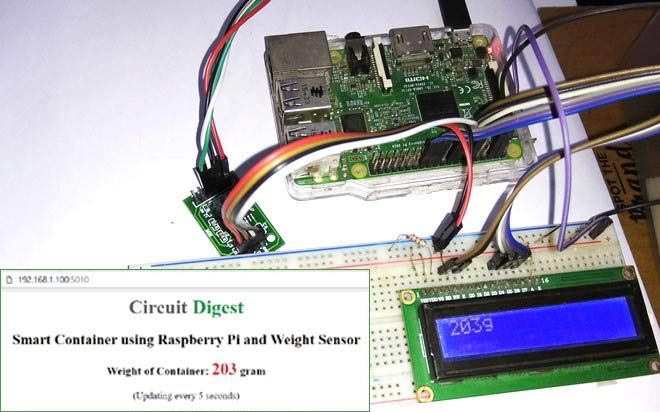
IoT Raspberry Pi Smart Container with Email Alert and Web Monitoring
Raspberry Pi smart container project measuring weight with a load cell and HX711, showing real-time data on a web page and sending email alerts when full
How to Send E-mail using PIC Microcontroller and ESP8266
Send emails using PIC16F877A and ESP8266 by interfacing over UART and using AT commands to trigger email alerts via SMTP on a Wi-Fi network

NodeMCU Data Logger to save Temperature and Pressure on Thinger.io Cloud Platform
NodeMCU datalogger reading temperature and pressure, storing and visualizing data on Thinger.io cloud for remote monitoring
Complete Project Code
#include <WiFi.h>
#include <WiFiClientSecure.h>
/* ================= IR SENSOR ================= */
#define IR_SENSOR_PIN 2  // GPIO2 for IR sensor
// IR sensor outputs:
// HIGH (1) = No object detected
// LOW (0) = Object detected
/* ================= WIFI DETAILS ================= */
const char* ssid = "Yourssid";
const char* password = "Password";
/* ================= EMAIL API DETAILS ================= */
const char* host = "www.circuitdigest.cloud";
const int port = 443;
const char* apiKey = "yourapikey";
const char* toEmail = "yourregismailid";
const int templateID = 1001;
/* ================= SETTINGS ================= */
const unsigned long READ_INTERVAL = 500;      // Check every 500ms for faster detection
const unsigned long RETRY_DELAY = 10000;      // 10 seconds between emails
const unsigned long DETECTION_DURATION = 2000; // Object must be detected for 2 seconds
/* ================= FLAGS AND COUNTERS ================= */
bool emailSent = false;
bool objectDetected = false;
unsigned long lastReadTime = 0;
unsigned long lastEmailAttempt = 0;
unsigned long detectionStartTime = 0;
int detectionCount = 0;
int totalDetections = 0;
/* ================= SEND EMAIL ================= */
bool sendEmail(int detections) {
 WiFiClientSecure client;

 Serial.println("\n Connecting to server...");

 // Disable SSL certificate verification (for development)
 client.setInsecure();

 if (!client.connect(host, port)) {
   Serial.println(" HTTPS connection failed");
   return false;
 }
 /* -------- BUILD COMPLETE JSON PAYLOAD -------- */
 char payload[512];
 char timestamp[32];

 // Get current time (millis since boot)
 unsigned long currentTime = millis() / 1000; // Convert to seconds
 snprintf(timestamp, sizeof(timestamp), "%lu seconds", currentTime);

 snprintf(payload, sizeof(payload),
   "{"
   "\"to_email\":\"%s\","
   "\"template_id\":%d,"
   "\"variables\":{"
     "\"subject\":\"Motion Alert from IR Sensor\","
     "\"title\":\"Object Detected!\","
     "\"description\":\"Your IR sensor detected an object in the monitoring area.\","
     "\"var1\":\"Detection Count\","
     "\"var2\":\"%d detection(s) | Runtime: %s\""
   "}}",
   toEmail,
   templateID,
   detections,
   timestamp
 );
 /* -------- SEND HTTP REQUEST -------- */
 client.println("POST /api/v1/email/send HTTP/1.1");
 client.print("Host: "); client.println(host);
 client.print("Authorization: "); client.println(apiKey);
 client.println("Content-Type: application/json");
 client.print("Content-Length: "); client.println(strlen(payload));
 client.println("Connection: close");
 client.println();
 client.println(payload);
 /* -------- DEBUG: Print payload -------- */
 Serial.println(" Sending payload:");
 Serial.println(payload);
 /* -------- WAIT FOR RESPONSE -------- */
 unsigned long timeout = millis();
 while (!client.available()) {
   if (millis() - timeout > 10000) {
     Serial.println(" Server timeout");
     client.stop();
     return false;
   }
 }
 /* -------- READ AND PARSE RESPONSE -------- */
 bool success = false;
 Serial.println("\n Server response:");

 while (client.available()) {
   String line = client.readStringUntil('\n');
   Serial.println(line);

   // Check for success indicators
   if (line.indexOf("200 OK") >= 0 || line.indexOf("\"success\":true") >= 0) {
     success = true;
   }
 }
 client.stop();

 if (success) {
   Serial.println("\n Email sent successfully!");
 } else {
   Serial.println("\n Email may have failed - check response above");
 }

 return success;
}
/* ================= SETUP ================= */
void setup() {
 Serial.begin(115200);
 delay(1000);

 Serial.println("\n╔════════════════════════════════════════╗");
 Serial.println("║    IR Motion Detection Alert System   ║");
 Serial.println("║         Raspberry Pi Pico W           ║");
 Serial.println("╚════════════════════════════════════════╝\n");

 // Initialize IR sensor pin
 pinMode(IR_SENSOR_PIN, INPUT);
 Serial.println(" Initializing IR sensor...");
 delay(500);

 // Test IR sensor
 int initialState = digitalRead(IR_SENSOR_PIN);
 Serial.print(" IR sensor ready - Current state: ");
 Serial.println(initialState == HIGH ? "No object" : "Object detected");
 Serial.println();
 // Connect to WiFi
 Serial.println(" Connecting to WiFi...");
 Serial.print("SSID: ");
 Serial.println(ssid);

 WiFi.mode(WIFI_STA);
 WiFi.begin(ssid, password);

 int attempts = 0;
 while (WiFi.status() != WL_CONNECTED && attempts < 30) {
   delay(500);
   Serial.print(".");
   attempts++;
 }

 Serial.println();

 if (WiFi.status() == WL_CONNECTED) {
   Serial.println(" WiFi connected successfully!");
   Serial.print(" IP Address: ");
   Serial.println(WiFi.localIP());
   Serial.print(" Signal Strength: ");
   Serial.print(WiFi.RSSI());
   Serial.println(" dBm");
 } else {
   Serial.println(" WiFi connection failed!");
   Serial.println("  System will continue trying to reconnect...");
 }

 Serial.println("\n╔════════════════════════════════════════╗");
 Serial.println("║         Monitoring Started            ║");
 Serial.println("╚════════════════════════════════════════╝");
 Serial.print("  Check Interval: ");
 Serial.print(READ_INTERVAL);
 Serial.println(" ms");
 Serial.print(" Detection Duration: ");
 Serial.print(DETECTION_DURATION / 1000);
 Serial.println(" seconds\n");

 Serial.println("━━━━━━━━━━━━━━━━━━━━━━━━━━━━━━━━━━━━━━━━\n");
 Serial.println("  Waiting for motion...\n");
}
/* ================= LOOP ================= */
void loop() {
 unsigned long currentMillis = millis();

 // Non-blocking delay for sensor readings
 if (currentMillis - lastReadTime < READ_INTERVAL) {
   return;
 }
 lastReadTime = currentMillis;
 /* -------- CHECK WIFI CONNECTION -------- */
 if (WiFi.status() != WL_CONNECTED) {
   Serial.println("  WiFi disconnected - attempting reconnect...");
   WiFi.begin(ssid, password);
   delay(5000);
   return;
 }
 /* -------- READ IR SENSOR -------- */
 int sensorState = digitalRead(IR_SENSOR_PIN);

 // IR sensor logic: LOW = object detected, HIGH = no object
 bool currentDetection = (sensorState == LOW);
 /* -------- OBJECT DETECTION LOGIC -------- */
 if (currentDetection) {
   // Object is detected
   if (!objectDetected) {
     // First detection - start timer
     objectDetected = true;
     detectionStartTime = currentMillis;
     detectionCount++;
     totalDetections++;

     Serial.println(" OBJECT DETECTED!");
     Serial.print("   └─> Detection #");
     Serial.println(totalDetections);
   }

   // Check if object has been detected for required duration
   unsigned long detectionDuration = currentMillis - detectionStartTime;

   Serial.print(" Object present for: ");
   Serial.print(detectionDuration / 1000.0, 1);
   Serial.print(" sec  |  Total detections: ");
   Serial.println(totalDetections);

   // Send email if detection duration reached and email not sent yet
   if (detectionDuration >= DETECTION_DURATION && !emailSent) {
     if (currentMillis - lastEmailAttempt > RETRY_DELAY) {
       Serial.println("\n   └─> Sustained detection - sending email alert...");

       lastEmailAttempt = currentMillis;

       if (sendEmail(totalDetections)) {
         emailSent = true;
         Serial.println("   └─>  Alert email delivered");
       } else {
         Serial.println("   └─>   Email delivery failed, will retry");
       }
     }
   }

 } else {
   // No object detected
   if (objectDetected) {
     // Object just left
     unsigned long detectionDuration = currentMillis - detectionStartTime;
     Serial.println(" Object cleared");
     Serial.print("   └─> Detection lasted: ");
     Serial.print(detectionDuration / 1000.0, 1);
     Serial.println(" seconds\n");

     objectDetected = false;
     emailSent = false;  // Reset email flag when object clears
   }

   // Only print status occasionally (every 2 seconds) when no object
   static unsigned long lastStatusPrint = 0;
   if (currentMillis - lastStatusPrint > 2000) {
     Serial.print(" Monitoring active  |  Total detections: ");
     Serial.println(totalDetections);
     lastStatusPrint = currentMillis;
   }
 }
}