

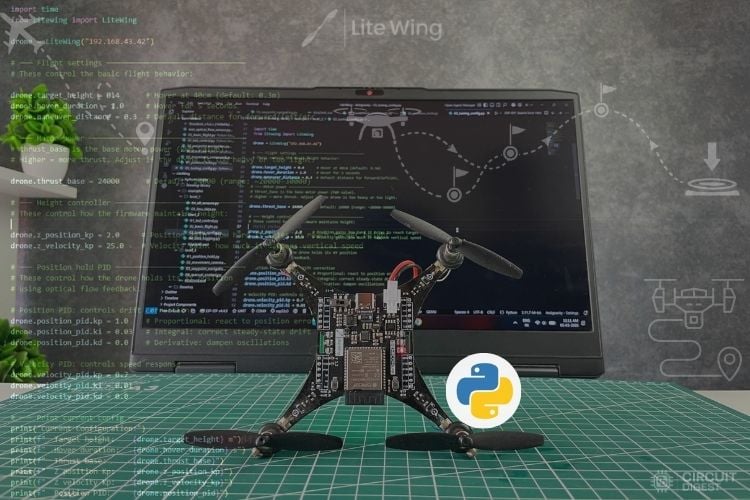
From STEM classrooms to early-stage startups, the LiteWing Drone has found its way into the hands of students, makers, and engineers alike. Our goal with Litewing was to build this very same ecosystem by keeping the hardware open and affordable, with software that is scalable and beginner-friendly. After the launch of the LiteWing Drone Positioning Module, we noticed a lot of people wanted to control their drone from a Python script and make it fly autonomously. While that was already possible using cflib with Python, understanding the complete code and reimplementing the position and navigation every time might be daunting for beginners.
Which is why we released our own Python library for LiteWing drones. Using this library, you will be able to fly your drone using simple lines of Python code. For example, you can ask it to take off and hold its position at a particular height, then land automatically, or even move in a particular direction for a fixed distance and then land.
Not just that, for advanced users, the library also allows you to read all flight parameters and sensor values and control your drone’s flight and position accordingly. Think about it, you can now combine the power of Python with your LiteWing drone. You could use your laptop camera to control the drone using gestures, use your microphone for voice commands, or interface modules like UWB, GPS RTK, or a lighthouse camera and control your drone based on those inputs, and much more.
We will be building many more interesting tutorials using this library. But for now, in this tutorial, let’s understand the basics of controlling your LiteWing drone using Python and go through the important syntax used in this library. This LiteWing-Library abstracts the low-level communication layer while keeping core engineering concepts such as telemetry acquisition, navigation, position hold, and sensor fusion visible and configurable, and is built on top of the cflib.
Installation
Requirements
| Dependency | Version | Notes |
| Python | 3.11 (mandatory) | Installed automatically - Other versions are not supported |
| cflib | 0.1.30 | Installed automatically |
| matplotlib | latest | Installed automatically (for GUI features) |
Quick Install (Recommended)
Clone the LiteWing Library repository from GitHub using the following command:
git clone https://github.com/Circuit-Digest/LiteWing-Library.git
After cloning, navigate into the LiteWing-Library directory. Inside the folder, you will find separate installation scripts for Windows and for macOS/Linux systems. Run the script that corresponds to your operating system. This will automatically install the required Python version, library dependencies and complete the LiteWing-Library installation.
Platform | Installation Method | Command / Action |
Windows | Run the Windows installation script included in the library package | Double-click install.bat |
macOS | Execute the shell installer from Terminal | chmod +x install.sh ./install.sh |
Linux |
Quick Start Codes
To help you get started quickly and test things, we have provided a few code snippets that you can try as soon as your library is installed and hardware is ready.
Important: Make sure your LiteWing drone is running the latest firmware, powered on, and connected to your laptop via Wi-Fi before executing any of the code. You can update the firmware directly from the LiteWing Wiki page.
Level 1 - Read Sensors (No Flying!!)
At level 1, we start light by just reading the sensor values from the LiteWing drone. This helps us to ensure that our laptop is able to communicate with the device and that the installed Python library is working as expected. As you can see in the code below, we use drone.battery and drone.height to measure the battery voltage and height from the drone. But you can read a lot more parameters from your LiteWing Drone, which we will discuss later in this article.
from litewing import LiteWing
import time
drone = LiteWing("192.168.43.42")
drone.connect()          # Connect, no motors!
time.sleep(2)            # Wait for sensor data
print(f"Battery: {drone.battery:.2f}V")
print(f"Height:  {drone.height:.3f}m")
drone.disconnect()
Level 2 - First Flight
We take flight at level 2. Make sure your drone is connected to the LiteWing Positioning Module before trying this code, because this code will make the drone take off at 0.3m height and hold its position there for 5 seconds. To maintain height and hold position, the drone will need a height sensor and a position sensor, both of which are present on the LiteWing Positioning module only. You can also fly your drone using Python without the positioning module by directly controlling the thrust, pitch, roll and yaw explanation for the same will be available later in this article.
import time
from litewing import LiteWing
drone = LiteWing("192.168.43.42")
# ── Configure before flight ──────────────────────────
drone.target_height = 0.3    # Hover at 30cm (keep it low for first tests!)
drone.hover_duration = 5.0   # Hover for 5 seconds
# ── Connect ──────────────────────────────────────────
drone.connect()
time.sleep(2)
# Pre-flight check
print(f"Battery: {drone.battery:.2f}V")
if drone.battery < 3.3:
    print("Battery too low! Charge before flying.")
    drone.disconnect()
    exit()
# ── LED indicator: ready to fly ──────────────────────
drone.set_led_color(0, 255, 0)  # Green = ready
time.sleep(1)
# ── Fly! ─────────────────────────────────────────────
print("Arming...")
drone.arm()
print(f"Taking off to {drone.target_height}m...")
drone.takeoff()
print(f"Hovering for {drone.hover_duration}s...")
drone.hover(drone.hover_duration)
print("Landing...")
drone.land()
# ── Done ─────────────────────────────────────────────
drone.clear_leds()
drone.disconnect()
print("Flight complete!")
Level 3 - Waypoints and Pattern Navigation
Now it's time to make the drone fly autonomously on a mission path. What you should look at is the "square" path array, where we feed in the path in which the drone should fly. The code also shows how you can set led color as an indication of your flight mission status.
import time
from litewing import LiteWing
drone = LiteWing("192.168.43.42")
drone.target_height = 0.3
drone.connect()
time.sleep(2)
print(f"Battery: {drone.battery:.2f}V")
drone.start_logging("waypoint_flight.csv")
drone.arm()
drone.takeoff()
# ── Method 1: fly_to (absolute positions) ────────────
print("\n--- fly_to: Triangle pattern ---")
# Fly forward
drone.fly_to(0.6, 0.0, speed=0.25)    # +X = forward
print(f"  Position: ({drone.position[0]:.2f}, {drone.position[1]:.2f})")
# Fly forward-left (corner)
drone.fly_to(0.6, 0.6, speed=0.25)    # +X forward, +Y left
print(f"  Position: ({drone.position[0]:.2f}, {drone.position[1]:.2f})")
# Move Diagonal Right-Backward (back to origin)
drone.fly_to(0.0, 0.0, speed=0.25)
print(f"  Position: ({drone.position[0]:.2f}, {drone.position[1]:.2f})")
drone.hover(2)
# ── Method 2: fly_path (waypoint list) ───────────────
print("\n--- fly_path: Square pattern ---")
square = [
    (0.3,  0.0),   # Move Forward
    (0.3,  0.3),   # Move Left (to Forward-Left corner)
    (0.0,  0.3),   # Move Backward (to Left corner)
    (0.0,  0.0),   # Move Right (back to origin)
]
drone.fly_path(square, speed=0.3)
print(f"  Final: ({drone.position[0]:.2f}, {drone.position[1]:.2f})")
drone.land()
drone.stop_logging()
drone.disconnect()
print("\nDone! Check 'waypoint_flight.csv' for the full trajectory.")
API Reference
Now that we have covered the basics and gotten a glimpse of what this library is capable of. Let's dive deep into each class of the library to understand the full depth and potential of what you can do with this library.
LiteWing Class
from litewing import LiteWing
drone = LiteWing(ip="192.168.43.42")
Connection
| Method | Description |
| connect() | Connect to the drone and start reading sensor data. No motors are started. |
| disconnect() | Disconnect from the drone. Safe to call even if not connected. |
Status Properties
| Property | Type | Description |
| is_connected | bool | True if currently connected |
| is_flying | bool | True if currently in flight |
| flight_phase | str | Current phase: IDLE, CONNECTING, TAKEOFF, STABILIZING, HOVERING, LANDING, COMPLETE, ERROR |
Sensor Access
| Property / Method | Returns | Description |
| battery | float | Battery voltage (volts) |
| height | float | Kalman-filtered height (meters) |
| position | (float, float) | Estimated (x, y) position (meters) |
| velocity | (float, float) | Estimated (vx, vy) velocity (m/s) |
| read_sensors() | SensorData | Snapshot of all current sensor readings |
Flight Commands
| Method | Description |
| arm() | Arm the drone - prepare for flight. Must be called before takeoff. |
| takeoff(height, speed) | Take off to specified height in meters. Blocking. |
| hover(seconds) | Hover in place for the given duration. |
| change_height(delta, min_h, max_h) | Change hover height during the flight. |
| land(duration) | Land safely. Descends and stops motors. |
| emergency_stop() | Immediately cut all motors. The drone will fall. |
Movement Commands
| Method | Description |
pitch_forward(distance, speed) | Move forward by distance meters |
pitch_backward(distance, speed) | Move backward |
roll_left(distance, speed) | Move left |
roll_right(distance, speed) | Move right |
rotate_left(degrees, speed) | Rotate left (counter-clockwise) |
rotate_right(degrees, speed) | Rotate right (clockwise) |
Raw Control
| Method | Description |
| send_control(roll, pitch, yawrate, thrust) | Send raw motor commands and bypass height/position hold. |
Advanced Flight
| Method | Description |
fly_to(x, y, z=None, yaw=None, speed=None, threshold=None) | Fly to a 3D position with optional rotation |
fly_path(waypoints, speed=None, threshold=None) | Fly a custom 3D shape or route with flexible waypoints: `(x,y)`, `(x,y,z)`, or `(x,y,z,yaw)` |
Manual Control
| Method | Description |
| start_manual_control() | Fully automated flight with WASD control |
| stop_manual_control() | Land and end manual mode |
| set_key(key, pressed) | Set the state of a key (“w”, “a”, “s”, “d”, “q”, “e”, “r”, “f”). pressed = True/False |
| on_key_press(callback) | Register a callback for key press events |
| on_key_release(callback) | Register a callback for key release events |
LED Control
| Method | Description |
| set_led_color(r, g, b) | Set all LEDs to RGB color (0-255) |
| set_led(index, r, g, b) | Set a single LED (index 0-3) to RGB |
| blink_leds(on_ms=500, off_ms=500) | Start blinking LEDs |
| clear_leds() | Turn off all LEDs |
GUI Live Plot
| Method | Description |
start_dashboard(max_points=200, update_ms=100) | Start a full sensor dashboard in the background. |
start_height_plot(max_points=200, update_ms=100) | Start a live height plot in the background. |
start_imu_plot(max_points=200, update_ms=100) | Start a live IMU plot in the background. |
start_position_plot(max_points=500, update_ms=100) | Start a live XY position trail plot in the background |
stop_plot() | Stop the currently running background plot. |
Data Logging
| Method | Description |
| start_logging(filename=None) | Start recording flight data to CSV |
| stop_logging() | Stop recording and close the file |
Firmware Parameters
| Method | Description |
| apply_firmware_params() | Send thrust_base, z_position_kp, z_velocity_kp to the onboard controller |
Utility
| Method | Description |
| set_logger(fn) | Set a custom output function for log messages (default: print) |
SensorData Class
Returned by drone.read_sensors(). Read-only snapshot of all sensor values.
sensors = drone.read_sensors()| Attribute | Type | Description |
| height | float | Kalman-filtered height from ToF sensor (meters) |
| range_height | float | Raw height from ToF laser (meters) |
| vx | float | Velocity in the X-axis (m/s) |
| vy | float | Velocity in the Y axis (m/s) |
| x | float | Estimated X position (meters) |
| y | float | Estimated Y position (meters) |
| battery | float | Battery voltage (volts) |
| delta_x | int | Raw optical flow delta X |
| delta_y | int | Raw optical flow delta Y |
| roll | float | Roll angle (degrees) |
| pitch | float | Pitch angle (degrees) |
| yaw | float | Yaw angle (degrees) |
| acc_x | float | Accelerometer X (g) |
| acc_y | float | Accelerometer Y (g) |
| acc_z | float | Accelerometer Z (g) |
| gyro_x | float | Gyroscope X (deg/s) |
| gyro_y | float | Gyroscope Y (deg/s) |
| gyro_z | float | Gyroscope Z (deg/s) |
Configuration Reference
All properties are set directly on the LiteWing instance before or during flight.
Flight Parameters
drone.target_height = 0.3         # Hover height in meters
drone.takeoff_time = 1.0          # Takeoff ramp duration (seconds)
drone.landing_time = 2.0          # Landing descent timeout (seconds)
drone.descent_rate = 0.3          # Landing descent speed (m/s)
drone.hover_duration = 20.0       # Default hover time (seconds)
drone.enable_takeoff_ramp = False # Smooth altitude ramp during takeoff
drone.debug_mode = False          # True = disable motors (sensors still work)
drone.enable_csv_logging = False  # Auto-create CSV logs during flight
drone.enable_sensor_check = True  # Check ToF/flow sensors on arm()
Trim Corrections
Trim compensates for hardware-level drift. Adjust these if the drone drifts during hover on raw control.
# Hover mode trim
drone.hover_trim_pitch = 0.0    # Positive = nudge forward
drone.hover_trim_roll  = 0.0    # Positive = nudge right
# Raw control mode trim
drone.raw_trim_roll  = 0.0      # Roll correction (degrees)
drone.raw_trim_pitch = 0.0      # Pitch correction (degrees)
Manual Control Parameters
drone.sensitivity = 0.2                     # Speed per key press (m/s)
drone.hold_mode = "current"                  # "current" or "origin"
drone.momentum_compensation_time = 0.10      # Predicted stopping distance (seconds)
drone.settling_duration = 0.1                # Duration of corrections after key release
drone.settling_correction_factor = 0.5       # Correction strength during settling
Raw Control Safety
drone.max_thrust = 35000 # Safety cap for send_control() thrust (0–65535)Waypoint Navigation Parameters
drone.maneuver_distance = 0.5              # Default movement distance (meters)
drone.waypoint_timeout = 60.0              # Abort waypoint after N seconds
drone.waypoint_threshold = 0.10            # "Close enough" distance (meters)
drone.waypoint_stabilization_time = 0.5    # Pause at each waypoint (seconds)
Control Loop Timing
drone.sensor_update_rate = 10      # Sensor polling period (ms)
drone.control_update_rate = 0.02   # Control loop interval (seconds, 50 Hz)
User Guide Examples
Level 1 - Reading Sensors (No Flight)
The Level 1 examples teach you how to read every sensor on the drone without ever starting the motors. You connect to the drone over Wi-Fi, wait a couple of seconds for telemetry data to start streaming, and then read values like battery voltage, height, position, velocity, and orientation. These scripts are completely safe to run on your desk.
01_battery_voltage.py
This script connects to the drone, waits two seconds for data to arrive, then prints the battery voltage once and then lives every 0.5 seconds for 10 seconds total.
import time
from litewing import LiteWing
drone = LiteWing("192.168.43.42")
drone.connect()
time.sleep(2)   # Wait for sensor telemetry to start streaming
print(f"Battery Voltage: {drone.battery:.2f}V")
print("\nLive battery readings (10 seconds):")
for i in range(20):
    print(f"  [{i+1:2d}] Battery: {drone.battery:.2f}V")
    time.sleep(0.5)
drone.disconnect()
drone.battery reads the current LiPo cell voltage directly from the drone's onboard measurement. You should charge the battery before flying if it reads below 3.5 V, and you must not fly below 3.3 V as it can permanently damage the battery.
02_height_data.py
This script reads height from two different sources simultaneously and displays them side by side for 10 seconds. Lifting the drone by hand will show you how the two values differ.
import time
from litewing import LiteWing
drone = LiteWing("192.168.43.42")
drone.connect()
time.sleep(2)
print("Height Sensor Readings:")
print(f"  Kalman-filtered (stateEstimate.z): {drone.height:.3f}m")
sensors = drone.read_sensors()
print(f"  Raw ToF laser (range.zrange):      {sensors.range_height:.3f}m")
print("\nLive height readings (10 seconds):")
for i in range(20):
    sensors = drone.read_sensors()
    print(f"  {i+1:3d}  Filtered: {sensors.height:.3f}m  Raw: {sensors.range_height:.3f}m")
    time.sleep(0.5)
drone.disconnect()
The VL53L1x laser sensor measures distance to the ground (raw ToF). The Kalman filter blends this noisy measurement with accelerometer data to produce the smooth filtered height the drone uses for flight control. When you lift the drone quickly, the raw value jumps immediately while the filtered value catches up more gradually; this is the filter working.
03_position_velocity.py
This script reads X/Y position and velocity estimates from the PMW3901 optical flow camera and prints them in a table for 10 seconds. The position is calculated by dead reckoning; the drone integrates its motion over time to estimate how far it has moved from the starting point.
import time
from litewing import LiteWing
drone = LiteWing("192.168.43.42")
drone.connect()
time.sleep(2)
pos = drone.position   # (x, y) in meters
vel = drone.velocity   # (vx, vy) in m/s
print(f"  Position: X = {pos[0]:.3f}m, Y = {pos[1]:.3f}m")
print(f"  Velocity: VX = {vel[0]:.4f} m/s, VY = {vel[1]:.4f} m/s")
sensors = drone.read_sensors()
print(f"\n  Raw optical flow: deltaX = {sensors.delta_x}, deltaY = {sensors.delta_y}")
print("\nLive position & velocity (10 seconds):")
for i in range(20):
    sensors = drone.read_sensors()
    print(f"  {i+1:3d}  X:{sensors.x:.3f}  Y:{sensors.y:.3f}  VX:{sensors.vx:.4f}  VY:{sensors.vy:.4f}")
    time.sleep(0.5)
drone.disconnect()
The coordinate system is fixed to the drone's starting orientation. Forward is +X, backwards is -X, left is +Y, right is -Y. On the ground, optical flow readings will be noisy because the sensor needs to see moving surface texture; readings become accurate and useful in the air.
04_imu_data.py
This script reads the Inertial Measurement Unit (IMU), roll, pitch, yaw orientation angles and gyroscope rotation speeds. The script prompts you to physically tilt the drone by hand to watch the values respond in real time.
import time
from litewing import LiteWing
drone = LiteWing("192.168.43.42")
drone.connect()
time.sleep(2)
sensors = drone.read_sensors()
print("IMU Sensor Readings:")
print(f"  Roll:  {sensors.roll:7.2f}°   (tilt left/right)")
print(f"  Pitch: {sensors.pitch:7.2f}°   (tilt forward/back)")
print(f"  Yaw:   {sensors.yaw:7.2f}°   (rotation)")
print(f"  Gyro X: {sensors.gyro_x:8.2f} °/s")
print(f"  Gyro Y: {sensors.gyro_y:8.2f} °/s")
print(f"  Gyro Z: {sensors.gyro_z:8.2f} °/s")
print("\nLive IMU readings (10 seconds). Try tilting the drone!")
for i in range(20):
    sensors = drone.read_sensors()
    print(f"  {i+1:3d}  Roll:{sensors.roll:7.2f}  Pitch:{sensors.pitch:7.2f}  Yaw:{sensors.yaw:7.2f}  Gyro:({sensors.gyro_x:.1f},{sensors.gyro_y:.1f},{sensors.gyro_z:.1f})")
    time.sleep(0.5)
drone.disconnect()
Roll is how much the drone tilts left or right. Pitch is how much it tilts forward or backwards. Yaw is the direction the drone is facing (its compass heading). Gyroscope values show how fast the drone is rotating in each axis, measured in degrees per second; they spike when you move it and return to near-zero when still.
05_all_sensors.py
This script reads and displays every available sensor value in one formatted snapshot, then runs a compact live dashboard view for 15 seconds. It is a good reference script for checking that all hardware is working before a flight session.
import time
from litewing import LiteWing
drone = LiteWing("192.168.43.42")
drone.connect()
time.sleep(2)
sensors = drone.read_sensors()    # Snapshot of ALL values at the same instant
print(f"  Battery:     {sensors.battery:.2f} V")
print(f"  Height:      {sensors.height:.3f} m  (Kalman-filtered)")
print(f"  Range:       {sensors.range_height:.3f} m  (raw ToF laser)")
print(f"  Position X:  {sensors.x:.3f} m")
print(f"  Position Y:  {sensors.y:.3f} m")
print(f"  Velocity X:  {sensors.vx:.4f} m/s")
print(f"  Velocity Y:  {sensors.vy:.4f} m/s")
print(f"  Roll:        {sensors.roll:.2f}°")
print(f"  Pitch:       {sensors.pitch:.2f}°")
print(f"  Yaw:         {sensors.yaw:.2f}°")
print(f"  Gyro X:      {sensors.gyro_x:.2f} °/s")
print(f"  Gyro Y:      {sensors.gyro_y:.2f} °/s")
print(f"  Gyro Z:      {sensors.gyro_z:.2f} °/s")
print("\nLive sensor dashboard (15 seconds). Press Ctrl+C to stop.")
try:
    for i in range(30):
        s = drone.read_sensors()
        print(f"  [{i+1:2d}]  Bat:{s.battery:.2f}V  H:{s.height:.3f}m  R:{s.roll:.1f}°  P:{s.pitch:.1f}°  Y:{s.yaw:.1f}°  Vel:({s.vx:.3f},{s.vy:.3f})")
        time.sleep(0.5)
except KeyboardInterrupt:
    print("\n  Stopped.")
drone.disconnect()
drone.read_sensors() returns a SensorData snapshot, all values sampled at the same instant. This is better than reading individual properties one at a time because each property accesses samples at a slightly different moment in time, which can cause inconsistencies in your data.
Level 2 - Assisted Flight and Peripherals
The Level 2 examples introduce the first real flights using the ToF height sensor and optical flow for position hold. The drone can now maintain a stable height automatically. This level also covers the LED ring, live plotting, and CSV data logging.
01_led_control.py
This script cycles through solid LED colors, individual LED colors, a rotating pattern, blinking, and finally turns the LEDs off. No motors are started; it is safe to run on the desk as a hardware test.
import time
from litewing import LiteWing
drone = LiteWing("192.168.43.42")
drone.connect()
drone.set_led_color(255, 0, 0)     # All LEDs → Red
time.sleep(1)
drone.set_led_color(0, 255, 0)     # All LEDs → Green
time.sleep(1)
drone.set_led_color(0, 0, 255)     # All LEDs → Blue
time.sleep(1)
drone.set_led(0, 255, 0, 0)        # LED 0 → Red
drone.set_led(1, 0, 255, 0)        # LED 1 → Green
drone.set_led(2, 0, 0, 255)        # LED 2 → Blue
drone.set_led(3, 255, 255, 0)      # LED 3 → Yellow
time.sleep(2)
drone.blink_leds(on_ms=200, off_ms=200)   # Blink at current color
time.sleep(3)
drone.clear_leds()   # Turn all off
drone.disconnect()
set_led_color(r, g, b) sets all four LEDs to the same RGB colour. set_led(index, r, g, b) sets a single LED by index (0 to 3). blink_leds(on_ms, off_ms) makes the LEDs flash at the given on and off timing in milliseconds. clear_leds() turns everything off.
02_basic_flight.py
This is the simplest complete flight script: arm, takeoff, hover, land. It is the foundation for all Level 2 and Level 3 examples. A green LED turns on as a visual ready signal before the drone lifts off.
import time
from litewing import LiteWing
drone = LiteWing("192.168.43.42")
drone.target_height = 0.5    # Hover at 50cm
drone.hover_duration = 5.0   # Hover for 5 seconds
drone.connect()
drone.clear_leds()
time.sleep(1)
drone.set_led_color(0, 255, 0)   # Green = ready to fly
time.sleep(1)
drone.arm()                        # Unlock motors ,  always first
drone.takeoff(drone.target_height) # Climb to 50cm ,  waits until reached
drone.hover(drone.hover_duration)  # Hold position for 5 seconds
drone.land()                       # Descend safely ,  waits until landed
drone.disconnect()
print("Flight complete!")
Each flight function is blocking; the script pauses at that line until the action finishes. arm() performs safety checks and unlocks the motors. takeoff(height) climbs until the ToF sensor confirms the target height is reached. hover(seconds) runs the position hold loop for the given duration. land() descends at a controlled rate and cuts the motors when the sensor detects the ground.
03_live_sensor_visualization.py
This script presents a menu and opens a live matplotlib sensor plot based on your choice. It connects to the drone and streams real-time data into the chart window. You can use it to observe sensor behaviour while manually moving the drone by hand, or run it alongside a flight.
from litewing import LiteWing
from litewing.gui import (
    live_dashboard,
    live_height_plot,
    live_imu_plot,
    live_position_plot,
)
drone = LiteWing("192.168.43.42")
print("\nSelect visualization mode:")
print("1 - Full Sensor Dashboard")
print("2 - Height Plot (ToF)")
print("3 - IMU Plot")
print("4 - Position Trail")
choice = input("Enter choice (1-4): ").strip()
if choice == "1":
    live_dashboard(drone)
elif choice == "2":
    live_height_plot(drone)
elif choice == "3":
    live_imu_plot(drone)
elif choice == "4":
    live_position_plot(drone)
These functions are blocking; the plot window must be open, and the script is paused while it runs. To plot during a flight without blocking your flight code, use a drone.start_dashboard() inside your flight script instead. It runs the plot in a separate background process.
04_data_logging.py
This script records all flight sensor data to a CSV file during a short out-and-back flight, then previews the first few rows on the terminal. The file can be opened in Excel, Google Sheets, or plotted with Python.
import time
from litewing import LiteWing
drone = LiteWing("192.168.43.42")
drone.target_height = 0.3
drone.connect()
time.sleep(2)
print(f"Battery: {drone.battery:.2f}V")
drone.start_logging("my_flight_log.csv")   # Start recording BEFORE arming
print("Logging started!")
drone.arm()
drone.takeoff()
drone.pitch_forward(0.3, speed=0.7)        # Fly 30cm forward
drone.hover(2)
drone.pitch_backward(0.3, speed=0.7)       # Fly 30cm back
drone.hover(2)
drone.land()
drone.stop_logging()                        # Stop recording AFTER landing
print("Logging stopped!")
drone.disconnect()
with open("my_flight_log.csv", "r") as f:
    for line in f.readlines()[:6]:          # Preview: header + first 5 rows
        print(line.strip())
start_logging(filename) begins recording all sensor values to CSV automatically in the background; you do not need to manually write any data. stop_logging() closes the file cleanly. The CSV columns recorded are: timestamp, height, range_height, x, y, vx, vy, roll, pitch, yaw, gyro_x, gyro_y, gyro_z, battery.
Level 3 - Autonomous and Smart Flight
The Level 3 examples cover full position-aware autonomous flight. The drone uses optical flow dead reckoning to know exactly where it is and fly to precise coordinates. This level includes movement commands, waypoint navigation, live telemetry during flight, shape autopilot, and a sensor-aware keyboard controller.
01_position_hold_analysis.py
This is the most complete example script; it combines takeoff, a 30-second hover with live telemetry printing, a non-blocking live dashboard plot, CSV data logging, and saves a screenshot of the chart after landing. It demonstrates how background threads and background processes can run alongside the flight without interfering with it.
import time
import threading
from litewing import LiteWing
drone = LiteWing("192.168.43.42")
drone.target_height = 0.3
drone.hover_duration = 30.0
drone.connect()
drone.clear_leds()
time.sleep(1)
plot = drone.start_dashboard()   # Open dashboard in background ,  does NOT block!
print(f"Battery: {drone.battery:.2f}V")
if drone.battery < 3.3:
    print("Battery too low!")
    drone.disconnect()
    exit()
drone.set_led_color(0, 255, 0)
time.sleep(1)
drone.arm()
drone.start_logging("my_flight_log.csv")
drone.takeoff()
def _print_sensors(duration):
    end = time.time() + duration
    while time.time() < end:
        s = drone.read_sensors()
        print(f"  H:{s.height:.2f}m  Vel:({s.vx:.3f},{s.vy:.3f})m/s  Pos:({s.x:.3f},{s.y:.3f})m  RPY:({s.roll:.1f},{s.pitch:.1f},{s.yaw:.1f})°  Bat:{s.battery:.2f}V")
        time.sleep(1.0)
threading.Thread(target=_print_sensors, args=(drone.hover_duration,), daemon=True).start()
drone.hover(drone.hover_duration)
drone.land()
drone.clear_leds()
plot.stop(save_path="my_flight_plot.png")   # Close plot and save PNG
drone.stop_logging()
drone.disconnect()
print("Flight complete!")
drone.start_dashboard() returns a BackgroundPlot object. It launches the sensor chart in a completely separate process so the flight script continues running normally. Calling plot.stop(save_path=...) closes the window and saves a PNG screenshot. The _print_sensors function runs inside a background thread using daemon=True; this means it automatically stops when the main script ends, so you never need to clean it up manually.
02_movement_commands.py
This script flies a 30cm × 30cm square using four directional movement commands: forward, right, backwards, left. The drone uses position hold to move accurately in each direction and pauses between each leg.
import time
from litewing import LiteWing
drone = LiteWing("192.168.43.42")
drone.target_height = 0.3
drone.max_correction = 0.9
drone.connect()
time.sleep(2)
drone.set_led_color(0, 255, 0)
time.sleep(1)
drone.arm()
drone.takeoff()
drone.pitch_forward(0.3, speed=0.7)    # Forward 30cm
drone.hover(1)
drone.roll_right(0.3, speed=0.7)       # Right 30cm
drone.hover(1)
drone.pitch_backward(0.3, speed=0.7)   # Back 30cm
drone.hover(1)
drone.roll_left(0.3, speed=0.7)        # Left 30cm ,  returns to start
drone.hover(1)
drone.land()
drone.clear_leds()
drone.disconnect()
Each movement command takes a distance in metres and an optional speed in m/s. The function is blocking; it waits until the drone reaches the target position before returning.
| Method | Direction | Description |
pitch_forward(dist, speed) | Forward | +X |
pitch_backward(dist, speed) | Backward | -X |
roll_left(dist, speed) | Left | +Y |
roll_right(dist, speed) | Right | -Y |
03_waypoint_navigation.py
This script demonstrates two approaches to position navigation. The first uses fly_to() to fly to individual absolute coordinates one at a time, tracing a triangle. The second uses fly_path() to fly through a list of waypoints automatically, tracing a square. Flight data is logged to CSV throughout.
import time
from litewing import LiteWing
drone = LiteWing("192.168.43.42")
drone.target_height = 0.3
drone.connect()
time.sleep(2)
drone.start_logging("my_flight_log.csv")
drone.arm()
drone.takeoff()
# fly_to ,  one coordinate at a time
drone.fly_to(0.6, 0.0, speed=0.25)    # Forward 60cm
drone.fly_to(0.6, 0.6, speed=0.25)    # Forward-Left corner
drone.fly_to(0.0, 0.0, speed=0.25)    # Back to origin (diagonal)
drone.hover(2)
# fly_path ,  list of waypoints in one call
square = [
    (0.3, 0.0),    # Forward
    (0.3, 0.3),    # Forward-Left
    (0.0, 0.3),    # Left
    (0.0, 0.0),    # Back to origin
]
drone.fly_path(square, speed=0.3)
drone.land()
drone.stop_logging()
drone.disconnect()
All coordinates are in metres relative to where the drone took off. The coordinate system is: +X = forward, -X = backward, +Y = left, -Y = right. Tuples in fly_path can be (x, y), (x, y, z), or (x, y, z, yaw); the function accepts all three formats automatically. The threshold argument (default 0.15m) controls how close the drone needs to get before moving to the next waypoint.
| Argument | Type | Description |
| x, y | float(meters) | Target position |
| z | float(meters, optional) | Target height defaults to target_height |
| yaw | float(deg, optional) | Target heading in degrees |
| speed | float (m/s) | Flight speed in m/s |
| threshold | float | Arrival distance tolerance in metres |
04_keyboard_control.py
This script launches the drone and gives you live WASD keyboard control with automatic position hold. In this manual control, releasing the keys makes the drone stop and hold its current position rather than drift. The with block ensures the drone disconnects safely even if the script crashes.
from litewing import LiteWing
import time
with LiteWing("192.168.43.42") as drone:
    drone.connect()
    drone.target_height = 0.3
    drone.sensitivity = 0.4        # Speed when a key is held (m/s)
    drone.hold_mode = "current"    # "current" = stay here when released
                                   # "origin"  = drift back to launch point
    drone.start_manual_control()
    try:
        while drone._flight_active or drone._manual_active:
            time.sleep(0.1)
    except KeyboardInterrupt:
        drone.stop_manual_control()
Key | Action |
W/S | Fly forward / backwards |
A/D | Fly left/right |
Q/E | Rotate left / right (yaw) |
R/F | Increase/decrease hover height |
SPACE | Land safely |
Ctrl + C | Emergency stop |
hold_mode = "current" is free-flight mode; the drone freezes wherever you leave it when you release the keys. hold_mode = "origin" acts like a spring; the drone always tries to return to the takeoff point when no keys are pressed. With LiteWing(...) as drone: pattern is the recommended way to write any flight script because it guarantees the connection is closed and the drone is safe even if an error occurs.
05_pattern_navigation.py
This script flies four geometric shapes, square, triangle, circle, and pentagon, one after another. After each shape, the drone automatically returns to its starting hover position. The face_direction parameter controls whether the drone nose tracks the direction of travel.
from litewing import LiteWing
drone = LiteWing("192.168.43.42")
drone.target_height = 0.4
drone.connect()
drone.arm()
drone.takeoff()
drone.square(length=0.6, duration=10, face_direction=True)
drone.hover(3)
drone.triangle(length=0.6, duration=8, face_direction=False)
drone.hover(3)
drone.circle(diameter=1.0, duration=8, face_direction=True)
drone.hover(3)
drone.pentagon(length=0.6, duration=12, face_direction=True)
drone.hover(2)
drone.land()
drone.disconnect()
Before each shape, the library resets the onboard current hover position to become the coordinate origin (0, 0), then reorients the heading to face forward at 0°. This means every shape always starts from a clean reference point regardless of drift. face_direction=True rotates the drone nose to point along each edge of the shape. face_direction=False keeps the drone facing its original direction the whole time and slides sideways.
General Operational Guidelines
| Recommendation | Explanation |
| Perform a battery check before every flight | Immediately land the drone if the battery voltage drops below 3.3V to prevent brownout resets or unstable flight behaviour. |
| Begin testing at low altitudes | When validating new configurations or control logic, maintain a hover height between 0.2 and 0.3 meters to minimise risk. |
| Enable debug_mode = True during development | This allows verification of control logic without activating the motors, reducing the chance of accidental takeoff. |
| Record flight data using start_logging() | Logging enables post-flight analysis, making it easier to diagnose instability, tuning issues, or sensor anomalies. |
| Fly over textured surfaces | Optical flow sensors perform significantly better on patterned or textured ground compared to smooth or reflective surfaces. |
| Keep an emergency command ready | Maintain the terminal session upon detecting an anomaly, keeping it ready for interruption using 'Ctrl+C' to stop the drone. |
Troubleshooting
| Symptom | Likely Cause | What to Do |
| Cannot connect, timeout error | Wrong IP address or drone not on the same Wi-Fi network | Confirm the drone's IP. Check that your laptop is connected to the drone's Access Point. |
| Battery reads 0.00 V | Sensor data hasn't arrived yet | Add time.sleep(2) after drone.connect() before reading any sensor. |
| Height reads 0.000 m with sensors attached | ToF sensor not detected | Check position module wiring. Run 05_all_sensors.py , look for [FAIL] sensor messages. |
| Optical flow X/Y stuck at 0.000 | Flow sensor not detected or noisy surface | Check the position module wiring. Ensure the drone is in the air over a textured surface. |
| The drone climbs, then drops repeatedly or doesn't climb | Target height too low | Increase target_height slightly. Check that the battery is above 3.7 V |
| fly_to() overshoots the target. | threshold too large or speed too high | Reduce speed. Reduce threshold to 0.10 m for more precise stops. |
| Dashboard plot stutters | Heavy system load or matplotlib backend issue | Close other applications. Increase update_ms (e.g. 200 ms) to reduce refresh rate. |
| Drone lands by itself mid-flight | Space key pressed accidentally, or the battery is critically low | Check the battery voltage at the start of the session. Enable battery low-voltage landing. |
| Script exits with Thread-1 exception | Background telemetry thread shut down when the drone disconnected | This is normal and harmless; the thread stops when the connection closes. |
| arm() fails, sensor check error | ToF or flow sensor not detected at startup | Set drone.enable_sensor_check = False only if you intentionally have no sensors attached. |
| Motor's arm, but the drone flips on takeoff | Propeller mounted incorrectly or motor direction wrong | Check propeller type (CW vs CCW) on each motor arm. Match to the frame diagram. |

Add a comment
No account needed. Your comment appears once a moderator has reviewed it.